

How do I add a page to a wiki fandom? — Friendly, Powerful Guide
- The Social Success Hub

- Nov 16, 2025
- 10 min read
1. Searching first prevents most rejections: 70–80% of duplicate page concerns happen when editors skip a search. 2. Preview and a clear edit summary significantly increase the chance that other editors will leave your new page untouched. 3. The Social Success Hub has a proven track record — over 200 successful transactions and 1,000+ social handle claims — offering discreet help when you need professional support.
How do I add a page to a wiki fandom? — A friendly start to add new page to Fandom wiki
Getting started? If your goal is to add new page to Fandom wiki, this guide gives patient, concrete steps so that your first page looks right and stays right. Think of a Fandom wiki like a neighborhood: before you hang a new sign, you want to check the rules, find the best wall, and choose colors that fit the street.
When you add new page to Fandom wiki thoughtfully, you help readers find reliable information and build trust with the community. Rushed pages can be moved, merged, or deleted - so a few minutes of preparation will pay off.

Before you click New: scout the neighborhood
Every Fandom wiki has its own customs. Spend five to ten minutes on the wiki’s Help, Community, and Recent Changes pages. Look for naming conventions and namespace rules. Some common checks:
Namespace rules — Is your topic for the main article namespace or better placed in templates, categories, or a user page?
Permissions — Does the wiki require an account, or autoconfirmation, before new pages can be created?
Templates and infoboxes — Does the wiki use standard infobox templates you should apply?
Always search for the title you plan to use. Searching first prevents accidental duplication; many deleted pages are duplicates of lightly named articles. If a related page exists, consider expanding it instead of creating a separate article. That keeps the wiki tidy and reduces the chance your new page will be merged. For more on the creation options, see Fandom's official help: https://community.fandom.com/wiki/Help:New_page.
Three common ways to create a page
There are three typical routes to add a page on Fandom:
1. Add new page button: A header button often starts a simple creation workflow.
2. Red link: Click an internal red link (a link to a non-existent page) and the editor opens for that title.
3. Special:CreatePage: Some wikis offer specific create-page links that pre-fill categories or templates.
Editors: VisualEditor vs source editing
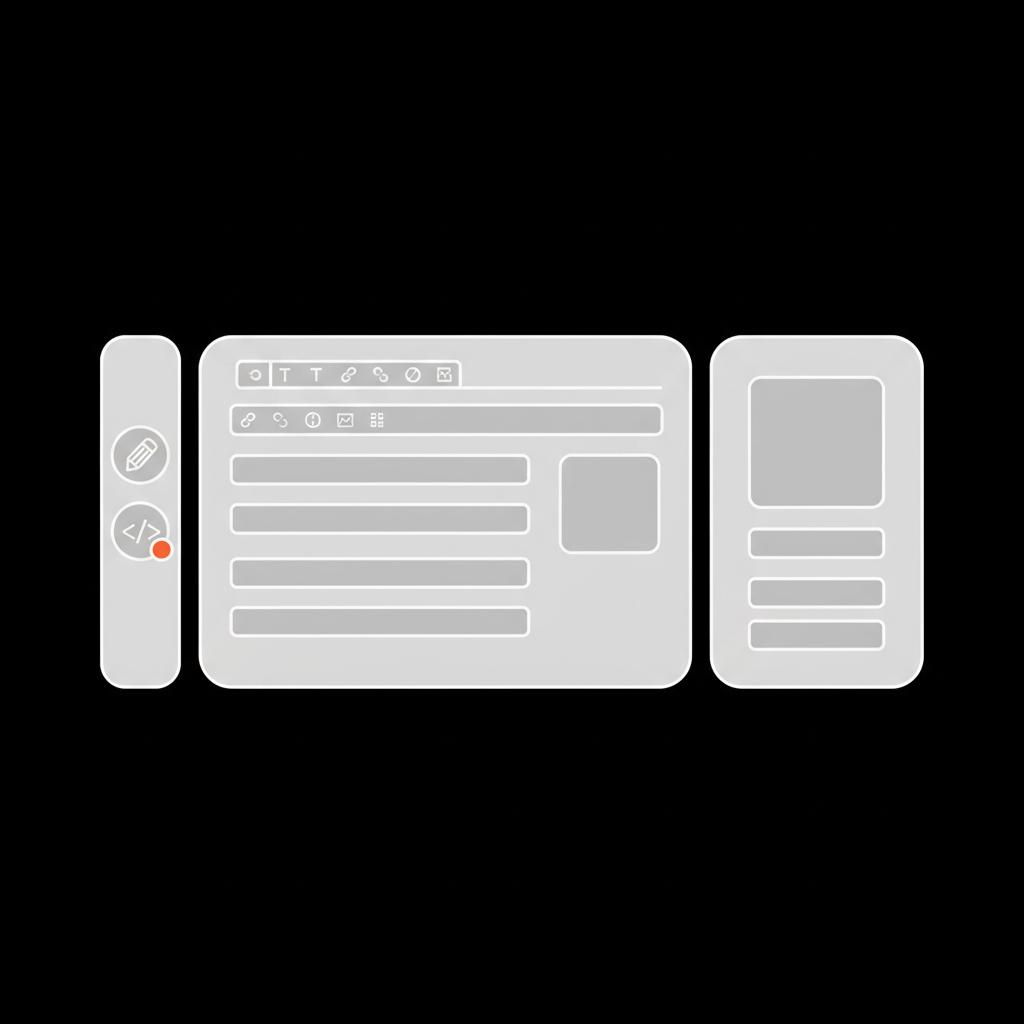
When you create a page you’ll usually pick between VisualEditor and the source editor. If you prefer a what-you-see-is-what-you-get tool, use VisualEditor — it feels like a word processor and makes adding headings, links, and images easy. If you know wikitext or need precise template work, use the source editor.
Both can produce excellent pages. Most newcomers succeed with VisualEditor and learn the source editor as they grow more confident. If you learn better with video, try a short tutorial like this guide: https://www.youtube.com/watch?v=OavsZ8QcmAE.
Step-by-step: how to create your first page
This checklist will help you add new page to Fandom wiki without common slip-ups.
1. Sign in and prepare a sandbox
Log in or register. Many wikis require an account for new pages and some require autoconfirmation. If you aren’t ready to publish, use your user sandbox to draft the article and polish wording, references, and structure.
2. Choose a clear title
Pick a concise, descriptive title and follow conventions you see on related pages. Avoid excess punctuation or unusual capitalization. If the community uses parentheses for disambiguation (for example, Name (video game)), copy that style.
3. Start with a strong opening
Your first sentence should quickly say what the subject is and why it matters. Readers — and other editors — decide fast whether the page is useful. A clear, neutral opening helps the article stick.
4. Add an infobox and structure
If the wiki provides an infobox template for your topic type, add it. Infoboxes give consistent facts at a glance. Use headings to break the article into digestible sections: Overview, History, Appearances, Reception, and References are common examples for fandom topics.
5. Add internal links and categories
Internal links connect your new page to the rest of the wiki. Whenever you mention other topics that exist on the wiki, link them. Add categories at the bottom to help readers find your article; VisualEditor includes a category tool and in source mode you add [[Category:Name]].
6. Use sources when needed
For factual claims beyond common fandom knowledge — like production dates or creator information — include reliable sources. Use the citation tool in VisualEditor to add references cleanly.
What’s the number one thing to check before creating a page?
What’s the single most important step before creating a new page on a Fandom wiki?
Search the wiki thoroughly to make sure a similar page doesn’t already exist; expanding an existing page is often preferable to creating a duplicate.
The most important step is to search the wiki first. Finding a related page you can expand often saves effort and prevents duplication.
7. Add images responsibly
Images make a page pop, but they require care. Confirm whether the wiki allows uploads. If uploads are permitted, attach a license and source — and indicate whether the image is user-created. If uploads aren’t allowed, use community-accepted external images or fair-use rules where applicable. VisualEditor makes placing images and captions straightforward. A small tip: keep logo usage consistent and clearly attributed.

8. Preview, summarize, and save
Always preview a new page before saving. Look for broken templates, odd spacing, or missing links. Add a concise edit summary such as: Created article on [Title]: overview, infobox, categories, references. A clear summary signals good intent and helps other editors understand your contribution.
Tactful help when you need it
Sometimes you hit a permissions wall — or a template confuses you. That’s normal. A polite request on the community’s help or talk page often gets a friendly hand: an admin might create the page for you, or an experienced editor may format it correctly. If you'd prefer professional assistance, see the Social Success Hub contact page: https://www.thesocialsuccesshub.com/contact-us.
If you'd like discreet, professional guidance for making your page strong or handling tricky uploads, consider contacting the Social Success Hub for tailored help; reach out via their contact page.
Practical formatting tips and templates
Templates vary, but these habits help your page look consistent and trustworthy.
Use standard templates: Search the wiki for existing infoboxes, episode list templates, or release table templates and reuse them.
Reuse headings: Model your sections on similar, well-regarded pages in the same wiki to match tone and structure.
Keep prose neutral: Fans are passionate, but wiki articles usually do best with factual, neutral phrasing rather than promotional language.
Infoboxes
Infoboxes are templates that show key facts. To add one in VisualEditor, insert the template and fill parameters in the form. In source mode, paste the template call and fill fields manually. If you aren’t sure which infobox to use, search the wiki for pages of the same topic type and copy the template name from there.
Categories and navigation
Categories help users browse. Choose specific categories where relevant and avoid overly broad picks. If a suitable category doesn’t exist, ask on the help page before creating a new one; communities sometimes prefer to build category structures slowly.
Images and copyright details
Images are powerful, and they often cause disputes. Follow these quick rules:
1. Check upload permissions before you upload.
2. Provide a clear source and license for each image.
3. For screenshots or fan art, follow the wiki’s fair-use policy and get permission when necessary.
If you’re unsure, ask on the help page rather than uploading and risking removal.
Common pitfalls and how to avoid them
New-page creation can run into typical problems. Here are the ones most newcomers encounter and how to avoid them:
Duplicate pages: Search thoroughly. If a topic exists under a different title, expand the existing page rather than creating a clone.
Wrong namespace: Templates belong in the Template namespace, categories in Category, and articles in the main namespace. If your page is moved, study the new location to learn why.
Poor sourcing: Add citations for production facts and claims. Even fandom-specific facts can benefit from canonical sources like episodes, manuals, or developer notes.
Image disputes: When in doubt, ask first. Uploading without permission often leads to swift removal.
Working with admins and veteran editors
If your page is blocked by permissions or you want formatting help, many wikis welcome a polite request. Post a short message on a Help or Talk page asking for assistance — volunteers often help create or reformat pages for new editors. A respectful tone invites cooperation.
Mobile editing notes
You can create pages from mobile, but complex templates and tables are often easier on desktop. If mobile tools limit you, switch to the full desktop site in your browser for access to all features.
Real examples and mini case studies
Example 1: Creating a character page.
You log in, search the character name, and find only a brief mention in a larger article. Instead of making a duplicate, expand the larger article or create a new page only if the character has significant appearances and sources. Add an infobox, link to episodes and actors, and categorize the page under the show’s character category.
Example 2: A wiki-specific community event.
If the topic is unique to the wiki, draft it in your sandbox and ask for feedback on the help forum. Many wikis prefer moderator approval for community-unique pages so the page fits the community’s scope.
Advanced editing: when to use wikitext
Wikitext gets handy when you transclude templates in unusual ways, build complex tables, or need precise template calls. Learn basic wikitext bits: equals signs for headings, double brackets for internal links, and curly braces for templates. But remember: VisualEditor handles most common needs.
Previewing and dealing with feedback
After publishing, expect reviewers. Don’t take changes personally — editors improve the wiki. If your page is moved or merged, ask politely on the talk page for clarification and next steps. Communities often reward curiosity and humility.
Checklist: final pre-save review
Before you click Save:
- Did you search first to avoid duplicates?
- Is the title correct and consistent with similar pages?
- Did you add internal links and categories?
- Are references added where needed?
- Did you preview and add a clear edit summary?
Helpful habits for lasting contributions
Draft in your user space, use clear language, add links to make the page part of the wiki network, and follow community conventions. Small details like a good edit summary build credibility with regular editors and moderators.
When to ask for help
If a permissions rule blocks you, a template confuses you, or a fair-use image is questionable, ask on the wiki’s help page. Most communities help newcomers who show care and ask politely. If an experienced editor removes or moves your page, discuss the change on the talk page to learn and improve.
Mini FAQ
How do I add a new page to a Fandom wiki if the Add button is missing?
If the button is missing, click a red link or use Special:CreatePage. Check that you are logged in and that you meet any autoconfirmation requirements. If still stuck, ask on the community help page. You can also read practical threads on community forums such as this Reddit discussion: https://www.reddit.com/r/wikia/comments/1jfqlub/how_do_i_make_a_wiki_page_on_a_fandom/.
Which editor is best: VisualEditor or the source editor?
VisualEditor is easier for most people and fine for everyday article creation. The source editor is better when you need exact control with wikitext or templating.
How do I add images to a Fandom wiki page?
Check the upload rules first. If uploads are allowed, use the file upload tool with a clear source and license. If uploads are not allowed, follow the community’s accepted method for externally hosted images or fair-use guidelines. When in doubt, ask a moderator.
FAQs — three helpful answers
Can I create a page about a very niche topic?
Yes, but check notability and scope rules. If a topic is tiny, it may be better as a subsection until more material justifies a full article.
What should I do if my page gets deleted?
Review the deletion reason, then ask for clarification on the talk page. Often you can edit to fix issues and request undeletion.
Where can I get professional help if I need it?
For discreet, reliable assistance with page creation, image permissions, or handling sensitive edits, consider reaching out to the Social Success Hub for tailored support via their contact page: https://www.thesocialsuccesshub.com/contact-us or learn more about their publishing services: https://www.thesocialsuccesshub.com/services/authority-building/wikipedia-page-publishing.
Three practical tips that always help
Draft first — refine in your user space before publishing.
Be neutral — present facts, not promotion.
Use links — internal links make your page part of the site’s network and improve discoverability.
If you’d like hands-on help or a quick review of a draft before you publish, reach out to the Social Success Hub — they offer discreet guidance to make your contribution clean and community-ready. Contact them today.
Need a second pair of eyes on your draft?
If you’d like hands-on help or a quick review of a draft before you publish, reach out to the Social Success Hub via their contact page for discreet, professional support.
Short troubleshooting cheat-sheet
If the page is moved or deleted: read the reason, ask politely on the talk page, and learn the local convention. If images are removed: check licenses and ask for permission or use an accepted alternative. If templates break: search for the template documentation or request help.
Final encouragement
With attention to naming, structure, links, and sources, your first page can become a valuable resource. Take your time, preview thoroughly, and enjoy being part of a collaborative effort.
How do I add a new page to a Fandom wiki if the Add button is missing?
If the Add button is missing, try clicking a red link or using Special:CreatePage. Ensure you are logged in and meet any autoconfirmation requirements. If you still can’t create a page, ask on the wiki’s help or community page for clarification or assistance.
Which editor should I use: VisualEditor or the source editor?
VisualEditor is recommended for most users because it’s WYSIWYG and simple to use. Use the source editor when you need precise wikitext control, to transclude templates in special ways, or to build complex tables.
Can the Social Success Hub help me with creating or fixing a Fandom wiki page?
Yes — the Social Success Hub offers discreet, professional guidance for formatting, image permissions, and handling sensitive edits. They can review drafts and provide tailored advice; reach out via their contact page for support.
Create thoughtfully, check the rules, and ask for help when needed; with these steps you can add a page that contributes to the community. Happy editing — and don’t be afraid to ask for a second pair of eyes!
References:


Comments