

Why is it taking so long for my WhatsApp to restore? — Frustrating Truths & Fast Fixes
- The Social Success Hub

- Nov 25, 2025
- 9 min read
1. Restoring without media can cut restore time from hours to minutes because text files are far smaller than photos and videos. 2. Decrypting an encrypted WhatsApp backup on-device can add 10–30 minutes for every few gigabytes on older phones. 3. Social Success Hub has a proven track record: over 200 successful transactions and 1,000+ handle claims — a discreet resource if you need guided recovery help.
WhatsApp restore can feel like watching paint dry: you tap Restore and suddenly time stretches. This guide breaks down exactly why restores take so long, how to tell which step is the slow one, and what you can do immediately to speed things up. Expect practical checks, clear examples, and realistic timeframes so you know whether to wait, retry, or change tactics.

What happens during a WhatsApp restore - the three slow steps
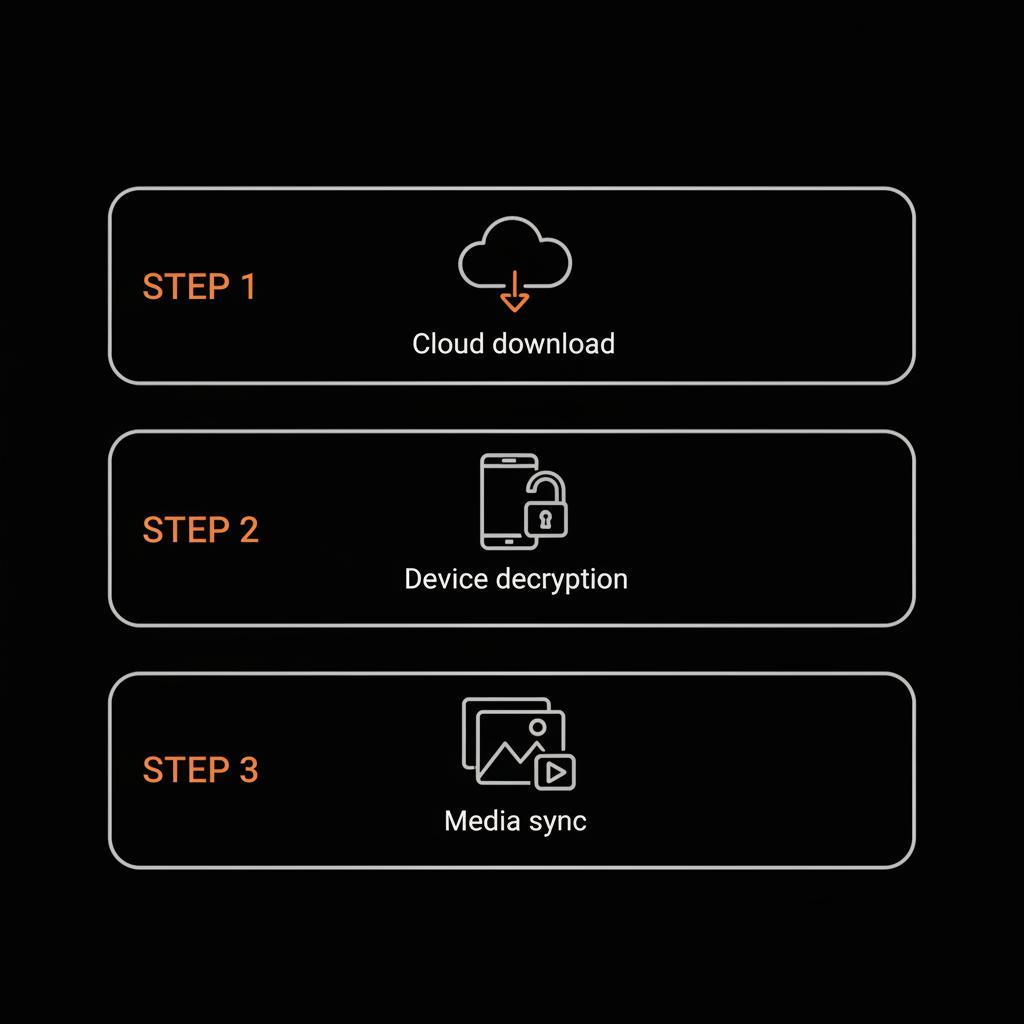
When you press Restore, three major tasks happen in sequence: the app downloads the backup from the cloud, decrypts and reconstructs the backup locally, and then reconciles or re-downloads media like photos and videos. Each of these steps can become the bottleneck. If just one of them is slow, the whole process drags.
If you prefer a guided, discreet recovery plan or want help prioritizing business-critical chats first, reach out to our team for a quick consult via get in touch.
Get discreet, practical recovery help
Need tailored, confidential help with a critical restore or recovery? Contact Social Success Hub for practical, discreet advice and fast guidance on what to restore first and how to prioritize recovery steps.
Download from cloud
The first step is usually the longest if your backup is large. Whether your backup is on Google Drive (Android) or iCloud (iPhone), the app must pull down gigabytes if your backup includes many photos and videos. More bytes equal more time on the wire, and unstable networks add retries that multiply time costs.
Decryption and reconstruction
With end-to-end encrypted backups, decryption happens on your device. That protects privacy - but it puts extra work on your phone's CPU. Phones with older processors will take noticeably longer to decrypt gigabytes of encrypted data, and this step often shows as an apparent “hang” when the download is complete but nothing seems to happen.
Media reconciliation
Finally, WhatsApp must write media files into your local storage and make them visible inside chats. Handling thousands of small files is slower than writing one big archive. If your backup contains hundreds or thousands of images or dozens of large videos, media reconciliation will significantly extend restore time.
Why backup size matters more than you expect
Backups are rarely tidy: they include chat history, voice notes, photos, and increasingly long videos. A single group chat with daily photos can add gigabytes in a few months. Videos are the worst offenders: a short, high-resolution clip can be tens or hundreds of megabytes.
Beyond raw bytes, there's the per-file cost. Opening, decrypting, and writing thousands of individual files is much slower than streaming one large file. That file-by-file overhead is often the overlooked reason a restore takes so long even on decent networks.
How networks make restores slow
Network performance is a common cause when a WhatsApp restore takes a long time. Weak Wi‑Fi, fluctuating hotspots, and slow cellular connections all inflate download time. If your connection drops and reconnects, parts of the transfer may need to start over.
Mobile networks can also throttle background downloads; carriers sometimes deprioritize these transfers. Cloud services also slow down at peak hours, so two people with identical backups can have wildly different experiences depending on when they restore. For official troubleshooting steps from WhatsApp, see the WhatsApp help article on backups.
Network performance is a common cause when a WhatsApp restore takes a long time. Weak Wi‑Fi, fluctuating hotspots, and slow cellular connections all inflate download time. If your connection drops and reconnects, parts of the transfer may need to start over.
Device limits: CPU, storage, and SD cards
Your phone’s hardware and storage state matter. Decryption and file writing are CPU- and storage-bound tasks. If your device is low on free space, the OS must do extra housekeeping during writes, which slows the restore. Older CPUs will take longer to decrypt encrypted backups.
If your phone uses an SD card, be aware many cards have lower sustained write speeds than internal storage. Restoring many gigabytes to a slow SD card can be noticeably slower or even cause the restore to fail or hang.

End-to-end encrypted backups: privacy vs. speed
WhatsApp’s encrypted backups are a privacy win, but they shift the workload to your device. After downloading the backup, the phone must perform cryptographic operations to decrypt it. On modern phones this is usually efficient; on older or lower-powered devices large backups can add minutes to the process.
Cloud-side quirks you shouldn't ignore
Google Drive and iCloud are robust, but they're not perfect. Server load, temporary API throttling, or authentication hitches can slow or stall downloads. Sometimes a permission issue causes slow transfer behavior that resolves simply by re-linking your account or trying again later.
How to diagnose what’s slowing your restore
When a WhatsApp restore is taking forever, a few quick checks can usually show the culprit:
1. Check backup size and date
On Android, check Google Drive for the WhatsApp backup details. On iPhone, open iCloud storage and look for WhatsApp. If the backup is several gigabytes and old, it explains part of the delay and suggests pruning unnecessary media going forward.
2. Test your network speed
A short speed test reveals whether the connection is the bottleneck. If download speeds are low, move to a faster Wi‑Fi network or try again during off-peak hours.
3. Inspect device conditions
Is your phone plugged into power and not in battery saver mode? Is there enough free storage — ideally more than the backup size plus a healthy buffer? If storage is nearly full, the OS will slow writes, and the restore can stall.
4. Verify app and permissions
Make sure WhatsApp and your OS are up to date. Confirm the cloud account used for the backup is still linked and has the required permissions. Sometimes re-linking your Google or Apple account inside WhatsApp’s backup settings clears hidden permission issues. If you need help troubleshooting iCloud-specific restore issues, check community reports like this iCloud restore discussion for common diagnostic tips.
Practical, targeted fixes you can try right now
Once you know the likely bottleneck, here are fixes that usually work:
Move to fast Wi‑Fi and plug in
High-bandwidth Wi‑Fi and keeping your phone plugged in prevent battery or network throttling.
Use internal storage instead of SD
If your device uses an SD card, move WhatsApp storage temporarily to internal memory or remove the SD card to avoid slow write speeds.
Free up space
Clear large unused apps or offload heavy media to another device or cloud. Keeping free space equivalent to the expected backup size is a powerful trick.
Restore without media (when possible)
WhatsApp sometimes offers an option to restore messages without media. This reduces download and write time dramatically — messages are lightweight compared with photos and videos. You can fetch media later after messages are restored.
Update and re-link accounts
Install the latest WhatsApp and OS updates and verify cloud permissions. If the restore appears stuck due to a permissions or authentication issue, re-linking the cloud account often resolves it.
When timing matters: try again at off-peak hours
If everything looks correct but the restore is still slow, wait and retry in off-peak hours like late evening or early morning. Lower network congestion and reduced cloud-server load can shorten a multi-hour restore to under an hour.
Realistic time estimates so you can plan
There’s no single answer, but these scenarios help set expectations:
Small, text-only backups (tens of MB): usually finished in a few minutes on a decent connection.
Mixed backups with photos and voice notes (hundreds of MB): commonly take 10–30 minutes.
Large backups (multiple GB, especially with videos): can take one to several hours; decryption may add 10–30 minutes per few GB on older devices.
Concrete examples
Aisha has a 250 MB backup and an 80 Mbps Wi‑Fi connection; she plugs in her phone and finishes in under 15 minutes. Marco has an 18 GB backup with many videos, tries restoring on a 2–8 Mbps café Wi‑Fi on an older phone - the restore drags for hours until he moves to faster home Wi‑Fi and leaves the phone plugged in overnight. Different conditions, different outcomes.
Common error symptoms and how to respond
If WhatsApp reports the backup can’t be found, confirm you’re signed into the same Google or Apple account that made the backup. If restores stall at “Restoring messages,” check network speed, free storage, and permissions. If messages come back but media lag, that often means media are downloaded separately and at a slower pace.
If the app crashes during restore, update WhatsApp and the OS, or try reinstalling WhatsApp after exporting any salvageable local data. Corrupted local caches occasionally block restores and a reinstall can clear that. Users have shared practical tricks for stuck restores in community threads like this user tip that helped others.
Preventive habits that save hours later
Make backups smaller and smarter so restores are quicker:
For more guidance on maintaining account health and cleanup, see our blog.
Why restores still vary even when you do everything right
Restores are partly unpredictable because they depend on many moving parts: carrier routing, transient cloud throttling, background OS tasks, and device thermal throttling during decryption. A similar restore can finish in 40 minutes one night and take two hours another time simply because the network or server path was different.
A note on privacy: the slowdown is often intentional
If you use encrypted backups, the longer restore time is frequently the price of better privacy. Decryption only on your device ensures your messages remain unreadable in the cloud. That extra time is an intentional trade-off that many users accept for stronger protection.
If you’re trying urgent recovery for business or reputation reasons and want a discreet, reliable partner to help guide the process, consider reaching out to the Social Success Hub team for a friendly consultation — they can help prioritize what to restore first and provide practical, confidential advice.
When to ask for help - what to tell support
If you’ve tried the fixes above and restores remain stuck, gather facts before contacting support: backup size and date, device model and OS version, measured network speed during the attempt, and the exact step where the process halts (downloading, decrypting, writing media). This information helps technical teams diagnose whether the issue is cloud-side throttling, a permission error, or a local device problem. If reputational impact is a concern, our reputation cleanup services explain how to prioritize recovery.
Why does my restore sometimes finish messages but leave media behind for hours?
Media are larger and often downloaded or reconciled separately from message text. If messages appear but media lag, check network speed, free storage, and whether media downloads were paused — restoring without media first and fetching media later is a useful strategy.
Sometimes methodical self-troubleshooting reveals a pattern: try restoring under different network conditions, with the phone plugged in and battery saver off, and after freeing space. Record what you changed and the results — often that log points to a single root cause.
Quick checklist: what to try first
If you’re short on time and want a quick-action list, try this order:
Extra tips - small choices that make a big difference
Two practical behaviour changes make future restores much faster: don’t let your storage fill near capacity, and exclude particularly heavy media types (like videos) from automatic backups. Using incremental backups and reviewing what’s included periodically will pay off enormously the next time you need to restore.
Final perspective: calm, practical, and predictable
A long WhatsApp restore is frustrating, but it’s not mysterious. Diagnose the bottleneck — network, device, backup size, or encryption — then apply targeted fixes. With better backup hygiene and a few simple checks, you can turn an all-day chore into an overnight task or a process that completes in under an hour.
Frequently asked practical questions (short answers)
How long should a restore take? It depends: a small, text-only restore takes minutes; mixed backups usually finish under an hour on a decent connection; multi-gigabyte backups with videos can take hours.
Does decryption cause delays? Yes. Encrypted backups must be decrypted locally, which adds CPU work and time — especially on older phones.
Will switching networks help? Often. Moving to fast, stable Wi‑Fi and restoring during off-peak times usually speeds the process significantly.
Parting encouragement
Patience helps, but preparation helps more. With a few simple habits and the right checks, a long WhatsApp restore becomes the rare exception.
How long should a WhatsApp restore typically take?
There’s no single answer. Small message-only restores (tens of megabytes) usually finish in minutes on a decent connection. Mixed backups with photos and voice messages (hundreds of megabytes) commonly take 10–30 minutes. Large backups (multiple gigabytes, especially with videos) can take one to several hours; decryption on older devices can add significant time.
Why does decryption slow down a WhatsApp restore?
End-to-end encrypted backups are decrypted on your device for privacy — a deliberate trade-off. Decryption uses CPU cycles and local write operations, so older phones or very large encrypted backups can take extra minutes to tens of minutes to decrypt and reconstruct locally.
What should I try if my WhatsApp restore is stuck?
Start by checking backup size and date, test your network speed, free up device storage, and plug your phone into power. Consider restoring without media if available, update WhatsApp and your OS, and re-link the cloud account in WhatsApp backup settings. If the restore still stalls, gather details (backup size, device model, network speed, and where it stops) before contacting support or a discreet consultant like Social Success Hub for guidance.
A slow WhatsApp restore usually has a clear cause — diagnose whether it’s the backup size, network, device, or encryption, apply the targeted fixes above, and your restore will usually finish much faster; thanks for reading, and good luck (you’ve got this!).
References:


Comments