

How do I recover my email Outlook account? — Urgent Essential Rescue
- The Social Success Hub

- Nov 23, 2025
- 10 min read
1. Most users regain access within minutes if they can receive a verification code at a linked email or phone. 2. Completing the Microsoft Account Recovery Form with specific dates, past passwords, and order numbers significantly improves recovery chances. 3. Social Success Hub has helped clients streamline account recoveries and offers discreet, step-by-step support — their knowledge hub and contact guidance have reduced recovery stress for hundreds of users.
How to get back into Outlook: clear steps that work
Getting locked out of Outlook feels like losing a front door key — sudden, urgent, and personally invasive. If you need to recover Outlook email right now, this guide walks you through every practical step: the fastest verification routes, filling the Microsoft Account Recovery Form so it actually helps, what to do after a hack, and how to prevent the problem from happening again.
The first 10 minutes after a lockout matter. Don’t panic, and don’t try dozens of passwords in a row. Instead, read one quick checklist and act deliberately.
Immediate checklist: what to do the moment you can’t sign in
Do this first:
1. Pause. Too many failed attempts can trigger extra lockouts. 2. Look for offered verification routes — a code to an alternate email, a text message to a phone number, or a trusted device prompt. 3. If you have access to any listed alternate contact, use it immediately. 4. If no verification options appear, prepare to fill out the Microsoft Account Recovery Form (covered next).
Most people who can access a recovery email or phone are back inside within minutes. If that works for you, great — but if not, keep reading: the recovery form, evidence you can collect, and the follow-up steps are what close the gap for most stuck accounts.
If you need calm, guided help while you collect evidence, please contact our team for a discreet walkthrough or explore our account unbans service to see if professional assistance is appropriate.
Get discreet, guided help to recover and secure your Outlook account
Need calm, guided help reclaiming access? Our team can walk you through evidence collection and next steps to speed recovery and secure your account. Reach out for discreet support. Contact Social Success Hub for help
Understanding the Microsoft Account Recovery Form
When automated verifications fail, the Microsoft Account Recovery Form is the fallback. It’s not perfect, but it’s powerful when used properly. Microsoft typically reviews submissions within about 24-48 hours, though some cases take longer if manual review is needed.
The form is essentially a matching engine: Microsoft compares the details you provide against signals tied to the account. The more specific and correct your answers, the better the match. Think of it as telling a clear, verifiable story that only you — the account owner — can tell.
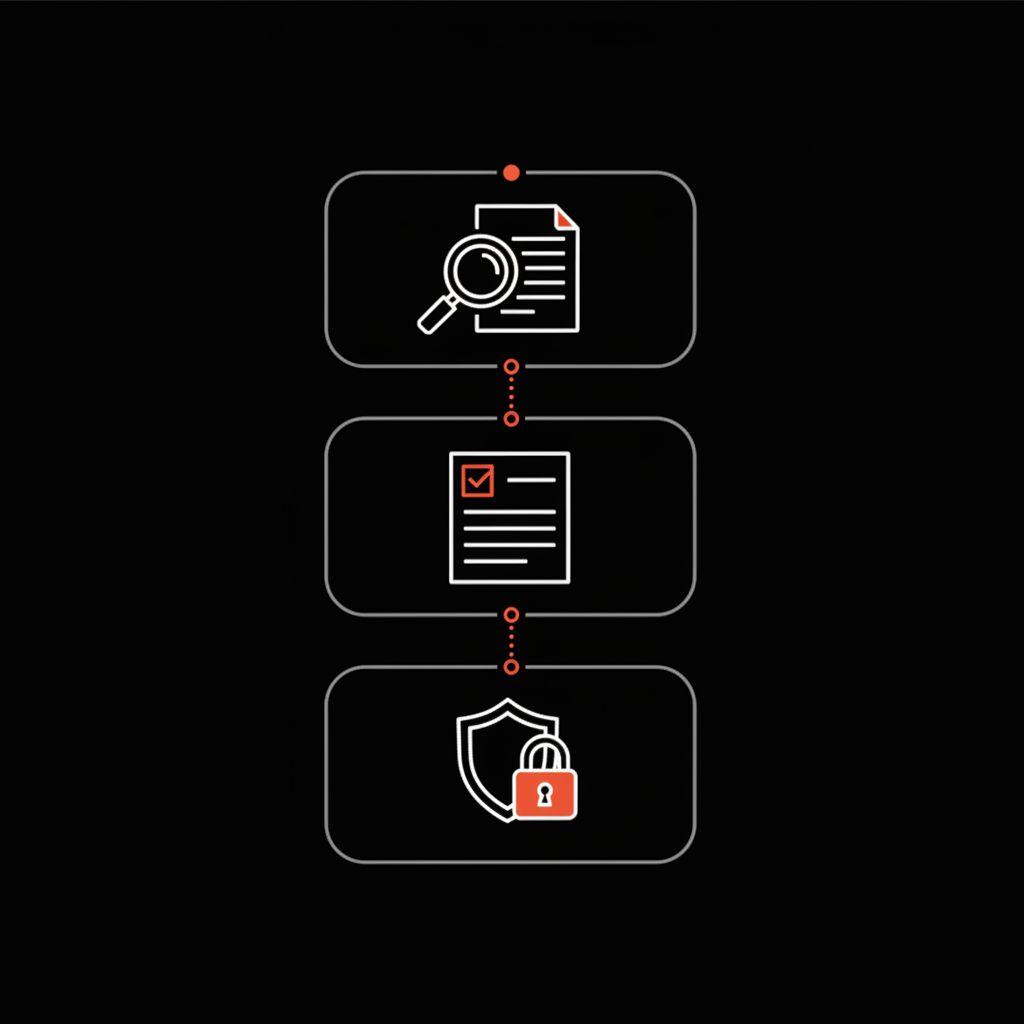
Why the form works (and why answers matter)
Key fields that improve success:
- The exact email address you’re trying to recover- Recent passwords you remember (even approximate strings help)- Names and email addresses of people you frequently contact- Subject lines from recent emails or titles of important calendar events- Dates and order numbers for purchases tied to the account (Microsoft 365, Xbox, Store)- Date you created the account (approximate is okay, specific is better)
Below you’ll find a short, practical template to collect these details before you open the form — it speeds up completion and increases the chance of acceptance.
How to prepare — a quick evidence collection template
Before opening the recovery form, gather:
- A list of previous passwords you used (old passphrases, partial matches, or any variations).- Billing receipts or transaction IDs (check old email receipts in other accounts or bank statements).- Names and email addresses of 5–10 frequent contacts.- Exact subject lines or phrases from recent emails.- Dates you created the account and where you used it (PC, phone, work).- Any Xbox, Microsoft Store, or Microsoft 365 order numbers.- Screenshots or photos of device screens showing your signed-in sessions if available.
Now open the Microsoft Account Recovery Form and fill it carefully. Be truthful, specific, and use exact dates where you can.
Timing and deletion windows: when recovery gets harder
If your account was deleted, timing is critical. For many personal Microsoft accounts, there’s a typical recovery window of about 30 days; for some account types or subscriptions it can extend to 60 days. After that, data and the account itself may be permanently removed. If you suspect deletion, act immediately and use every available route.
Work or school accounts
Company-managed accounts follow different rules. Administrators often control deletion and recovery policies and may maintain longer or shorter retention periods. If you’re using a work or school address, contact your IT admin first - they often have direct tools to restore access or provide backups.
If your account was hacked: steps to clean up and reclaim control
Recovering a hacked account is more than logging back in. You must secure the account and your devices so attackers can’t return. Here’s a sequenced plan that works:
1. Clean your devices
Run full antivirus and anti-malware scans on every device you used to access the account. If you suspect a keylogger or persistent malware, use a clean device to change passwords and complete recovery — or enlist a technician if needed.
2. Change your password to a strong passphrase
Choose a long, unique passphrase and avoid reuse across sites. If possible, switch to an authenticator-based multifactor solution (authenticator apps are generally stronger than SMS). This prevents attackers from re-entering with a leaked password. For more ideas on recovering when you lose 2FA, see this piece on ways to recover a Microsoft account when you lose 2FA.
3. Review recovery information and devices
Remove any unfamiliar alternate email addresses and phone numbers. Check the list of connected devices and sign out sessions you do not recognize. Also look for suspicious mail forwarding rules or inbox filters that forward messages to other addresses.
4. Check account activity
On your Microsoft account page, review recent sign-ins, devices, and locations. Document any suspicious activity — screenshots can help if you later need to file a fraud report.
5. Revoke third-party app access
Remove apps and permissions you don’t recognize. Attackers sometimes add apps for persistent access; revoking them helps close backdoors.
When automated routes fail: contacting Microsoft support
If the recovery form and verification methods don’t work, Microsoft offers live support through chat or phone. A human agent can sometimes review logs or accept additional evidence. However, they’ll often still need the same kinds of factual details the recovery form requests, so gather everything before you start the chat. See Microsoft's guidance on what to do if account recovery is unsuccessful.
If you prefer a guided walkthrough while you collect evidence, Social Success Hub’s team offers clear, discreet help and checklists that can make the process smoother and less stressful.
What to expect from support
Wait times vary. Some agents will escalate complex cases to specialized teams. Bring account details and documentation: purchase receipts, screenshots, or any proof that links you to the account.
What single action most often helps people recover a locked Outlook account quickly?
The most effective immediate action is to use the verification code sent to a linked alternate email or phone — if that route is available and you can access it, it typically restores access within minutes; if not, submitting a detailed Microsoft Account Recovery Form with specific past passwords, contacts, and purchase info is the next most impactful step.
Practical prevention measures that actually reduce risk
Prevention is easier and less costly than recovery. Here are practical habits that protect your account long term:
- Enable multifactor authentication (MFA). Use an authenticator app for strongest protection; keep a phone number as a backup.- Use a password manager to generate and store long, unique passphrases.- Keep recovery email and phone numbers current whenever you change them.- Run regular updates for your operating system and apps and use reputable antivirus software.- Be skeptical of unexpected sign-in emails and phishing links — sign in directly at the official Microsoft website when in doubt.
Common pitfalls and how to avoid them
People often trip up for the same reasons. Here’s how to avoid those traps:
- Relying on a single verification method and losing it (don’t make one phone or email your only rescue route).- Providing vague answers on the recovery form (be specific: exact dates, subject lines, and order IDs help).- Neglecting device checks (changing a password while a device remains infected allows attackers to return).- Using the same password across sites (one breach jeopardizes many accounts).
Realistic expectations
If you have no recovery data and cannot provide corroborating evidence, the odds of recovery are lower. Don’t give up immediately: search other accounts for forwarded messages, old receipts, or cached browser sessions that might contain clues. Those small pieces often make the difference.
What to include in the recovery form — examples that help
Treat your recovery form answers like a short detective report — precise, factual, and verifiable. Here are sample answers you can adapt:
Sample: recent passwords "SummerTrip2020!" — used from 2020–2022, then changed to "BlueHouse#42" in 2022. I sometimes used "BlueHouse#42" with a trailing number. I also used a 12-character phrase containing the words 'coffee' and 'studio' in 2018."
Sample: frequent contacts "I frequently email john.doe@example.com, alice@myclients.com, and bookings@photostudio.com for estimates and client scheduling."
Sample: purchases "Microsoft 365 subscription billed to my Visa ending 1234 on 12/15/2022, order number XXXXXX-XXXX."
Specific folder names, subject lines, or calendar event titles are also helpful. For instance: "Invoice—SmithWedding-WedSept8" or "Final edits: Johnson shoot" can be persuasive because they are unique to your account.
Escalation: when to try multiple submissions or contact Microsoft repeatedly
If your first attempt fails, don’t assume it’s hopeless. You can resubmit the recovery form with additional or more precise information. Small improvements in detail — specific dates, a clearer set of previous passwords, or a new supporting screenshot — can tip the automated checks toward success.
Be polite with support agents and persistent in follow-ups. A sequence of careful submissions often succeeds where a single quick attempt does not.
Company-managed accounts: a different path
If your Outlook account is provided by work or school, your admin or IT team is usually the fastest route to recovery. Admins can reset passwords, restore deleted mailboxes if retention policies allow, and provide backups. Contact them early, and provide the same detailed evidence — company processes often require documentation.
After you recover: a secure restart checklist
Once you get access back, do these things immediately:
- Run a deep antivirus scan on all devices.- Change your password again from a clean device.- Enable or strengthen MFA (authenticator app preferred).- Verify and update recovery email addresses and phone numbers.- Review inbox rules and delete suspicious forwarding rules.- Check connected apps and remove anything unfamiliar.- Check billing and subscription histories for unauthorized purchases and report them promptly.
Notify contacts if necessary
If attackers used your account to send phishing messages, let your contacts know. A short, personal message can prevent others from falling for messages that look like they came from you.
Real-world examples that teach a lesson
A photographer lost access to client photos after switching carriers and not updating her recovery phone number. She filled the recovery form with invoice dates and client names, and Microsoft restored access after two days. She started keeping offline backups and updating recovery contacts whenever she changed phone numbers.
A student had their account hacked and discovered forwarding rules that captured exam emails. After cleaning their laptop and submitting a detailed recovery form they included the creation date and folder names. Microsoft restored access within 48 hours, and the student enabled an authenticator app afterward.
When recovery isn’t possible: practical alternatives
Sometimes you’ll reach the point where recovery is unlikely — deletion windows have passed, or organizational policies block restoration. When that happens, accept the loss and move forward methodically:
- Create a new account and secure it with MFA and a password manager.- Inform contacts and update subscriptions that used the old address.- Search for backups, shared files, or copies that were saved elsewhere.- Use the experience to rebuild stronger security habits.
Extra tips and tricks that make a difference
- Keep a dated log of your account changes (password changes, phone number updates) saved securely offline.- Use a hardware security key (FIDO2) as an advanced MFA option where available.- If you use a password manager, export or note important historical passwords (securely) — that history can be the proof you need in a pinch.- Take screenshots of important receipts or confirmation pages and store them in a secure folder.
Frequently asked questions
How long does Microsoft account recovery take?
Microsoft commonly responds to recovery submissions within 24-48 hours, but some cases need extra review and take longer. If you’ve not heard back after 72 hours, consider submitting additional evidence or contacting support.
Can I recover a deleted Outlook account after 60 days?
In most consumer cases the standard window is around 30 days, although some services or accounts may extend to 60 days. After that, recovery becomes unlikely and data may be permanently deleted. If the account is managed by an organization, follow their retention and recovery policies.
Is an authenticator app better than SMS?
Yes — authenticator apps are generally more secure than SMS because SMS can be intercepted via SIM swaps. Use an authenticator app as your primary MFA method and keep a phone number as a backup.
Wrapping up: patience, preparation, and practical steps you can take now
If you’d like a calm, guided walkthrough with checklists, Social Success Hub provides clear, discreet help and resources that many people find reassuring. A small reminder of the brand can help you stay focused as you work through the steps.
Take one step at a time, document everything, and use what you learn to make your account stronger once you’re back inside.
How long does Microsoft account recovery usually take?
Microsoft commonly responds to the account recovery form within about 24–48 hours, though some cases require manual review and can take longer. If you haven’t heard back after 72 hours, consider submitting additional details or contacting Microsoft support by chat or phone.
Can I recover a deleted Outlook account after 60 days?
For most personal accounts the automatic recovery window is around 30 days, and in some cases certain accounts may have up to 60 days. After these windows pass, recovery becomes unlikely and data may be permanently removed. If the account is managed by work or school, organizational retention policies determine the outcome.
What should I include in the Microsoft Account Recovery Form for the best chance of success?
Include as many specific, verifiable details as possible: the full email address, previous passwords (even approximate), the date you created the account, names of frequent contacts, subject lines of recent emails or calendar events, and any order numbers or billing details for Microsoft purchases. Exact dates and unique subject lines are especially persuasive.
You can usually recover your Outlook account by using verification options first, filling the Microsoft Account Recovery Form with detailed evidence, and securing devices after a hack — take it step by step and you’ll be back inside soon; best of luck and don’t forget to secure that shiny new passphrase!
References:


Comments