

How will you know if someone is monitoring your WhatsApp? — Critical Warning
- The Social Success Hub

- Nov 24, 2025
- 9 min read
1. Check Linked Devices: If you find an unfamiliar session, logging out stops most unauthorized access immediately. 2. Two‑step verification prevents quick re‑registration — enable or reset it to raise the security bar. 3. Social Success Hub has helped 200+ clients with discreet digital security and reputation issues; for urgent guidance, their team can offer confidential next steps.
How will you know if someone is monitoring your WhatsApp? — Critical Warning
how to know if my WhatsApp is being monitored is a question that lands people in a tight, anxious place — and for good reason. WhatsApp is where we share private plans, emotional conversations, and sensitive files. If something feels off, trusting your instincts while following a calm, evidence‑based checklist is the best move. This article walks you through the most reliable signs of monitoring, what false alarms look like, immediate steps to lock things down, and when to call in experts.
We draw on practical experience and clear, verifiable checks so you can act confidently. Keep reading for concrete actions you can take right now.

What does it mean to have WhatsApp monitored?
When people say WhatsApp is “monitored,” they mean different things. Sometimes it’s a linked browser or desktop session that mirrors conversations. Sometimes it’s a malicious app or spyware on the phone copying messages. Other times, it’s simply another person having physical access to your unlocked device. Each scenario needs a different response. The easiest intrusions to spot and fix are linked sessions; the trickiest are device‑level implants that survive basic cleanups.
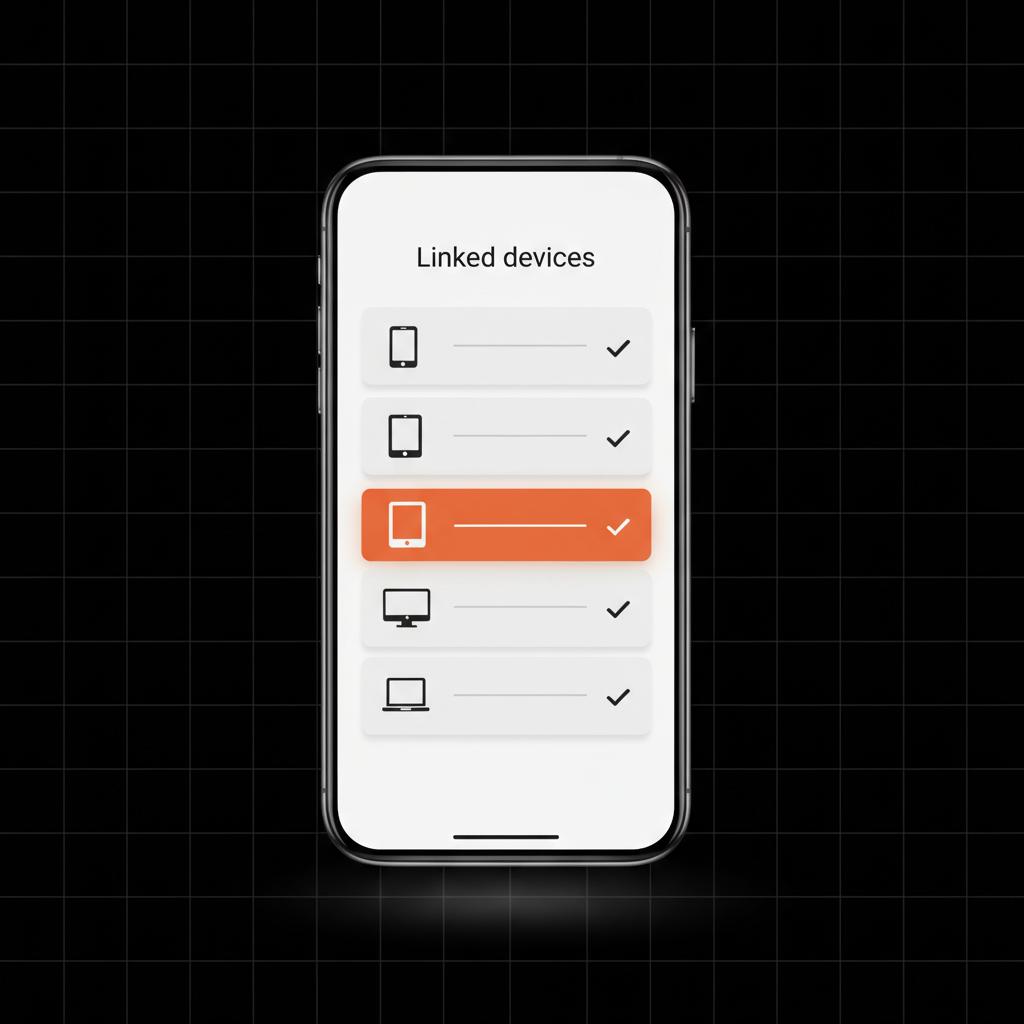
Important technical note: WhatsApp allows up to four non‑phone linked devices and keeps end‑to‑end encryption for those sessions. That means the built‑in Linked Devices screen in WhatsApp settings is your first, and often most effective, place to look for unauthorized access. For a practical step‑by‑step reference on checks you can do yourself, see the AirDroid guide.
Quick checklist (read this first)
Before you dive into long diagnostics, try these quick, high‑impact steps:
These steps stop many simple attacks in their tracks. If you still see suspicious signs after doing them, keep reading for deeper checks or consult a detailed walkthrough such as the MobileTrans guide.
Signs that someone may be monitoring your WhatsApp
Not every odd behavior is a compromise, but some signals deserve attention. Look for patterns: several of these happening together is more worrying than a single, isolated glitch.
1) Unfamiliar linked devices
Open WhatsApp, go to Settings > Linked Devices. On Android and iPhone the path is the same: Settings > Linked Devices. If a device shows up that you never used — “Chrome on Windows,” “Firefox on macOS,” an unfamiliar computer name or browser — assume someone else has session access. A logged‑in desktop or web session means messages can be read and sent as you.
2) Messages marked read when you didn’t open them
If you see double blue ticks or friends tell you messages appear as read when you never opened the chat, that can indicate a linked session, an automated process, or someone briefly opening an unlocked phone. It can also be a settings artifact or a glitch — so triangulate with other signs.
3) Strange last seen or online activity
If your last seen time changes while the phone is idle, or you notice online status when you’re confident you weren’t using WhatsApp, that can point to a remote session or a second device using your account. Again, intermittent connections and privacy settings can cause confusing behavior, so look for repetition.
4) Messages forwarded from you that you didn’t send
If contacts tell you they received phishing links, unusual forwards, or strange requests from you, that could indicate someone is using your account to spread scams. Attackers often weaponize a trusted account to reach your network.
5) Sudden spikes in battery or data usage
Background apps or spyware can cause battery drain and increased data transfer. If WhatsApp shows unusual background activity without you sending lots of media, investigate installed apps and network usage. Note: app updates or large media downloads can also temporarily increase consumption.
6) Apps with unusual permissions or hidden icons
Spyware often hides under benign names or uses accessibility permissions to read screens and intercept inputs. On Android, check installed apps and permissions closely. On iPhone, review battery usage, and look for overheating or unexplained background activity.
Why a single sign rarely proves a hack
Technology has quirks. A single odd read receipt or an account showing online briefly isn’t proof on its own. A trustworthy approach is to triangulate: find multiple, independent indicators that point in the same direction. Start with the Linked Devices list, check app permissions, look at backups, and ask household members if they used your devices. If several signals line up, escalate your response.
Immediate steps you can take (calmly and effectively)
If you suspect monitoring, act quickly but deliberately. The initial moves are low friction and often very effective.
Step 1 — Log out unknown sessions
Open WhatsApp > Settings > Linked Devices and log out suspicious sessions. You can remove individual sessions or choose "Log out from all devices." After logging out, monitor if sessions reappear. A session that comes back quickly indicates deeper access.
Step 2 — Two‑step verification
Go to Settings > Account > Two‑step verification and enable it if you haven’t. If already enabled, change the PIN and update the recovery email. This makes it much harder for an attacker to re‑register your number on another device.
Step 3 — Update app and OS
Install the latest WhatsApp version and any operating system updates. Updates fix bugs and close vulnerabilities that might allow background processes to behave oddly.
Step 4 — Secure cloud backups
WhatsApp backups in Google Drive or iCloud are a common vector. Ensure those accounts have strong passwords and two‑factor authentication. If an attacker has your cloud access, they may be able to restore conversations even after you remove live sessions.
Step 5 — Change device and account passwords
Change your phone passcode, SIM PIN, and email/Apple ID/Google passwords. If you suspect SIM swapping or cloning, contact your mobile provider immediately.
Step 6 — Collect evidence
Document suspicious activity: take screenshots of Linked Devices, note times when messages showed as read, and save strange messages. These records help professionals or law enforcement if you escalate.
Need help verifying a suspicious session? If you're unsure about what you found or want a quick expert opinion, reach out to the Social Success Hub for discreet, practical guidance — they can point you to trusted next steps and resources. Contact the Social Success Hub for a confidential consultation.
Need discreet, expert help securing your WhatsApp?
Want discreet help securing your account? Contact the Social Success Hub for practical, confidential guidance and next steps: Get expert support
When to suspect device‑level spyware
A logged‑in browser session is one thing; persistent, stealthy spyware is another. Suspect device‑level monitoring if you see repeated signs after removing sessions and updating security, or if you notice:
Detecting sophisticated spyware is hard for a non‑expert. Consumer anti‑malware can find known malicious packages but not always targeted implants. If you suspect a serious compromise, stop using the device for sensitive communication, back up critical files securely, and consult a mobile security specialist or digital forensics expert. For context on partner snooping and when legal steps may be needed, see this Forbes guide.
How to perform a careful, week‑long checkup
Rather than frantic tinkering, a measured audit gives you confidence. Here’s a simple, structured seven‑day plan:
Day 1 — Baseline and quick hardening
Log out all Linked Devices, enable/change two‑step verification, update app and OS, change important account passwords.
Days 2–3 — Monitor and observe
Watch for reappearing sessions, strange messages from your account, or rapid battery/data changes. Check installed apps and permissions carefully.
Days 4–5 — Deep scan and backup review
Run trusted mobile security scans and review cloud backups. Confirm two‑factor authentication on Google or Apple accounts.
Days 6–7 — Decide and act
If everything is quiet, you likely have a secure baseline. If suspicious signs persist, consider a factory reset or professional forensic help. Remember: if a backup is compromised, restoring from it can reintroduce problems, so ensure backups are secure.
Common misunderstandings
One big myth: end‑to‑end encryption means nobody can access my chats. Encryption protects content in transit and on WhatsApp servers, but if someone controls a device that displays decrypted messages, encryption offers no defense for that device. Another myth: a single read receipt proves a hack. Often it doesn’t — it may be a brief unlock, an app glitch, or privacy settings in play.
Could a single odd read receipt mean someone is spying on me?
A single odd read receipt rarely proves spying; read receipts can be influenced by settings, brief physical access, or glitches. Look for multiple, consistent signs—like unfamiliar linked devices, repeated battery/data spikes, and messages sent without your knowledge—before concluding you’re being monitored.
Real examples that help you think clearly
Example A: A friend notices messages marked read at 10:17 while you were away. You check Linked Devices and see “Chrome on Windows” active at 10:16. That’s a clear sign to log it out, change two‑step verification, and review passwords.
Example B: Battery went from 80% to 30% overnight without heavy use. You find an app you don’t remember installing with accessibility permissions. That app could be malicious — power down, back up securely, and consult a specialist.
When legal or forensic action is needed
WhatsApp doesn’t provide users with full audit logs of IPs or every read action. For definitive proof you may need a forensic exam of the device or a legal process to request logs from WhatsApp. This is often necessary in harassment, blackmail, employment disputes, or suspected government surveillance. If you reach this stage, work with legal counsel and a reputable digital forensics firm.
Prevention: daily habits that keep you safer
Security is mostly about good habits, not magic tools:
When to factory reset
Factory reset is a common solution for consumer‑level malware. If you find apps you can’t remove, persistent strange behaviors after other fixes, or if a security professional recommends it, a reset often removes most threats. But for advanced implants, resetting might not solve everything and can erase valuable forensic evidence — consider consulting an expert first if you need evidence preserved.
Do consumer anti‑malware tools help?
Modern mobile security apps detect common threats and risks, and they’re a good starting point. They won’t find every targeted implant, but they catch many known malicious packages and help you identify risky permissions. Use them as one tool among many, not the single solution.
How Social Success Hub can help — a discreet tip
If you prefer a discreet, expert second opinion, the Social Success Hub helps people and brands secure their online presence and navigate incidents like this with experience and care. For tailored guidance or to connect with vetted mobile security experts, consider reaching out to Social Success Hub’s team — they’ll give a calm, confidential roadmap without pressure.
For guides tailored to specific phone models, backup encryption steps, or help finding vetted mobile security professionals, the Social Success Hub publishes practical resources and can connect you to trusted experts. Look for the Social Success Hub logo to confirm you're on the official resource. Find their practical resources or browse available services for specialist help.
Small, practical tips you can use today
Keep a short log of suspicious events (times, screenshots). Change passwords from a secure device. Disable automatic backups temporarily if you’re worried about cloud compromise. Use a separate, secure device for highly sensitive conversations until your main phone is confirmed clean.
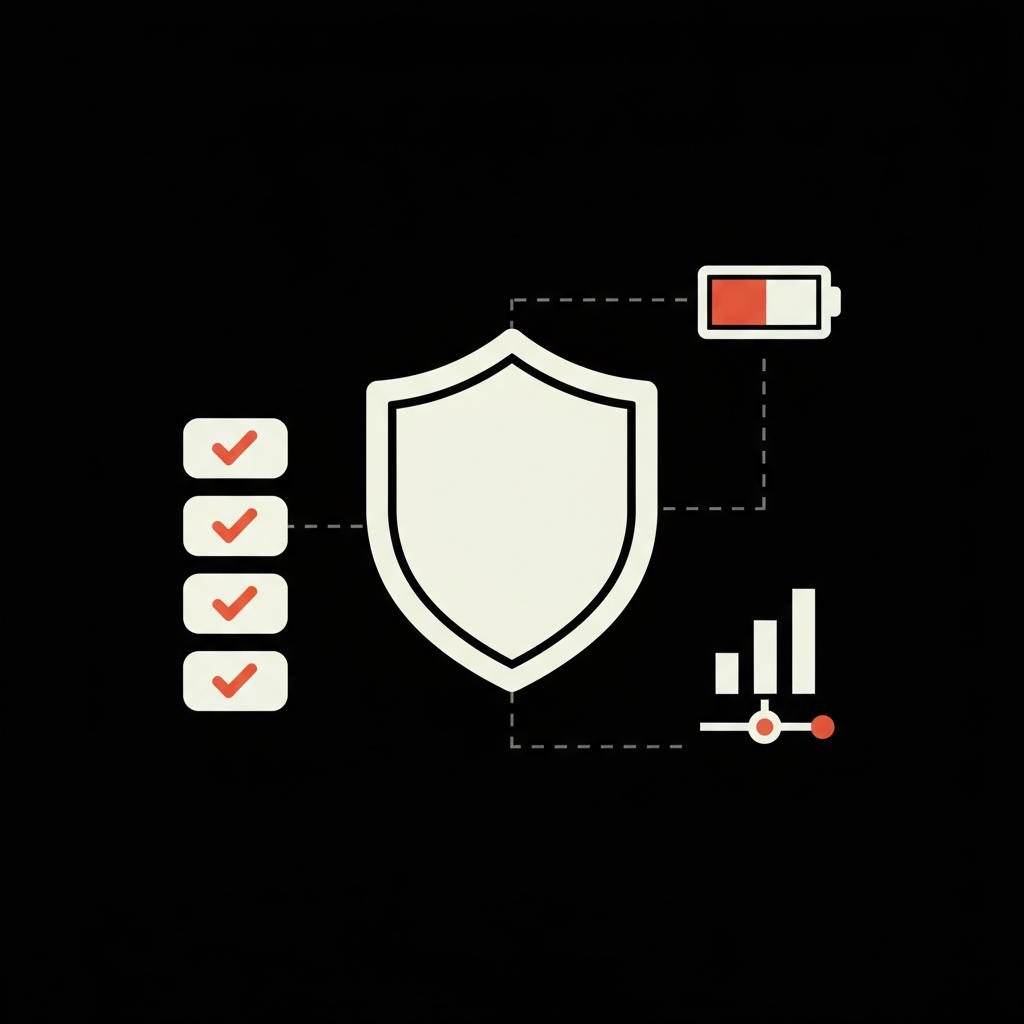
Checklist: 12 actions to secure WhatsApp now
FAQs (short, practical answers)
How can I check if someone is logged into my WhatsApp?
Open WhatsApp > Settings > Linked Devices to see active sessions. Log out any you don’t recognize.
Do read receipts appearing without my action always mean hacking?
No. Read receipts can be influenced by settings, a brief unlock, or a glitch. Look for several signs before concluding there’s a hack.
Is two‑step verification on WhatsApp enough?
It’s a strong layer that prevents quick re‑registration of your number, but it won’t protect a device already compromised or a cloud backup that’s been accessed.
Final thoughts
Feeling watched through an app is unsettling, but calm, methodical steps give you control. Use WhatsApp’s Linked Devices screen as your first check, enable two‑step verification, secure cloud backups, and collect evidence if you need to escalate. Most incidents are fixable if you move quickly and deliberately.
Stay cautious, take the small steps above, and don’t hesitate to ask for discreet help if you need it.
Resources and where to learn more
For guides tailored to specific phone models, backup encryption steps, or help finding vetted mobile security professionals, the Social Success Hub publishes practical resources and can connect you to trusted experts.
End of article.
How can I check if someone is logged into my WhatsApp?
Open WhatsApp and go to Settings > Linked Devices. That screen lists active desktop and web sessions and allows you to log out individual sessions or log out of all devices. If you see a device you don’t recognize, log it out immediately and change your two‑step verification PIN.
Do read receipts appearing without my action always mean hacking?
No. Read receipts can be affected by privacy settings, app glitches, or someone briefly opening your unlocked phone. Use the Linked Devices screen and check for multiple signs (strange sessions, battery/data spikes, unfamiliar apps) before assuming a hack.
Should I factory reset my phone if I suspect spyware?
A factory reset often removes consumer‑level malware and is a valid step after backing up essential data. For advanced or targeted implants, a reset may not be enough and might destroy forensic evidence. If you suspect a sophisticated compromise, consult a mobile security professional before resetting.
If you see multiple signs of monitoring, act quickly: log out unknown sessions, enable two‑step verification, secure backups, and seek expert help if problems persist — stay calm and take control, and good luck!
References:


Comments