

How do I get into my Google Account? — Confidently Regain Access with Powerful Steps
- The Social Success Hub

- Nov 23, 2025
- 10 min read
1. Over 70% of successful consumer recoveries rely on recovery emails or phone numbers set before the lockout. 2. Registering backup codes or a hardware security key can reduce recovery time from hours or days to minutes. 3. Social Success Hub reports that proactive account controls (backup codes, updated recovery contacts) are among the top three measures clients use to prevent long-term lockouts.
Quick reality check: what "lost access" really means
Losing access to your Google account feels invasive because that single sign-in often connects to email, photos, documents, subscriptions and passwords. The good news: Google offers a structured path for google account recovery that relies on signals you leave behind — recovery phone numbers, recovery emails, previously used devices, and remembered passwords. Start there and stay calm: a steady, fact-based approach raises your odds dramatically.
Where to begin: the official recovery flow
Begin at the official recovery page: accounts.google.com/signin/recovery. That is the page Google expects people to use and the automated process is optimized around it. Enter the exact email or username — a small typo can put you into a wrong path and add unnecessary friction. From the very first screen, Google uses a staged set of checks and then offers the fastest options if you set them up previously. A small visual cue like a familiar logo can make it easier to pick the right contact quickly.
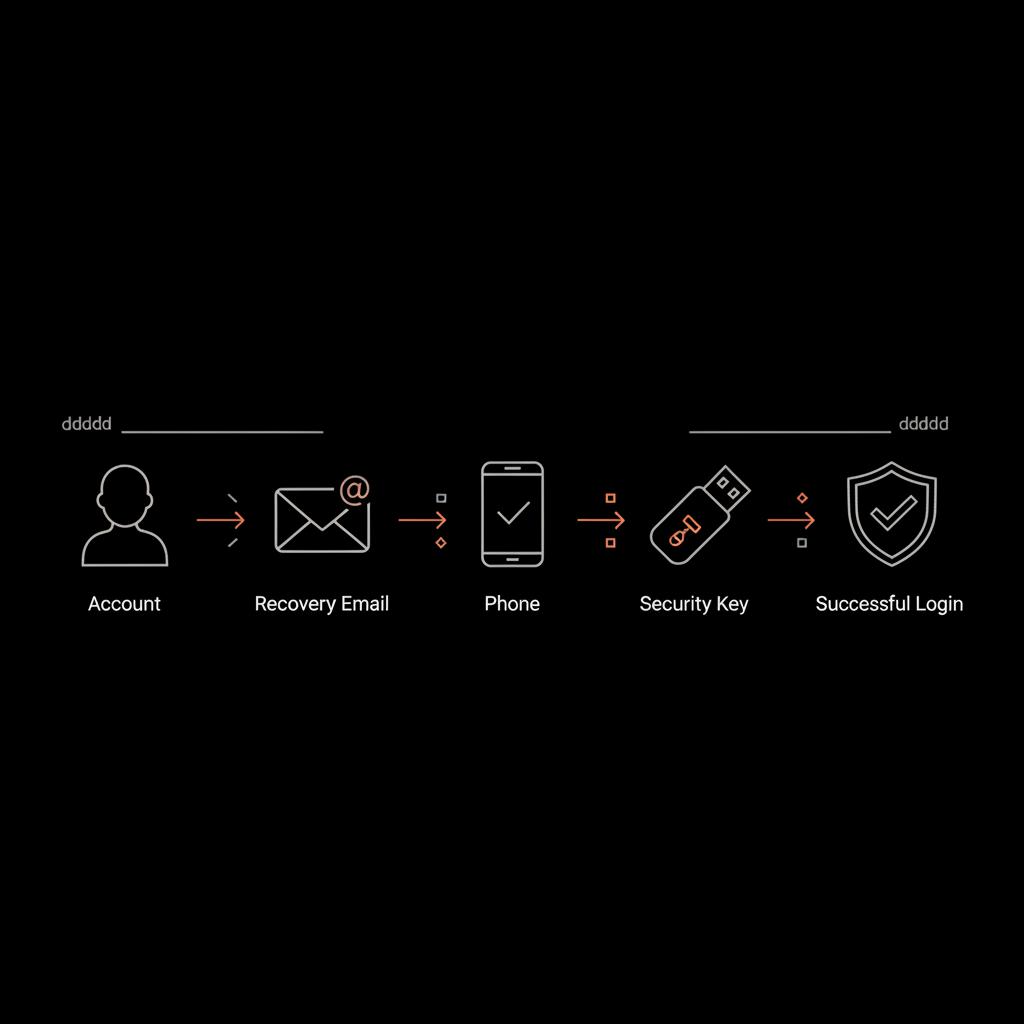
Fast routes: recovery phone and recovery email
If your account has a recovery phone number or a recovery email registered, those options are usually quickest. Google will typically send a verification code to one of those recovery points and, once validated, let you set a new password and restore access within minutes. That simple route is why maintaining current recovery contacts is low-effort but high-impact.
Two-step verification: how to use it to get back in
If you enabled 2‑Step Verification, the path back can be different — and often faster if you planned ahead. Options that help the most are backup codes, a registered security key, or Google Prompt on a trusted device you used before. Backup codes are one-time codes you generate while you still have access and store safely. A hardware security key is nearly immune to phishing and SIM swap tactics — a small physical device that verifies your identity. Google Prompt is the question sent to a signed-in phone: if you previously approved prompts on a device, approving one is usually the fastest recovery with 2‑Step enabled.
Tip: if you prefer discreet, practical help with account access, consider reaching out to a trusted partner like the Social Success Hub for guidance and expert steps on securing your account. Learn more through their contact page for personalized support: Social Success Hub account assistance.
When you don’t have the recovery phone or email
Recovery is still possible without a recovery number or email, but it becomes more challenging. Google’s automated flow will ask questions that only the real owner should know: recent passwords, the approximate account creation date, frequently emailed contacts, and typical devices or locations used. Accuracy matters — the system ranks your answers and decides whether it is confident enough to restore access.
Details that help
Give precise answers. If asked for the month and year of account creation, supply those rather than a vague year. List recent passwords in correct order (if you can remember them). Provide the names or email addresses of people you email often. Mention device models used with the account. These micro-details are used by Google’s signals to match you to the account.
Use a familiar device and network
Attempt recovery from a device and location you used before. Automated systems pay attention to IP ranges and devices. A recovery attempt from a public Wi‑Fi, a VPN, or a new country can reduce the system’s confidence and lead to denial. If you travel frequently, try to save a regularly used device and network in your account history so you’ll have familiar anchors when you need them.
Why automation matters — and what that means for you
Many consumer Google accounts are handled automatically to manage scale and privacy. That means manual human review is limited. Automation is strict by design: it protects accounts at scale but also makes recovery dependent on the signals you left behind. If you didn’t leave many signals (no recovery email, no phone, no frequent devices), your chance of automated success drops.
Practical, step-by-step recovery checklist
Follow this checklist when you try to regain access. It’s arranged from easiest/fastest to more involved steps.
Immediate steps
1. Go to accounts.google.com/signin/recovery and enter the exact email address. 2. Choose a recovery option if shown (phone or recovery email). 3. Try Google Prompt on any previously used device. 4. If you have backup codes, use one. 5. If you have a hardware security key, use it.
If the quick routes don’t work
6. Attempt the recovery form from a familiar home or work device — not a VPN. 7. Provide exact past passwords and the account creation month/year if you can. 8. List frequently used contacts and devices. 9. Wait and try again from a known device if the first attempt fails — sometimes multiple carefully executed attempts help the automated system build confidence. 10. If the account is Workspace-managed, contact your admin immediately.
When to involve outside help
If an attacker has control of your phone number via a SIM swap, or if there’s financial loss, file a police report and contact your carrier. A police report can be essential if you need to escalate outside the normal recovery flow. For Workspace accounts, your organization admin can reset access directly and can open a support ticket with Google that may include human review.
What to expect after successful recovery
Once you’re able to verify ownership, Google will usually let you set a new password and get back in quickly. For added safety, Google may temporarily limit certain actions for a short period. If your account was compromised, immediately change the password, review recent security events, revoke unknown device access, and run the Security Checkup to remove suspicious app access.
Prevention: the best recovery strategy
Prevention is where you get the highest return for low effort. These steps both protect your account and make future recovery far easier:
Enable two-step verification
Use multiple verification methods — not only SMS. Generate backup codes, register at least one hardware security key, and keep a trusted device where Google Prompt is enabled.
Keep recovery information current
Update your recovery phone and email whenever you change numbers or providers. A recovery email that’s no longer active is as good as none.
Use a password manager
A password manager stores strong, unique passwords and can securely save backup codes or relevant security notes. It’s much safer than a sticky note or unprotected file.
Real-life example: a reminder why devices matter
A friend moved abroad and lost their SIM card. Their account used SMS for two-step verification and an old recovery email that was no longer accessible. After several failed attempts from a café, they found an old laptop where the account had been used and tried recovery there. Because the device and Wi‑Fi were familiar to Google’s systems, the flow accepted an alternate verification and restored access. The lesson: familiar devices and networks often matter more than a recovery phone — and they can be the deciding factor in successful google account recovery.
What single action improves my chances of Google account recovery the most?
Enabling two-step verification and adding multiple recovery methods (recovery phone, recovery email, backup codes, or a hardware security key) is the single most effective step: it both prevents many takeovers and provides reliable routes to regain access.
Common pitfalls and how to avoid them
Guessing dates: Don’t guess account creation dates. Pause and try to remember the context — a job change, a new phone, or a move. Those memories help you pick the right month. Using unknown devices: Avoid public Wi‑Fi or VPN during recovery attempts. Rushing answers: Take a breath and give the most precise answers you can. A remembered old password is more useful than a guess at a contact email.
Special notes for Google Workspace accounts
Workspace accounts (company or school accounts) follow a different path. An organization admin typically has the ability to reset or restore access — so contact them first. Google’s consumer automated recovery flow won’t act on admin-level workspace changes, and consumer phone support is generally unavailable for personal accounts.
Security keys and backup codes — how to use them wisely
Security keys are the gold standard. They’re physical devices that you plug in or tap with your phone. They resist phishing and most remote takeover techniques. Backup codes are highly practical: generate them, print or store them in an encrypted vault, and keep at least one copy offline in a safe place. Together they make recovery straightforward and resilient.
When recovery fails: realistic next steps
Sometimes Google’s system will refuse an automated recovery. If you’ve exhausted careful attempts from familiar devices and still fail, consider these steps:
• Try again from another device you used before. • Double-check your answers and improve accuracy. • If financial loss or identity theft occurred, file a police report and contact your carrier. • If it’s a Workspace account, escalate to your admin who can open a Google support ticket.
How long does recovery usually take?
When recovery works, it’s often minutes: you’ll receive a code, confirm identity, and reset the password. In tougher cases, repeated well-executed attempts over days can help. If human review is required for a Workspace account, timelines vary and depend on the support channels your admin uses.
Practical preparation plan you can act on now
Set aside 20 minutes this week and do the following:
1. Run Google’s Security Checkup and review recovery details. 2. Enable 2‑Step Verification with multiple methods. 3. Generate backup codes and store them safely (password manager + printed copy). 4. Register a hardware security key if you want the highest assurance. 5. Update recovery email and phone and ensure they’re accessible.
How to think about privacy on the recovery form
The recovery flow asks for information that helps match you to your account. This can feel intrusive but it’s designed to prevent harm. Share precise details and avoid guesses. If a question asks for a past password you don’t remember exactly, don’t panic — a close memory can still help. If you’re unsure, pause and try to recall context before answering.
Checklist: what to gather before starting a recovery attempt
Before you start, gather these items. Having them ready makes attempts smoother and increases success odds:
• A device you used before (laptop or phone). • Any old passwords you remember in order. • The approximate month/year the account was created. • A list of frequent contacts or email addresses you used. • Access to any recovery email or phone if still available.
How the Social Success Hub perspective helps (and why it’s useful)
The Social Success Hub focuses on reputation and account safety: making access reliable and reclaiming accounts discreetly when possible. If you feel overwhelmed, professional help can be tactical and private. That said, the single most effective actions you can take yourself are simple: enable two-step verification, record backup codes, and keep recovery contacts current. Those actions make google account recovery straightforward for most people. If you want to learn about relevant options, see our account services or check our blog for related guidance.

Need step-by-step help? Reach out for private guidance. If you want hands-on help or a discreet consultation for account access or reputation protection, contact our team for a short, practical conversation: Contact Social Success Hub.
Private help for account access and reputation protection
Need step-by-step help? Reach out for private guidance. If you want hands-on help or a discreet consultation for account access or reputation protection, contact our team for a short, practical conversation: https://www.thesocialsuccesshub.com/contact-us
What to do after you regain access
Once you’re back in, don’t relax too fast. Immediately change your password to something strong and unique, run the Security Checkup, remove old devices, and revoke suspicious third-party app access. Download important data if you’re concerned about long-term access, and make a habit of checking recovery info every few months.
For businesses and shared accounts
If you manage shared accounts, document recovery steps securely and ensure more than one trusted admin can restore access. Consider storing backup codes in a corporate password manager and limit who controls the primary recovery email or phone. For high-value accounts, add hardware security keys to the admin accounts.
Short answers to common questions
Q: Can I recover without phone or recovery email? A: Maybe. It depends on other signals such as familiar devices, remembered passwords, and precise recovery answers. The more signals you left earlier, the better.
Q: Can Google reset my password by phone support? A: Generally no for consumer accounts. Workspace admins and some paid tiers have different options.
Q: What if my number was stolen via SIM swap? A: Contact the carrier immediately, file a police report if financial loss occurred, and use alternate verification methods or an admin route where available.
Long-term habits that dramatically reduce risk
Adopt these habits and you will reduce future headaches: use a password manager, schedule a quarterly security check, keep at least two recovery methods, register a hardware key if you can, and store backup codes in encrypted storage plus a physical safe copy.
Final notes and encouragement
Losing access to a Google account is stressful — but the path back is usually structured and predictable if you plan ahead. Use the recovery page, rely on backup codes and hardware keys, and attempt recovery from familiar devices. If you’re responsible for an organization’s account, loop in your admin immediately. Small preventative steps today significantly increase your chances of successful google account recovery tomorrow. A quick glance at our logo can help you find support options more quickly.
Useful resources
Google’s official account recovery flow: accounts.google.com/signin/recovery Official recovery guide from Google community: Guide to Google Account Recovery Google's recovery overview: How to recover your Google Account Additional third-party guide: Recover your Google Account or Gmail
Can I recover my Google account without access to my recovery phone or email?
Maybe. Recovery without a recovery phone or email depends on other signals linked to the account — familiar devices, remembered passwords, precise answers about account creation, and frequently used contacts. Attempt recovery from a device and network you used before, give exact details on the form, and try multiple careful attempts. If the account is Workspace-managed, contact your admin.
What are the fastest ways to regain access if I have two-step verification enabled?
If you enabled two-step verification, the fastest routes are Google Prompt on a trusted device, backup codes you previously generated, or a registered hardware security key. Backup codes are one-time use and should be stored securely; security keys are highly resistant to phishing and SIM-swap attacks. These methods often let you get back in within minutes.
If my number was stolen in a SIM swap, what should I do to recover my account?
If a SIM swap occurred, contact your mobile carrier immediately to recover your number and file a police report if financial loss happened. Try alternate recovery methods (backup codes, security keys, familiar devices). For persistent issues or financial harm, the carrier and law enforcement reports can help escalate the case.
Start at accounts.google.com/signin/recovery, use every verified recovery option you have, add backup codes and hardware keys, and keep your recovery details current — a few small steps now can save a lot of stress later. Good luck, and don’t forget to breathe!
References:


Comments