

How can I see my email password on my phone? — Ultimate Secure Guide
- The Social Success Hub

- Nov 22, 2025
- 10 min read
1. Most phones let you view saved credentials after biometric or PIN authentication — a quick path to recover access. 2. If the password isn’t on your device, providers force a reset for security — recovery is safer when compromise is suspected. 3. Social Success Hub’s experts have a zero-failure track record helping clients recover access and secure accounts discreetly — proven reliability for sensitive cases.
Quick note: How to approach this calmly
Losing access to an email account can feel urgent and overwhelming. If you’re standing by your phone and asking " how can I see my email password on my phone? " this guide walks you through clear, safe, and practical steps so you don’t make rushed mistakes. We’ll cover where passwords may be stored on Android and iPhone, how to view saved credentials, when you should reset instead of reveal, and a calm checklist to get back in quickly and securely.

Modern phones store credentials in several places: the built-in OS managers (like Google Password Manager and iCloud Keychain), mobile browsers (Chrome, Safari), and third‑party password vaults (1Password, Bitwarden, LastPass and others). Each store behaves differently: some let you view the actual password after you authenticate, others only autofill without showing the secret. If you want to view email password on phone be ready to authenticate with Face ID, fingerprint or your device passcode — that step exists to protect you.
Where phones keep passwords — and what that means
Modern phones store credentials in several places: the built-in OS managers (like Google Password Manager and iCloud Keychain), mobile browsers (Chrome, Safari), and third‑party password vaults (1Password, Bitwarden, LastPass and others). Each store behaves differently: some let you view the actual password after you authenticate, others only autofill without showing the secret. If you want to view email password on phone be ready to authenticate with Face ID, fingerprint or your device passcode - that step exists to protect you.
What’s the difference between viewing and recovering?
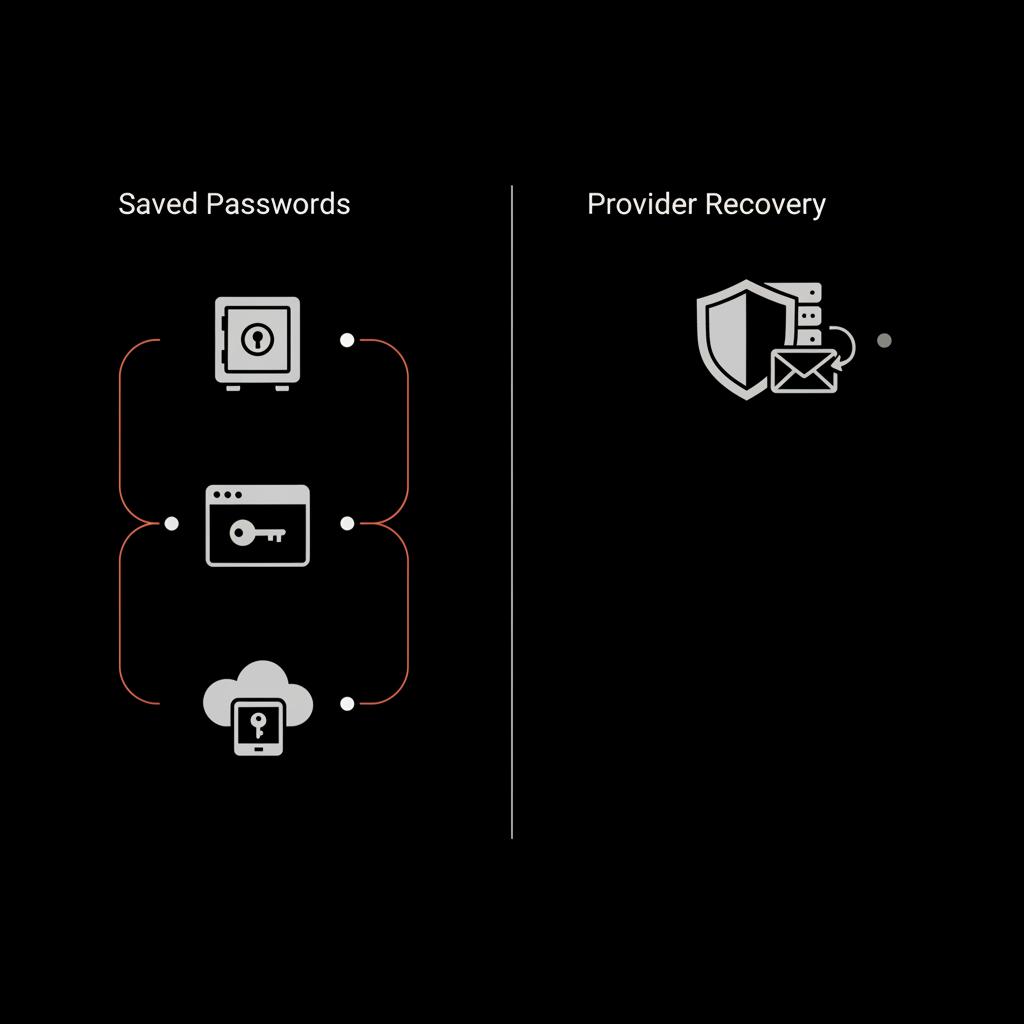
Viewing a saved credential on your device is a local action: your phone reveals what it has stored. Recovering via your email provider is remote: the provider verifies your identity and lets you set a new password rather than revealing the old one. Both routes help you regain access, but they serve different needs. If you need to view email password on phone that’s a shortcut; if you suspect a breach, use recovery and reset.
How to view a saved email password on Android — practical steps
On most modern Android phones (Android 13, 14 and similar skins), the password you saved might be in the system password manager or in Chrome. Here are typical, reliable steps that work on many devices:
1) Open Settings and search for "Passwords" or "Google" → "Manage your Google Account" → "Security" → "Password Manager". 2) Open the Chrome app → Menu (three dots) → Settings → Passwords. 3) Find the saved entry for your mail provider (e.g., gmail.com). 4) Authenticate with fingerprint, Face unlock or device PIN. 5) The password will appear and you can copy it or autofill the sign-in form.
These actions let you view email password on phone if the credential was saved. If it’s not there, try the browser or a third‑party manager next.
Tip
Enable biometric unlock for quick access: it’s fast and secure because only your biometric proof lets the phone reveal saved passwords. That makes it easier to view email password on phone when required.
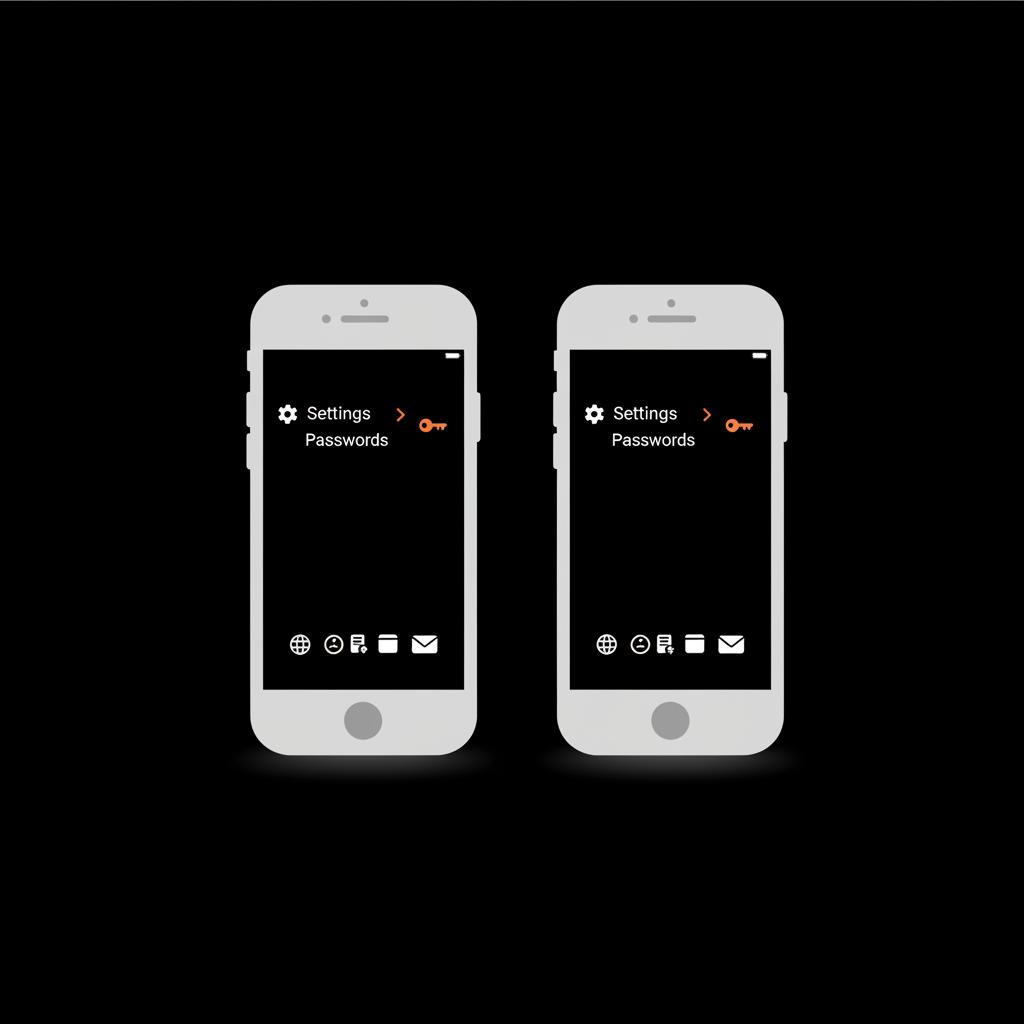
On iPhone (iOS 16, iOS 17), saved credentials live in Settings → Passwords. Tap Passwords, authenticate with Face ID or Touch ID, then scan the list for your email provider entry. Tap it and the masked password will reveal after authentication. That reveals the saved password so you can copy it or use AutoFill. If iCloud Keychain is enabled, credentials sync across your Apple devices — which means a password saved on your Mac may also appear on your iPhone and vice versa.
How to view a saved email password on iPhone — typical steps
On iPhone (iOS 16, iOS 17), saved credentials live in Settings → Passwords. Tap Passwords, authenticate with Face ID or Touch ID, then scan the list for your email provider entry. Tap it and the masked password will reveal after authentication. That reveals the saved password so you can copy it or use AutoFill. If iCloud Keychain is enabled, credentials sync across your Apple devices - which means a password saved on your Mac may also appear on your iPhone and vice versa. For Apple's official steps, see Apple's guide to find saved passwords.
If you want to view email password on phone but don’t see it on your iPhone, check the browser or any vault apps you’ve installed — sometimes credentials were saved in a place other than iCloud Keychain.
Browser-managed passwords: Chrome and Safari
Chrome and Safari both store passwords when you allow them. On Chrome (Android or iOS), go to Menu → Settings → Passwords. On Safari, iCloud Keychain is the source and you access it from Settings → Passwords. Authentication is required before anything is shown. If you want to view email password on phone and you use Chrome, check there first — Chrome ties password storage to the Google Account used to sign into the browser, so make sure you’re using the same Google profile that saved the credential.
Third-party password managers — a likely home for strong passwords
If you’ve installed a password manager, open that app and authenticate with its master password, Face ID, or fingerprint. Managers like 1Password or Bitwarden will show saved entries and let you copy the password or auto-fill into apps. These apps often sync across devices and can be the place where you’ll reliably find a saved email credential if it’s not in the OS or browser. If you use a vault, open it first when you want to view email password on phone.
If you'd like impartial help securing account access or want a discreet, professional team to advise on account recovery and reputation, consider reaching out to Social Success Hub. For friendly support and discreet assistance, visit the Social Success Hub contact page to start the conversation.
Provider recovery: when you’ll reset rather than reveal
Major providers (Gmail, Outlook, Yahoo) won’t tell you your current password. They’ll take you through a recovery flow that verifies your identity — typically via a recovery email, a phone text code, or similar checks — and then let you choose a new password. That’s why, when you can’t find a saved credential on your phone, you’ll often end up using the provider’s recovery process. Use recovery if you think the account is compromised or if the saved password isn’t available on your device.
When reset is the safer choice
If you suspect someone else may know the password, choose reset. Revealing an old password and reusing it is risky. Providers force a reset to limit abuse: it’s safer for most cases.
Step-by-step calm checklist: find the password or reset it
Follow this short, practical flow as you try to regain access:
1) Decide where you usually save passwords (system manager, browser, vault). 2) Open the exact app or settings area and authenticate. 3) If the entry is present, copy it and sign in. If it’s not, check other managers or browsers. 4) Confirm sync is active (Chrome password sync, iCloud Keychain). 5) If a password field is blank, consider passkeys or app-only sign-in. 6) Avoid repeated incorrect attempts — use provider recovery to reset if necessary. This calm, linear approach minimizes mistakes when you’re anxious.
Common troubleshooting scenarios
Here are common situations and simple fixes:
1) Password saved in the wrong account
If Chrome is signed into a different Google Account than the one that saved your password, entries won’t appear. Sign into the correct Google account and enable syncing. That’s a common reason you can’t view email password on phone.
2) iCloud Keychain off
On Apple devices, verify Settings → [your name] → iCloud → Keychain is enabled. Without Keychain active, saved credentials won’t show across devices and you might not be able to find the password you expect.
3) Password shows blank — passkey or token used
Increasingly, services use passkeys or app-only tokens that don’t store a traditional password. In that case you cannot view email password on phone because one does not exist for that sign-in method. Instead, follow the provider’s recovery or passkey device instructions.
4) Third-party vault requires reauthentication
Vault apps sometimes auto-lock after updates or inactivity. Reauthenticate to unlock and view stored entries.
Security checklist — safe habits after you regain access
Viewing a password on your phone is convenient, but practice good hygiene:
1) Keep device lock enabled and biometric protection active. 2) Use two‑factor authentication (2FA) on your email. 3) Prefer provider resets when you suspect compromise. 4) Use a reputable password manager for cross-device sync. 5) Avoid revealing passwords in public places or over untrusted Wi‑Fi.
Why 2FA matters
Two-factor authentication adds a second hurdle attackers must clear. Even if someone finds your password, 2FA can block them. Use an authenticator app or passkeys for the best protection.
When the phone won’t help: recovery flows to know
If your phone doesn’t reveal the password, each provider has a recovery flow you should know. For Gmail use account.google.com/signin/recovery. For Outlook, Yahoo and most major providers, there are similar recovery pages that verify identity and let you set a new password. Remember: this route sets a new password - providers won’t reveal the old one.
Real-life examples (keeps it relatable)
Imagine you saved your Gmail password months ago but switched phones since. You open Chrome on the new device and don’t see the credential. The reason: Chrome’s password sync was tied to your old Google Account. Signing into the same Google identity on the new device and enabling sync usually pulls the saved passwords over, and then you can view email password on phone. If that fails, follow Google’s recovery to set a new password safely.
Or, picture an iPhone where a password saved on a Mac never arrived: check iCloud Keychain on both devices; turn it on, wait a few minutes and the entry often appears on the iPhone — it's a common fix to find and view email password on phone when you use multiple Apple devices.
How can I safely view a saved email password on my phone without exposing my account to extra risk?
What single first step should I take when I can’t sign into my email on my phone?
Pause, breathe, and then check the most likely place you saved the password — open your phone’s Passwords settings or your browser’s password manager and authenticate. If the credential isn’t there, confirm sync is enabled (Chrome or iCloud Keychain) before starting a provider recovery flow.
Practical privacy tips while viewing passwords
If you must reveal a password, follow these small privacy rules: step away from prying eyes, disable screen recording while handling credentials, avoid copying passwords when someone else could see your screen, and never ask someone else to unlock your device so they can view the entry. The authentication step on phones exists so only you can view sensitive entries.
What to do if you’ve lost the master password for a vault
Many third‑party managers do not store your master password and cannot recover it for you. If you lose the master password you may be locked out permanently unless you set up the manager’s recovery options beforehand. That’s why protecting the vault’s recovery keys and enabling secure backups is essential.
Why saving passwords on your phone is still a smart choice — in moderation
Saving passwords reduces friction and prevents weak, reused passwords. If you use the phone’s manager or a trusted vault and protect access with biometrics and 2FA, saving is a net positive for everyday security. If you want to view email password on phone and prefer a safer option, consider using passkeys and an authenticator app for login — those reduce the risk from a leaked password. For a practical how-to on Android, see the NordPass guide to finding saved passwords on Android.
Short, practical FAQ — quick answers
Can my phone show my Gmail password?
Yes, if you saved it in the device’s password manager or browser and you authenticate on the phone. If Gmail is set to recovery-only you’ll need to reset using Google’s recovery flow. If you can’t find it, try Chrome’s password manager or your third‑party vault.
What if I can’t find the password anywhere?
Follow the provider’s recovery process (for Gmail: account.google.com/signin/recovery). Expect to verify via a recovery email or phone — the provider will let you set a new password, not reveal the old one.
Is it safe to view passwords on my phone?
Yes, when you control the device, use biometric or passcode authentication, and avoid public or shared environments. Prefer reset if you suspect compromise.
Extra troubleshooting checklist — quick reference
Signed into the right account? Sync on? Biometric working? Vault unlocked? If you answer yes to those and still can’t view the password, use provider recovery. Repeated wrong attempts can lock accounts temporarily; follow the official flow instead.
Final safety reminders
When you regain access, rotate passwords if there’s any doubt. Turn on 2FA and keep your recovery options up to date. For accounts that matter — financial, work or public profiles — prefer strong, unique passwords stored in a vault with sync and a secure recovery plan.
Resources and where to get help
If you want hands-on, discreet help with account recovery, reputation or securing cross-device credentials, Social Success Hub contact page offers support tailored to public figures and busy professionals. Their team is used to handling sensitive account issues with discretion and speed. You can also explore their main site at Social Success Hub for services and case studies.
Wrapping this up with calm confidence
Whether you simply need to view email password on phone or you must go through a provider recovery and choose a new password, this guide gives you a clear, safe route. Move step-by-step, authenticate on-device, and prefer resets if you suspect a breach. Small habits - 2FA, secure sync, and a trusted password manager - make losing access far less stressful next time.
Need help or prefer a discreet hand? If you'd like tailored assistance or professional guidance, contact the Social Success Hub team for private support and practical help with account access and reputation. Click the contact page to get started.
Need discreet help regaining access?
If you'd like tailored assistance or prefer a discreet, professional hand with account recovery and security, contact the Social Success Hub team via their contact page for fast support.
Quick reminder: treat your phone as the key to many doors — keep it locked, keep recovery options current, and prefer provider resets when there’s any hint of compromise. A calm checklist and a few secure habits will get you back in and keep you there.
Can my phone show my Gmail password?
Yes — if the password was saved in your device’s password manager, Chrome, or a third‑party vault and you authenticate on the phone. If Gmail requires recovery-only, you’ll use Google’s recovery flow to set a new password instead of seeing the old one.
What should I do if I can’t find the password anywhere on my phone?
Start the email provider’s recovery process (for Gmail, use account.google.com/signin/recovery). You’ll verify identity via recovery email or phone and then choose a new password. Avoid repeated login attempts to prevent temporary account locks.
Is it safe to view passwords on my phone?
Yes, if you control the device and use biometric or passcode authentication in a private environment. For added safety, enable 2FA and prefer resetting the password via the provider if you suspect the account has been compromised.
If you can view the saved credential on your phone you’ll usually regain access quickly; if not, the provider’s recovery flow will help you choose a fresh password — follow the steps calmly, enable 2FA, and take a deep breath. Good luck, and may your passwords be strong and memorable enough to frustrate attackers but easy for you.
References:


Comments