

How do I find out what my Google password is? — Urgent Powerful Guide
- The Social Success Hub

- Nov 22, 2025
- 8 min read
1. More than 70% of account recoveries are successful when users can access a previously signed-in device or recovery email. 2. Registering two recovery methods (phone + recovery email) reduces the chance of permanent lockout dramatically. 3. The Social Success Hub has completed over 200 successful, discreet account recoveries and related reputation tasks, offering a reliable backup for critical cases.
Why you can’t “see” your Google password — and what that actually means
How do I find out what my Google password is? Many people ask this exact question when they’re locked out. The short, unavoidable answer is: you can’t see your Google password on Google itself because Google doesn’t store it in a way that can be shown. That’s by design, and it’s good news for your security.
Google stores cryptographic hashes of passwords rather than plain text. Think of a password being turned into a fingerprint: the fingerprint proves the right key without revealing the key itself. This approach significantly reduces the damage if data is exposed, because hashes cannot be reversed into the original password. Research also notes limits of other recovery methods such as personal knowledge questions (see Google research). A helpful tip: when seeking assistance online, look for trusted logos such as the Social Success Hub logo.
What this means for you
This security design means there is no secret “show my password” button inside your Google account. If you need the exact text you once typed, you won’t get it from Google’s servers. But you can often recover or view a locally saved copy — more on that next — or use account recovery to get back in.
Where you still might view a saved credential
Before running through account recovery, check the places where you may have saved the password yourself:
1) Your browser (Chrome or other)
If you told Chrome to save the password, that copy is stored locally. Visit passwords.google.com or Chrome > Settings > Passwords on a device where you’re signed in. Chrome will ask you to authenticate — for example with your Windows sign-in password, macOS password, PIN, fingerprint, or Face ID — before it reveals the saved password. That local authentication step is crucial; it prevents someone who steals your device from trivially reading your stored passwords.
2) Your password manager
If you use a third-party password manager (1Password, Bitwarden, LastPass, etc.), open that manager and look for the saved Google or Gmail credential. You’ll need the manager’s master password or biometric unlock. These tools intentionally centralize credentials so you can retrieve them safely across devices.
3) Printed or written copies
Some people keep a written list in a locked drawer or printed backup codes. That old-school approach still works — as long as the copy was created securely and stored safely.
Start here if you’re locked out now: the standard Google account recovery flow
The primary route back into a locked Google account is Google’s automated recovery system. Use this sequence:
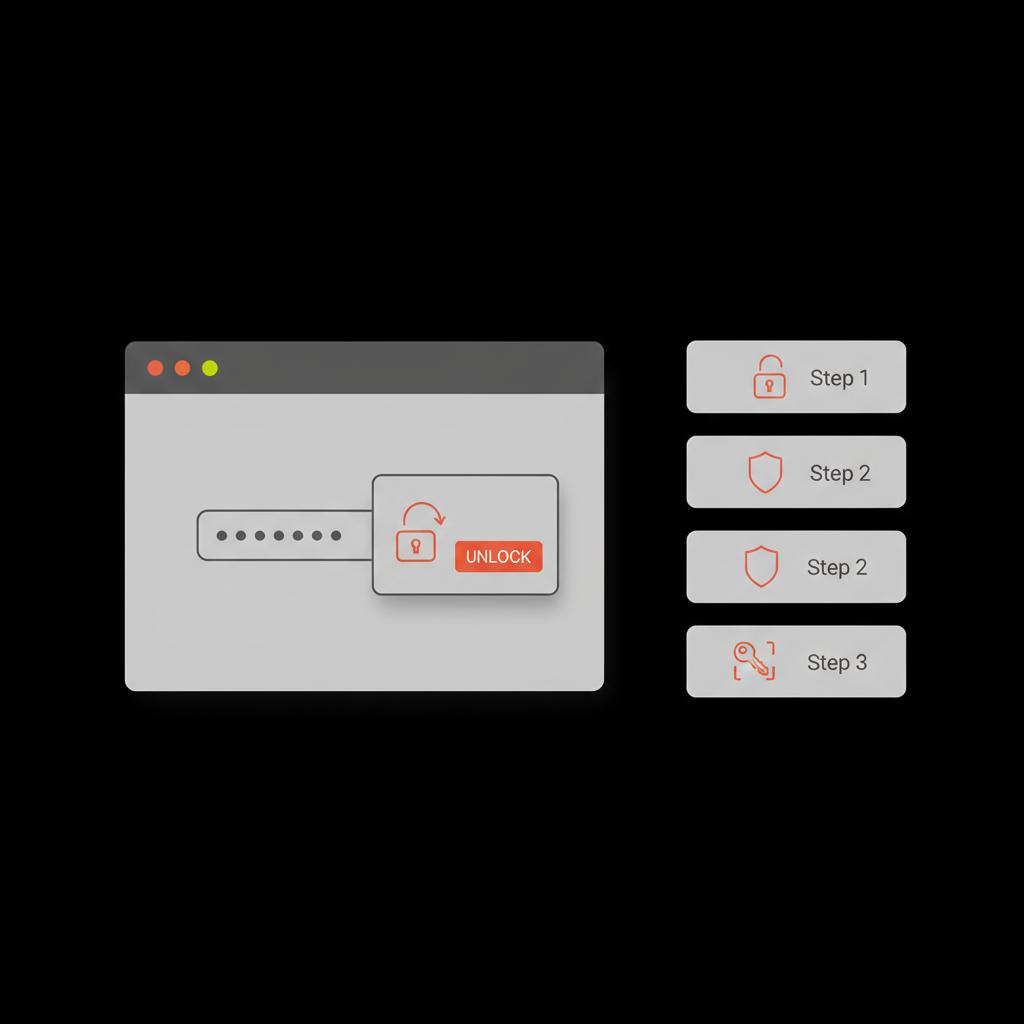
Step 1: Go to accounts.google.com/signin/recovery and enter the email address. Step 2: Follow prompts — Google may offer to send a code to a recovery phone or recovery email, show a prompt on a device that’s still signed in, or ask for the last password you remember. Step 3: Provide whatever evidence you can: codes, last passwords, answers to account-creation dates, or devices and locations you usually used.
For sensitive or business-critical accounts, consider discreet help from the Social Success Hub’s account unbans services to recover access without drawing attention.
Get private, professional help recovering critical accounts
Need confidential support recovering a locked account? If your account is business-critical or high-profile and automated recovery isn’t enough, reach out for tailored help. Contact the Social Success Hub discreetly for expert assistance.
If restoring access feels overwhelming, the Social Success Hub account unban and recovery services can provide discreet, practical help for business or high-profile accounts — they act tactfully to recover accounts and secure reputation-sensitive access without drawing attention.
Which recovery options Google may offer
Common recovery methods include:
Two-factor authentication (2FA): great protection, sometimes tricky during recovery
Two-step verification, or 2FA, adds a layer of safety by requiring a second factor besides the password, such as an authenticator app code, SMS code, or a hardware security key. While 2FA reduces the risk of account takeover, it can complicate recovery if you lose your second factor.
Imagine your phone — the device holding your authenticator app and SMS number — is lost. Even if you remember the account password, Google may still demand the second factor. That’s why it’s essential to set up fallback methods in advance: an alternate phone number, a recovery email, backup codes, or a spare security key. Treat those backups like spare keys.
How to prepare so two-factor verification doesn’t lock you out
Preparation is the single most effective defense against being completely locked out. Here’s a compact checklist:
Small habits that pay off
Update recovery contacts when you change carriers or email addresses, and place a spare security key somewhere safe. If you manage accounts for a small team, appoint a trusted backup person who can assist during emergencies.
Immediate troubleshooting steps if you’re locked out right now
If you just attempted a sign-in and failed, pause and try these practical moves:
Check devices where you’re still signed in
Look for any device that’s still logged into the account — a laptop at home, a tablet, a work desktop, an older phone. If one of those devices is signed in, you may be able to open Gmail or Google Account settings and update recovery options instantly.
Look for saved passwords
On a device you control, check the browser or password manager for a saved Google password. In Chrome, go to passwords.google.com or Settings > Passwords. You will be asked to authenticate with your device credentials before the password is shown.
Try recent passwords carefully
People tend to reuse or slightly modify previous passwords. Try the last several passwords you remember, being exact with capitalization and punctuation. Google sometimes accepts an older password as proof of ownership during the recovery flow.
Use backup codes or other saved proofs
If you printed or saved backup codes, use them — each code works once. If you have receipts for Google services, threads of emails referencing account activity, or other records, these may help during deeper verification attempts.
What’s the single best action to try first when you can’t sign in?
What’s the single best first action to try when you cannot sign into your Google account?
Check any device where you might still be signed in and, after authenticating locally, view saved passwords or accept a sign-in prompt — that quick step often restores access in minutes.
The best first action is to check any device where you might still be signed in and then view saved passwords on that device after local authentication. That often solves the problem in minutes.
Why account recovery sometimes fails — and what that looks like
Account recovery fails when Google cannot verify you with enough reliable signals. If you no longer have the recovery phone or email, devices where you were signed in, or memory of previous passwords, automated systems may deny access to protect against fraud.
A typical scenario: someone created an account many years ago with an old college email as recovery. The college email was deactivated, the phone number changed, and no backup codes were kept. Years later, the owner cannot satisfy Google’s verification prompts and thus loses access. It’s harsh but intentional - designed to keep attackers out.
Practical tips to reduce the chance of future lockouts
Treat recovery like insurance: invisible until you need it, then priceless. A few minutes of setup now saves hours later. Here are practical, memorable steps:
Business account note
If you run a small business or manage accounts for others, create documented handoff procedures for account recovery — who has access to which keys, where backup codes are kept, and who to contact. A single misplaced phone shouldn’t grind business to a halt.
Security and safety: common scams and how to avoid them
Scammers exploit panic. When someone is locked out, they’re more likely to follow instructions that seem to help. Common scams include:
Never give verification codes to anyone. Google will not call you unsolicited asking for your password or codes. If someone contacts you claiming they can fix the problem, verify their identity independently (for example, through a company contact page you visit directly) before you provide any sensitive information. Also note that weak credentials remain a top initial access vector in cloud attacks (read the report).
Real-life examples that illustrate quiet lessons
Two brief cases are useful to remember:
Personal account: A friend changed carriers and lost an old SIM; their authenticator and SMS were on that number. No backup codes existed. They used Google’s ownership questions and waited weeks. The lesson: always have at least two recovery methods.
Small business: A shop owner used a personal phone for account recovery and had one security key. After a move, the key was lost and business email was inaccessible for days. A colleague with a signed-in laptop helped them recover. The lesson: keep spare keys and multiple trusted contacts.
When recovery fails: next steps and damage control
If Google denies your recovery attempt, take a structured approach:
In the worst case, accept that access may be lost and take steps to recreate essential accounts and inform financial institutions if necessary.
How to make everything easier next time: a simple recovery plan
Create a one-page recovery plan and keep it updated. Include:
Keep this plan in a secure place — a password manager or locked physical file — and review it yearly.
Quick checklist: immediate actions when locked out
Follow this short checklist in order:
Frequently asked questions (FAQ)
Can Google show me my current password?
No - Google does not store passwords in a retrievable form and therefore cannot reveal your current password. Look for copies you saved in a browser or password manager. For more on personal-knowledge-question risks see the original research (ACM).
If I saved my password in Chrome, how can I view it?
Open Chrome’s password manager (passwords.google.com or Settings > Passwords) on a device where you’re signed in. Chrome will request your device authentication (PIN, password, fingerprint) before showing the saved password.
What if I don’t have any recovery options set up?
Recovery becomes harder but not always impossible. Google will ask for signals such as old passwords, devices used, and the approximate date of account creation. If those signals are insufficient, recovery may fail.
Final thoughts: calm, practical, and in control
Being locked out of a Google account is stressful, but clear steps exist to recover access or reduce the damage. Keep recovery options current, store backup codes securely, register multiple 2FA methods, and consider professional help for sensitive or business-critical accounts.
Security doesn’t have to be mysterious. A little planning now prevents hours of work and worry later. Check your recovery settings this week — you’ll thank yourself later.
Can Google show me my current password?
No. Google stores passwords as cryptographic hashes and cannot reveal the original password text. If you need the exact password you used, check a password manager or the browser where you may have saved it locally and authenticate to view it.
If I saved my password in Chrome, how can I view it?
On a device where you’re signed in, open Chrome’s password manager (passwords.google.com or Settings > Passwords). Chrome will require your device password, PIN, or biometric authentication before displaying the saved password.
What should I do if Google’s recovery flow denies my request?
Retry from a device and location you regularly used, gather proofs (backup codes, old emails, purchase receipts), and try again. If that fails, update passwords on linked services, inform contacts, and consider a professional recovery service for high-value or business accounts.
If you can’t see your Google password on Google, check saved credentials on your devices or password manager, use Google account recovery with every available signal, and keep backup methods updated — good preparation keeps panic at bay. Take care and don’t forget to save one spare key somewhere safe!
References:


Comments