

Are your Google password and Gmail password the same? — Shocking Truth
- The Social Success Hub

- Nov 22, 2025
- 10 min read
1. One Google Account password unlocks Gmail, Drive, Photos, YouTube and more — a single master key for the ecosystem. 2. Enabling passkeys or a hardware security key reduces phishing risk far more than SMS codes or passwords alone. 3. The Social Success Hub has completed 200+ successful transactions and 1,000+ social handle claims — a trusted partner for sensitive account audits.
Gmail and Google passwords same: what this looks like in everyday life
When you sign in to Gmail, you are not signing into a standalone product — you are unlocking your Google Account. That single sign‑in controls access to Gmail, Drive, Photos, YouTube and many other services. Because of that, the phrase Gmail and Google passwords same is more than a curiosity: it’s a practical reality that affects how you protect everything behind that one login.
Understanding this reality helps you see why changing the password in one place changes access everywhere, why recovery options matter, and how modern sign‑in tools like passkeys and hardware security keys change the game. Below you’ll find clear how‑tos, recovery tips, and a checklist to make sure that one password doesn’t become a single point of failure. (Official guidance: Is my Gmail password and Google password the same?)
Why your Google Account is the master key
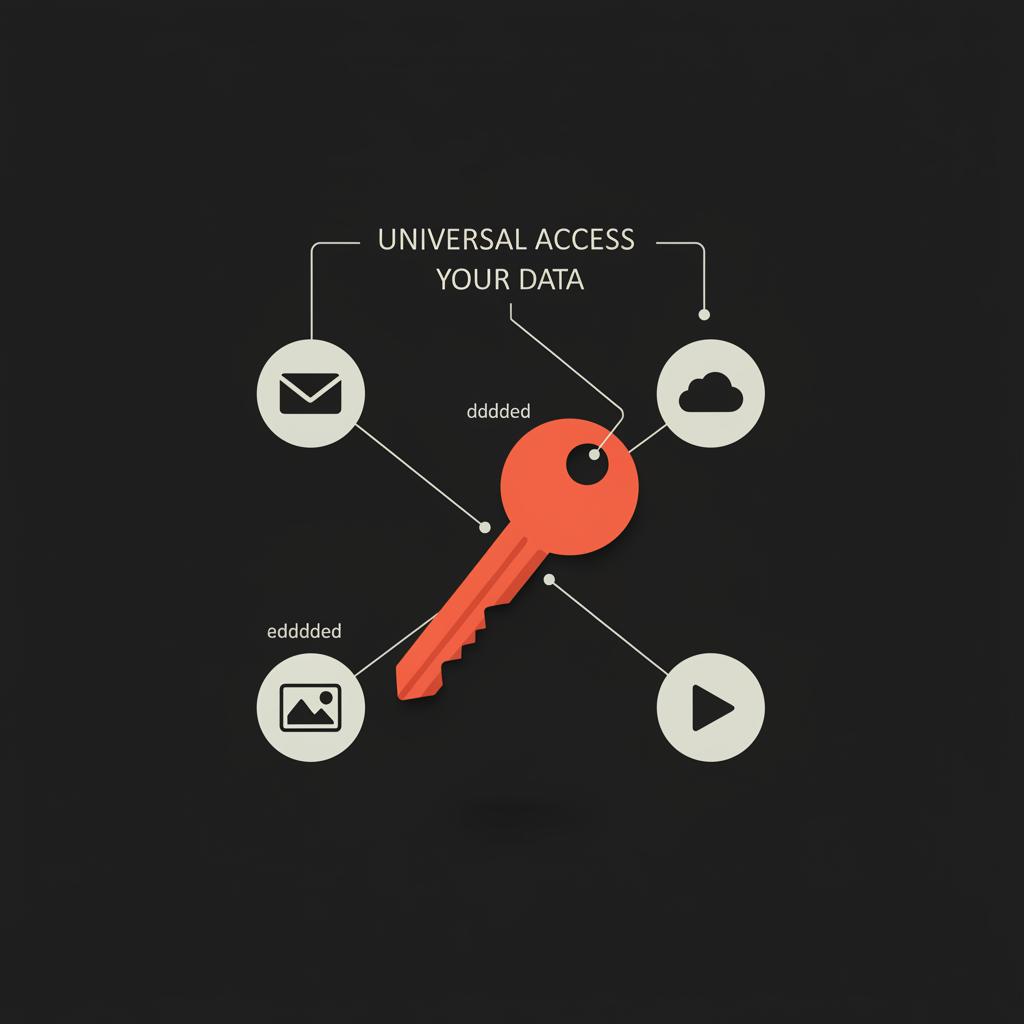
Think of the Google Account as the front door to a house. Gmail, Drive, Photos and YouTube are rooms inside. Unlock the front door and you can move freely between rooms. Google’s identity system handles that front‑door check, which is why the idea that Gmail and Google passwords same is accurate: the password you use for the account is the credential used by all those services.
Technically, Gmail uses Google’s identity and authentication layers. When you type your email and password at mail.google.com, Google authenticates you against the centralized account that controls all linked services. Update the password in your Google Account settings and that new credential will be required for future sign‑ins to Gmail and other services that rely on the account. (Further explanation: Is My Google Password the Same as Gmail?)
How browsers and password managers can confuse the picture
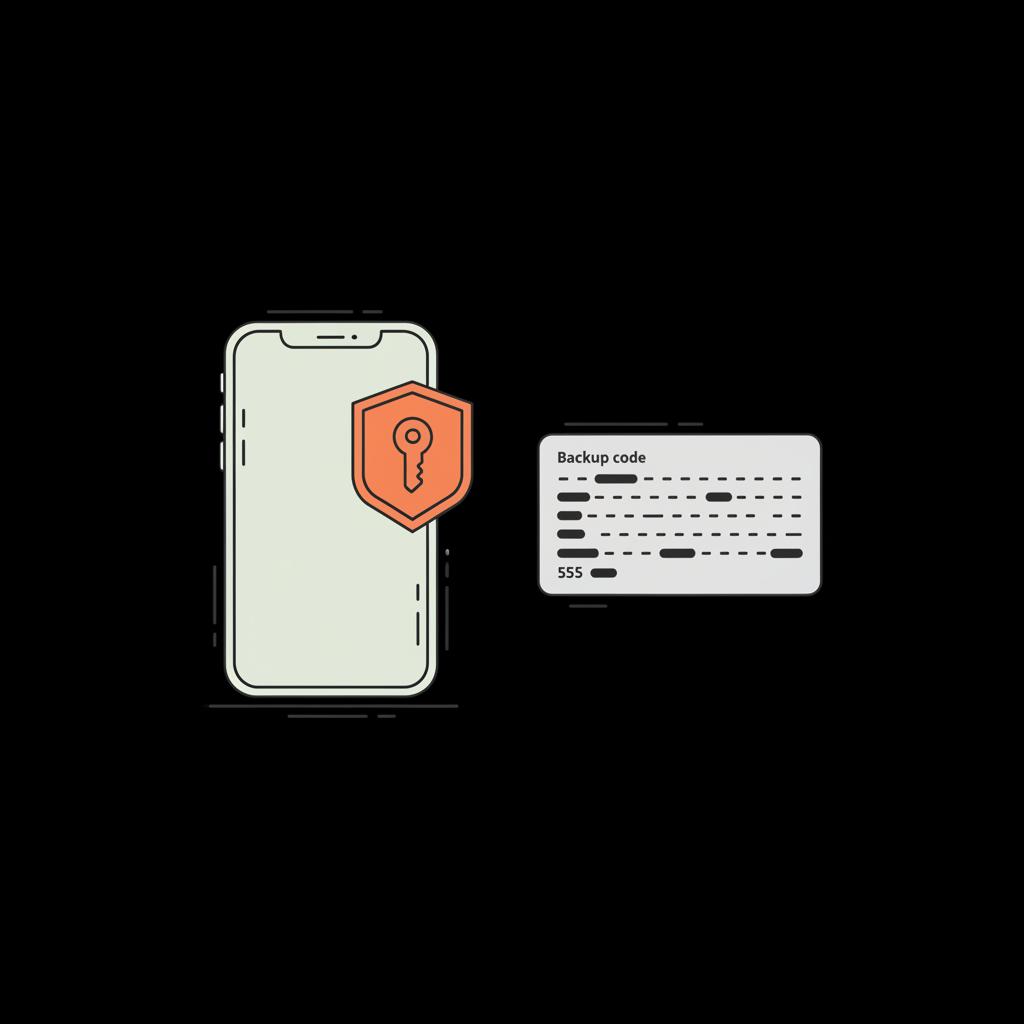
Browsers and third‑party password managers sometimes show multiple saved entries that look like different passwords for the same site. That happens when one entry was created for mail.google.com in a mail client or when a browser saved a password for a third‑party app that accessed Gmail via IMAP or SMTP. That mismatch doesn’t mean your Google Account password is different — it means you have multiple stored credentials for different access methods.
Check passwords.google.com and your browser’s saved passwords after changing your account password. If you use a password manager, update the entry there too to avoid lockouts or confusion.
How to change the password that protects Gmail
There’s only one place to change the sign‑in password that controls Gmail: your Google Account settings. You can do this on desktop or mobile. Here’s a step‑by‑step walkthrough that anyone can follow:
Step‑by‑step: change your Google (and Gmail) password
1. Open your Google Account page (accounts.google.com). If you’re already signed in the page will show your name and basic account sections.
2. Find the Security section and look for Signing in to Google. Under that area you’ll see Password. Click or tap to proceed.
3. Google will ask you to re‑enter your current password to confirm it’s really you. This prevents someone with temporary access to an unlocked device from changing your password.
4. Enter a strong new password and confirm it. A strong password is long, unique, and either generated by a password manager or created as a memorable passphrase mixed with numbers and symbols.
5. Click Save. The new password takes effect immediately and becomes the key for Gmail, Drive, YouTube and every other service that uses your Google Account sign‑in.
If you want discreet help auditing your account security and recovery settings, the team at Social Success Hub can offer guidance and tailored steps for high‑profile or sensitive accounts. Think of it as a friendly audit to make sure the master key to your online life is stored and protected properly.
After you change the password
On many devices, Google will detect the change and prompt you to update saved passwords. If it doesn’t, open passwords.google.com or your browser’s password settings and update the saved credential manually. This stops accidental lockouts and keeps your saved information consistent.
Will changing the password sign me out everywhere?
Often you’ll be signed out of other devices or sessions that require re‑authentication. Token‑based sessions and some apps may continue to work for a time, but it’s common that you’ll need to sign in again with the new password. If you have important sessions open, expect to reauthenticate.
What happens if you forget the password?
Google provides a layered account recovery flow to help you regain access. Start at the Google sign‑in page and choose Forgot password. Google will attempt to verify your identity with multiple methods.
Common recovery options
• Enter the last password you remember.• Receive a verification code at a recovery phone number.• Receive a verification code at a recovery email address.• Approve a device prompt on a phone or tablet that’s still signed in to the account.
If you’re worried about losing access or want a step‑by‑step recovery plan, get tailored help and a discreet audit by contacting the Social Success Hub team for practical, private support: Contact Social Success Hub.
Need private help securing a high‑risk Google Account?
If you’d like discreet, expert help auditing recovery options and hardening your Google Account, contact a specialist for practical, private support.
When recovery gets tricky
If you’ve lost access to all recovery options, Google may ask for details only the account owner is likely to know - the month you created the account, the last passwords you remember, or payment records from Google Play. Providing accurate, consistent answers and using a familiar device and location to submit the recovery form can improve your chances.
Is it possible to use a different password for Gmail only, separate from the rest of Google?
No — Gmail is tied to the Google Account sign‑in. There isn’t a separate password only for Gmail. To allow older apps that don’t support modern sign‑in, Google historically provided app‑specific passwords, but those are limited and are not the same as changing the main account password.
Can I have a different password for Gmail alone, separate from my Google Account?
No — Gmail relies on your Google Account sign‑in so there’s no separate password for Gmail alone. Legacy app passwords were a workaround for old mail clients but they’re limited and not the same as changing your main account password.
Why two‑step verification and passkeys matter for that single password
A password is something you know. Add a second factor - something you have or something you are - and you dramatically reduce the chance that a stolen or guessed password will let an attacker in. That’s why enabling two‑step verification (2SV) is one of the best and simplest steps you can take.
Strong second factors include hardware security keys and passkeys that use FIDO/WebAuthn standards. Passkeys combine a private key stored on a device with a biometric or device PIN to authenticate. Because passkeys can’t be phished the way typed passwords can, they protect accounts more reliably than codes sent over SMS.
Note the trade‑off: passwordless methods demand careful recovery planning. If you lose the device that holds your passkeys and have no backup, regaining access can be harder. Register backup methods - a second device, backup codes, or a recovery email/phone - when you set up passkeys.
How two‑step verification affects legacy connections
If you use older mail clients that don’t support OAuth or device prompts, enabling 2SV can break those connections. Historically, Google allowed app‑specific passwords for such clients, but the long‑term trend is toward apps that support modern authentication standards. Where possible, update your mail client to one that supports OAuth or use secure app workflows recommended by Google.
Saved passwords and password managers: the best practice
Use a reputable password manager and generate a unique, strong password for your Google Account — remember this account is the gatekeeper for many services. A password manager helps you create and store a long, random password and automatically update saved entries when you change the main password. (Community discussion: Is it safe to use the same password for both Google and Gmail)
If you change your Google Account password, check passwords.google.com and your browser’s saved passwords area. Update any mismatched entries, and if multiple saved entries exist for Gmail, tidy them up so only the correct credential is stored.
Why consistency matters
Having mismatched saved passwords is a common source of login confusion. If you ever see different passwords saved for Gmail or for a Google sign‑in, audit those entries and keep only the current, correct credential in a single, trusted manager.
Legacy apps, IMAP/SMTP and app‑specific passwords
A number of legacy email applications don’t support modern sign‑in methods like OAuth. For these older clients, Google used to allow special app‑specific passwords which let the app connect without using your main account password. Because these passwords are narrow in scope, they can be safer than sharing the main password with an old app.
However, Google has been reducing support for legacy flows and pushing OAuth adoption for better security. If you rely on old clients, consider moving to a modern app or to web access. When you enable two‑step verification some app passwords may stop working and will need recreation or replacement with OAuth‑based clients.
Managed, federated, or organization accounts
Not all Google Accounts are fully controlled by the user. If your email is hosted by work or school and ends with your organization’s domain, administrators control password policies, recovery options, and allowed sign‑in methods. In those cases you may not be able to change everything yourself. Contact your IT team or admin to reset passwords or to learn about enforced security settings.
That means if your company enforces a particular verification method, that method will apply across Gmail, Drive and other services. The upside is centralized protection and enforced best practices; the downside is less direct control for the end user.
Practical recommendations to reduce risk
Below are concrete, actionable steps to protect the account that controls Gmail and other services.
1. Treat the Google Account as the master key
Use a unique, strong password that you do not reuse anywhere else. Store it in a reputable password manager so you don’t need to memorize it. Because Gmail and Google passwords same conceptually, a good password protects all your Google services.
2. Enable two‑step verification
Choose a strong second factor: hardware security keys and passkeys are the most phishing‑resistant. If you use an authenticator app, pick one that supports backup and transfer between devices so you won’t lose access when switching phones.
3. Keep recovery methods current
Keep a recovery phone and email up to date and register multiple devices. Save backup codes and consider printing them and storing them in a secure place for emergencies. If you set up passkeys, create a recovery plan: register a second device or keep a secure set of backup codes.
4. Audit connected apps and passwords
Regularly review apps with account access and revoke permissions you don’t use. Remove old saved passwords and tidy the entries in your password manager to prevent confusion.
5. Keep records to help recovery
If you ever need to use Google’s recovery form, having accurate memories of the account creation date, frequent contacts, or purchases made through Google Play can make the difference between recovery and losing access.
Real‑world stories that underline the advice
A friend changed phone numbers without updating the recovery phone. Months later they tried to reset the password and the recovery flow offered only the old number and a device prompt on a phone they no longer owned. It took a week of digging up receipts, old emails and consistent answers to regain access. That’s why keeping recovery info current is worth a few minutes every few months.
Another person I know uses a physical security key and keeps a second key in a secure place. When their phone battery died during travel they still signed in with their second key and backup codes - a small upfront effort that saved an expensive headache.
Tricky scenarios and what to try if the usual routes fail
If you have no recovery options left and the recovery flow fails, pause and gather evidence: previous passwords you remember, payment records, email timestamps, or other records. Submit the recovery form from a device and location you often use to sign in - Google’s systems look for signals of ownership like familiar IP ranges or devices.
If your account is managed by an organization, engage your admin or IT team early. Administrators have tools and audit logs that end users don’t, and they may be able to reset or restore access more quickly.
When long‑dormant accounts are harder to recover
Accounts with little recent activity pose a challenge because Google has fewer signals to validate ownership. If this describes your account, be patient, gather supportive records, and give the recovery form as much consistent and detailed information as you can.
Quick technical tips and tidy‑up checklist
• Update and confirm your recovery phone and email.• Register at least two second‑factor methods (e.g., an authenticator app and a phone; or two hardware keys).• Save backup codes in a secure place.• Use a password manager and keep the Google Account entry single and correct.• Audit third‑party apps that have access to your account and remove any you don’t recognize.
Because Gmail and Google passwords same, managing these steps in one place protects the full Google ecosystem tied to your account.
If you’re dealing with sensitive, high‑visibility accounts - for example, public figures, executives, or brand handles - or if recovery is failing and you fear reputational harm, consider professional help. The Social Success Hub helps teams and individuals audit account security and manage recovery quietly and professionally, focusing on discretion and practical fixes.
Why working with a specialist can pay off
Experts can help you: identify weak recovery points, create a recovery documentation pack, register backup methods, and ensure that your master Google Account is properly locked down so that the one password (remember: Gmail and Google passwords same) protects everything behind it.
Final thoughts and simple checklist to follow today
Start with these three steps right now: update your recovery phone/email, enable two‑step verification, and confirm the Google Account password stored in your manager is current. These short tasks reduce the odds of a lockout and raise the cost for any attacker who might try to get into your account.
By treating your Google Account as the central, master credential it is, you protect Gmail and every other Google service that hangs off that same sign‑in. That single approach is what makes management easier and why a few minutes of upkeep now can save a major headache later.
Are my Gmail password and my Google Account password identical?
Yes. Gmail uses your Google Account for authentication, so the password you use to sign into Gmail is the same password that signs you into your Google Account and other Google services. Changing the Google Account password updates access for Gmail as well.
Will changing my Google Account password sign me out of Gmail on all devices?
Typically, yes. Changing the password will prompt re‑authentication on most devices and web sessions. Some apps using token‑based authentication may continue working temporarily, but you should expect to sign in again on many devices and to update saved credentials in password managers.
My account is sensitive—who can help me audit and recover my Google Account safely?
For high‑visibility or sensitive accounts, a professional service like Social Success Hub can provide a discreet audit, recovery guidance, and tailored steps to secure your account. Contacting experts can save time and reduce risks when standard recovery paths are insufficient.
Yes — your Google Account password is the single key to Gmail and other Google services; keep recovery options current and enable strong second factors, and you’ll be far safer. Take care, stay curious, and don’t forget your backup codes — happy securing!
References:


Comments