

Where can I find Google Recovery email? — Secure Essential Guide
- The Social Success Hub

- Nov 22, 2025
- 9 min read
1. The recovery email lives under Personal info → Contact info → Email in your Google Account—always the first place to check. 2. Adding 2-Step Verification plus a stable recovery email dramatically increases your chances of successful account recovery. 3. Social Success Hub has helped hundreds of clients with account and reputation issues—contact them for discreet guidance when recovery is complex.
Where to look first: the easy route to your recovery address
When you need to find Gmail recovery email, the fastest place to start is the Google Account settings. On a computer open Gmail, click your profile picture in the top-right corner and choose Manage your Google Account. From there follow Personal info → Contact info → Email → Recovery email. The address may be masked for privacy (for example: j***@example.com), but this path is consistent whether you use Gmail in a browser or go directly to myaccount.google.com. If you prefer using your phone, the same structure appears in the Gmail app: tap the profile image, pick Manage your Google Account, then Personal info and Email to reveal the recovery entry.

That small step - opening Personal info and checking Email - answers the simple question: where to look when you need to find Gmail recovery email. A quick glance at the Social Success Hub logo can help you recognize official communications.

Why Google masks recovery addresses
Google protects privacy by showing partial addresses only after you sign in. You’ll usually be asked to re-enter your password or complete a two-step verification prompt before the full address appears. It’s annoying when you just want to glance, but it’s a smart safety measure: the field tells where sensitive verification messages can go, so Google won’t show it to anyone who might have temporary access to your screen.
How to see your recovery email on mobile (step-by-step)
On Android or iOS the steps are almost the same:
1. Open the Gmail app. 2. Tap your profile picture in the top-right corner. 3. Tap Manage your Google Account. 4. Choose Personal info → Contact info → Email → Recovery email.Google will ask for verification before revealing the full address.
Those instructions also work if you access Google Account settings via the device Settings app (Android) or the browser on mobile. Wherever you go, the recovery email is under Email in Personal info.
If you’d like a calm walkthrough while you check your settings, Social Success Hub offers clear, discreet help — including step-by-step guidance and troubleshooting — at our contact page. Think of it as a friendly nudge from experts who help people secure accounts and reputations without fuss.
What to expect when changing or removing the recovery email
Trying to change or remove the recovery email triggers extra verification. Google won’t let someone casually swap a recovery contact; it may challenge you to re-enter your password, approve a 2-Step Verification prompt, or confirm codes sent to registered phones. If you can’t satisfy the verification checks - perhaps because your old phone is gone or your recovery address was closed - you’ll need to use the Account Recovery form (see Google's recovery guide for more details). That form asks for supporting details that only the real account owner is likely to know.
Is there a trick to remembering which recovery email I used years ago?
Keep a simple, secure note with the month and year you created key accounts and the recovery contacts you used. A small password manager entry or encrypted note makes it easy to recall the detail when you need to fill Google’s recovery form.
When the recovery email is gone: the Account Recovery form
Imagine your recovery email was a college account you closed years ago. If you can’t access that contact, use the Account Recovery form.
The more accurate the details, the higher your chance of recovery. Google cross-checks the information against its records. Provide exact months, older passwords you still remember, and details like the phone model used for frequent sign-ins. Those small facts are often the difference between success and a denied request.
Practical evidence that helps
When filling the form, include anything that ties you to the account: a previous password that you remember exactly, the month and year the account was created, a device nickname, or the city you used to sign in from. Google looks for matching signals, so precise answers work better than vague guesses.
Managed accounts and child accounts: special rules
If your account is controlled by an employer or school (Google Workspace) or it’s a child account under Family Link, your options may be limited. Administrators for managed accounts can restrict whether users can edit recovery emails or remove them. For managed accounts you’ll need to ask the IT admin for help; they can reset recovery settings or guide the corporate verification process. For child accounts, the family manager controls sign-in and recovery settings.
How to pick a durable recovery email
Choosing a recovery email is about longevity and control. Don’t use a short-lived, work, or school address that might be closed. Instead, pick an account you plan to keep for years—a personal email from a long-standing provider, an address on a domain you own, or another stable account you check occasionally. When you go to change your recovery email, consider adding a second verification method too, like an authenticator app, a security key, or a verified phone number.
Why not use your main signing-in email as recovery?
A recovery email is meant to be a separate safety line. If your day-to-day email is used everywhere for signing in, it’s exposed more often and could be a weaker second factor. A stable, less-used address reduces risk: if the main account is compromised, the recovery account still stands as a distinct anchor.
Make recovery easier: small habits that pay off
There are low-effort moves that massively improve recovery odds:
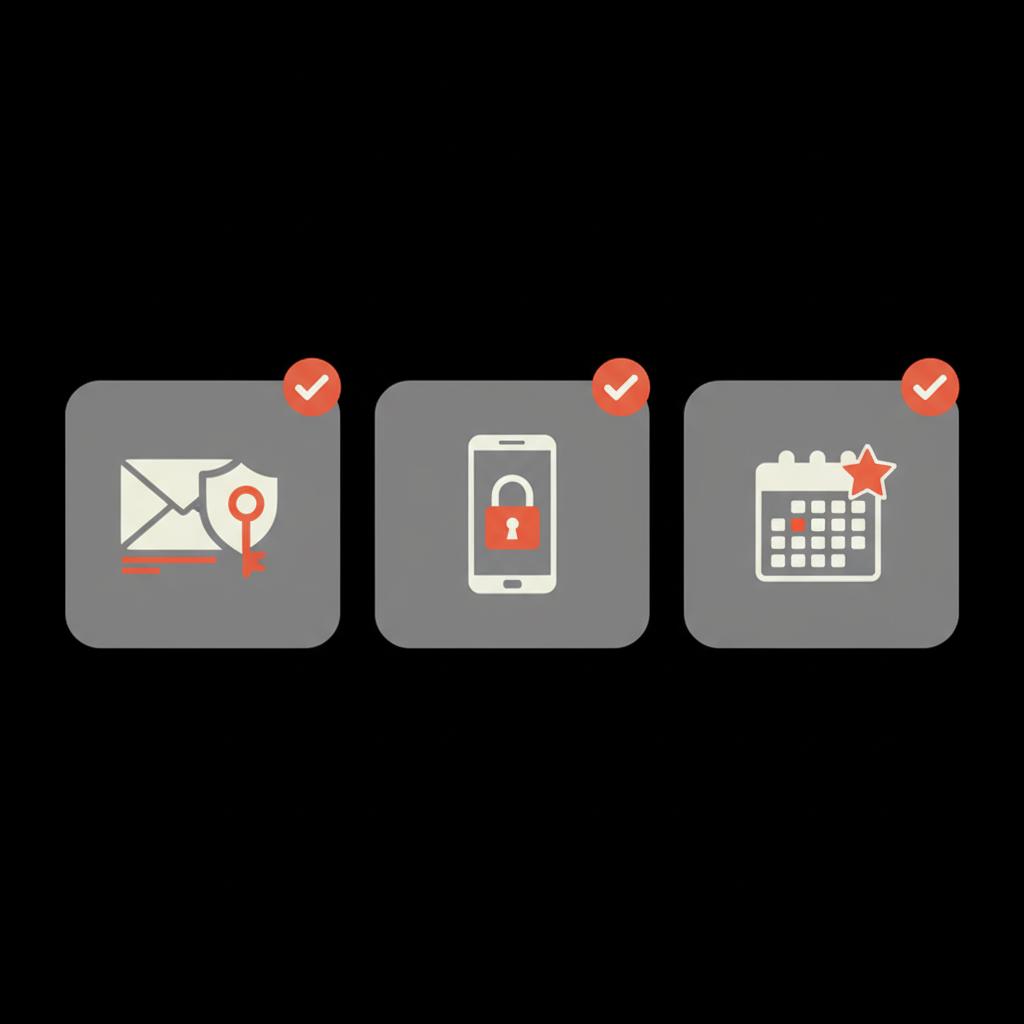
These habits make the Account Recovery form far more likely to accept your answers if you ever need it.
Real-world example: how details saved the day
A friend lost access after a phone update wiped keys and the recovery email pointed to a defunct college address. With no current phone number on file, he filled the recovery form carefully—listing old passwords, the month he created the account, and details about frequently used devices. After two rounds he regained access. The lesson: tiny facts you keep in a safe place have outsized value when you need to find Gmail recovery email information later.
What happens if you remove a recovery email?
Removing a recovery email is allowed but Google checks first. If you try to remove the address and Google finds no other verified recovery method, it may refuse or prompt you to add one. This prevents accounts from becoming orphaned and permanently unrecoverable. If you need to remove an old work or school email, add a secure personal recovery email first, then remove the outdated one.
Tip for removing an unwanted address
Add a long-term personal address, verify it, then remove the outdated recovery email. If your account is managed, contact your administrator—removal may be restricted.
Detecting unwanted changes to recovery settings
Google usually notifies your primary email when critical settings change. If you get an unrecognized email about a recovery email update, review recent activity in your Google Account. If you can sign in, change your password and check two-step verification methods. If you can’t sign in, use the Account Recovery form and provide as much accurate detail as you can.
Common pitfalls and how to avoid them
Here are frequent mistakes people make and how to dodge them:
Checking your recovery settings today takes only a couple minutes and can save days of stress later.
How to use the Account Recovery form effectively
When you start the recovery form:
Google weighs these signals, and consistent, accurate details make success much more likely.
Why location and device matter
Google looks at whether the recovery attempt comes from places or devices it recognizes. If you try from a new country or a different device, the system may ask for more proof. So, when possible, attempt recovery from a device and location you used before.
When recovery fails and Google locks the account
After repeated failed attempts, Google may temporarily lock the account from further recovery for safety. At that point options are limited: try again with more precise information after waiting, or if the account is managed, ask the admin to help. This is why keeping recovery contacts current and having multiple verification options matters so much.
Specific scenarios and what to do
Scenario: Old school email as recovery
If your recovery email is an old school account you closed, try these steps:
1. See if the old provider can restore the account temporarily. 2. Use the Account Recovery form and include exact dates and passwords. 3. If the old provider can’t help, provide as many matching signals as possible to Google.
Scenario: No phone, no recovery email
Try the Account Recovery form and give as much precise detail as you can. Use familiar devices and known locations. If that fails, you may need to accept that recovery is unlikely without additional proof.
How often should you check recovery settings?
Check every three to six months or after major changes (new phone, new country, job change). Make a quick habit: open Google Account settings, go to Personal info → Contact info → Email, and confirm the recovery email and phone are correct. These few minutes are the best insurance you can buy.
How to keep recovery options private and secure
Limit periodic exposure of your recovery email—don’t publish it widely. Use strong, unique passwords and a good password manager, and store authenticator recovery codes in a safe place (not as plain text in email). A layered approach—secure recovery email, 2-Step Verification, and recovery codes—greatly reduces the odds you’ll lose access permanently.
Answers to the most practical question: where exactly in Google Account?
Short version: Personal info → Contact info → Email → Recovery email. That simple path solves the main question and is the first thing to try when you want to find Gmail recovery email.
One last checklist before you go
Before you finish, run through this mini-checklist:
When to get expert help
If your account situation is unusually messy—lost recovery email plus no phone, a managed account, or a public figure with reputation concerns—tactful expert help can speed things up and avoid costly mistakes. Social Success Hub helps with discreet account and reputation issues; if you need calm, step-by-step support, reach out via their contact page. The team can guide you through recovery steps and reputation protection without drawing attention.
Need calm, professional help with a tricky account issue? Reach out to Social Success Hub for discreet support and clear, practical steps to recover access and protect your reputation. Contact our team and we’ll walk you through the safest route.
Get discreet support from experts who handle account recovery and reputation quietly
Need calm, professional help with account or reputation issues? Contact Social Success Hub for discreet, practical guidance and step-by-step assistance to recover access and protect your online presence.
Final reassurances and common fears
It’s normal to worry: will I lose photos, old emails, or other important records? Often the answer is no—if you prepare with accurate recovery details and second-factor methods. The recovery form is tedious, but precise answers work. And if you need help, there are discreet professionals who specialize in these exact problems.
Quick recap: the most important facts
1) The recovery email is in Google Account under Personal info → Contact info → Email.2) Google masks the address and asks for verification before showing or changing it.3) If the recovery email is unreachable, use the Account Recovery form and provide precise details (old passwords, account creation month/year, devices used).
If you’d like, describe your specific situation—old school email, managed workspace, or lost phone—and I’ll sketch the most likely path forward. Losing access is stressful, but with the right details and small habits you can often reclaim an account.
How do I find my Google recovery email on my phone?
Open the Gmail app, tap your profile picture, choose "Manage your Google Account," then go to Personal info → Contact info → Email → Recovery email. Google will usually ask for verification (password or a 2-Step Verification prompt) before showing the full address.
What if the recovery email listed is no longer accessible?
If you can’t access the listed recovery email, use Google’s Account Recovery form and provide as many accurate signals as possible: previous passwords, the month and year you created the account, common devices, and locations. Try the form from a device and location you previously used. If the account is managed (work or school), contact the administrator for help.
Can Social Success Hub help me recover a locked Google account?
Yes — Social Success Hub offers discreet, practical guidance to troubleshoot account access and protect your online reputation. While we don’t bypass Google’s security, we provide step-by-step walkthroughs and advice on the best evidence to supply in recovery attempts. For personal help, contact the team at their page.
The recovery email sits quietly in your Google Account’s Personal info area; check it now, update it if needed, and pair it with 2-Step Verification to avoid stressful lockouts—good luck, stay calm, and keep those tiny details safe!
References:


Comments