

Can I edit a Google review I wrote? — Empowering, Easy Guide
- The Social Success Hub

- Nov 13, 2025
- 8 min read
1. You can change text, star rating and photos — edits typically show an Edited label. 2. The most common reason an edit isn’t visible is signing into a different Google account. 3. Social Success Hub has completed 200+ successful reputation transactions and removes harmful reviews with a proven, discreet process.
Can I edit a Google review I wrote? A friendly, practical explanation
Can I edit a Google review I wrote? Yes - and this guide walks you through the process in plain language, shows what you can change, explains why edits sometimes don’t appear immediately, and gives practical tips so your update stays visible and useful. If you’re wondering how to edit my Google review, you’ll find clear steps and real examples below.
Why editing your review matters
A review is more than a quick rating - it’s a public snapshot of an experience. When a date, a photo, or a fact is wrong, leaving the old information up can mislead other people and unfairly affect a business. Editing your review is a simple, responsible way to correct details, add context, and signal any meaningful follow-up (like a business fixing a problem).

Good edits make reviews more honest and help future customers decide faster.
Quick overview: what you can change
On Google you can edit the text of your review, change the star rating, and add, replace, or remove photos attached to the review. Whether you use Google Maps on mobile, Google Maps in a browser, or the business profile via Google Search, the controls are similar. When you save an edit, Google usually updates the existing review and adds an Edited label with the latest timestamp.
How to edit my Google review - step-by-step
If you want to edit my Google review quickly, follow one of these short sets of steps depending on your device.
If your situation is tricky or a review was removed, consider checking the Social Success Hub's review removals service for discreet, professional help.
Need discreet review or reputation help?
If you need discreet help with review issues or reputation cleanup, reach out for tailored support and fast, professional guidance — Contact the Social Success Hub.
On mobile (Google Maps app)
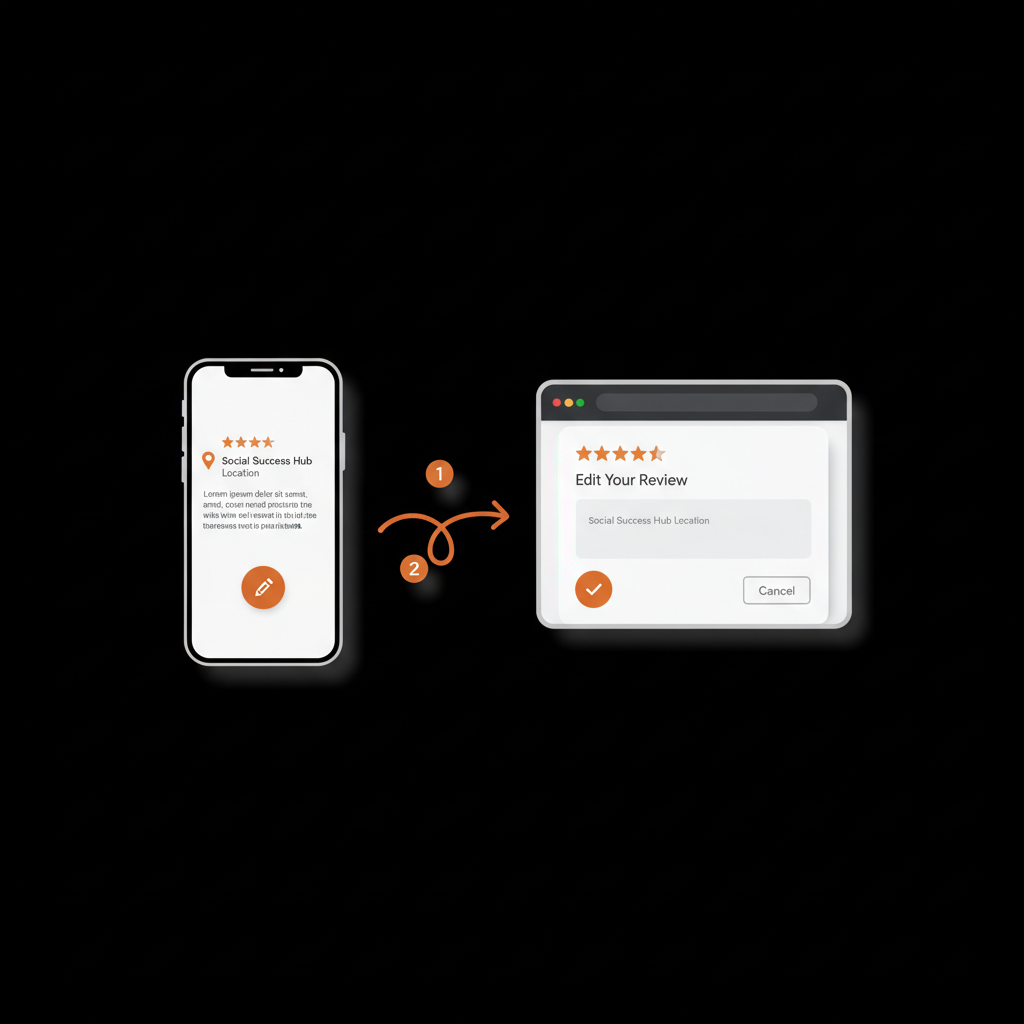
Open the Google Maps app, tap your profile icon, go to Your contributions → Reviews. Find the business, tap the three dots next to your review and choose Edit review. Adjust the text, change the star rating, or update photos, then save.
On desktop (Google Maps in a browser)
Open Google Maps in your browser, click Menu or Your contributions, select Reviews, locate the review you want to change, click the three-dot menu, choose Edit review, make your changes and save. For the official Google steps, see the help center entry: Google Maps - Add, edit, or delete reviews.
Via Google Search (business profile)
Search the business name, open the business profile that appears on the right, scroll to your review and click Edit or the pencil icon. Update text, star rating or photos and save.
Common reasons edits may not appear immediately
Not seeing your change right away is often a small, fixable problem. Here are the usual culprits:
Account mismatch: You might be signed into a different Google account than the one that wrote the review. Double-check which account is active.
App or browser cache: Old cache can show the pre-edit version. Clearing app cache, refreshing the browser, or signing out and back in usually helps.
Moderation checks: Google sometimes runs short checks on edits for policy compliance. If the edit includes disallowed content, Google might remove the edit or flag the review for review.
Troubleshooting: practical fixes
If your edit is invisible or removed, try these steps in order:
1. Verify you’re logged into the same Google account that posted the original review. 2. Refresh the page or restart the app. 3. Clear the browser cache or app cache. 4. Reinstall the Google Maps app if caching seems stubborn. 5. Check the email tied to the account - Google may send a notification if content was removed for policy reasons.
What content can get removed and why
Google’s review policies are focused on safety and privacy. Edits that contain private information, hate speech, threats, doxxing, or explicit personal attacks are likely to be removed. Spammy or promotional links are also against policy. If you want your edit to stay live, keep it factual, brief, and non-inflammatory.
What to avoid when you edit
A few safety rules will keep your review clear and visible:
Sample edits that work well
Write edits like you’re telling a friend the short story of what changed. Here are a few useful templates to adapt when you edit my Google review:
Does Google keep an edit history?
For the public, Google replaces the original review with the edited version and often shows an Edited label and timestamp. There is no public, versioned history that shows every prior draft. Internally, Google may retain prior versions for moderation or enforcement, but users cannot view those archives.
Can editing affect visibility or ranking?
Google does not disclose exact ranking signals for business listings. While recency and content quality likely play some role, there’s no guaranteed SEO boost for editing a review. The practical approach is to focus on honest, helpful content rather than trying to manipulate ranking. If you want professional help with reputation signals, the
Consider reaching out to Contact the Social Success Hub if you need discreet support for managing reviews or dealing with problematic entries - they’re a proven partner for reputation management and can offer tailored advice.
Real-life example: a calming edit that helped everyone
Here’s a real-world style example: someone left a 3-star hotel review after a noisy renovation. The hotel manager contacted them, explained the renovation schedule and offered a partial refund. The reviewer updated their review to explain the fix, thanked the manager, and raised the rating to 4 stars. The new review helped future guests understand the context and rewarded the business for responding - a clear win for everyone.
How to delete a review completely
If you prefer to remove your review entirely, you can do that too. On mobile or desktop, find your review, open the three-dot menu and choose Delete review. Deleted reviews drop from the business profile, though cached search results may display the text briefly afterward. Google may still retain the content internally for policy reasons.
Advanced tips for writers and frequent reviewers
If you leave reviews regularly or manage multiple local listings, some habits make life easier:
How to edit my Google review without losing credibility
Changes that read as honest updates are best. If you must revise, explain why briefly: “Updating after they fixed the issue” or “Correction to the date” works well. Avoid long retractions or blame-heavy language - clarity and brevity carry more weight for other readers.
What’s one tiny edit that makes the biggest difference to readers?
What’s one tiny edit that makes the biggest difference to readers?
Adding a brief line of context — for example, “Updated after staff resolved the issue” — tells readers both what went wrong and that the business addressed it, which is the most useful single detail for people scanning reviews.
Short answer: context. Saying “Updated after staff resolved the issue” tells readers both that something went wrong and that the business addressed it - that’s the kind of detail people scan for.
Common mistakes people make
Here are mistakes I see often when someone tries to edit my Google review:
What to do if Google removes your edit
If you think your edit was removed unfairly, first re-check the content versus Google’s policies. If the content follows the rules, try contacting Google support for reviews. Response times and outcomes vary, so often the easiest path is to craft a measured, policy-compliant version and repost or re-edit.
Legal or safety considerations
Reviews are public and can be read by anyone, so be careful not to include someone else’s private information or unverified accusations. If a legal matter exists, stick to verifiable facts like dates and actions (e.g., “I was issued a refund of $50”) rather than opinions presented as fact.
How often can you edit a review?
Google doesn’t publish a firm edit limit. Most users can edit a review months or years later. If you’re editing repeatedly in a short window, pause and combine changes into a single, clearer version to avoid triggering automated moderation.
Checklist: editing a review the smart way
Before you press Save, run through this quick checklist:
Short scripts you can use
Here are ready-to-paste edits when you want to be brief and clear:
Business-owner view: how edits help or hurt
From a business perspective, thoughtful edits can repair relationships and clarify temporary issues. If a guest updates a review to note that a problem was resolved, it reduces confusion and builds trust. Conversely, frequent hostile edits or private information disclosures can harm a business unjustly and may be removed by Google.
When to call in expert help
If you face repeated removals, coordinated fake reviews, or sensitive reputation issues, professional help can be a faster, safer path.
For teams or individuals needing discreet reputation support, Contact the Social Success Hub - they specialize in review removals, reputation cleanup, and tailored strategies with a proven track record.
Extra tips: photo edits and visual proof
Photos often add credibility. When you edit Google review photos, keep these ideas in mind:
Privacy-safe ways to document an incident
If you need to document an incident for a review, avoid private messages or IDs. Instead, photograph receipts, timestamps on orders, or non-identifying scene shots that back up what happened without exposing personal data.
Three quick case studies
Case 1 - The correction. A diner posted the wrong date. They edited the review the same day to correct the date and remove a photo taken elsewhere. No removal, quick fix, readers less confused.
Case 2 - The follow-up. A guest received a partial refund after a complaint. They edited the review to note the refund and raised the rating. The update helped the business and future guests.
Case 3 - The policy trap. A reviewer uploaded a screenshot with a staff member’s name and phone number. Google removed the review. The lesson: avoid personal data.
Final thoughts on tone and long-term thinking
Reviews are part of a public conversation - use them to inform and to improve. If a business responds to your concern, consider whether that response changes your review. A calm, factual edit often carries more credibility than an extended rant.
If you want to deepen your knowledge about reputation management and review policies, the Social Success Hub publishes resources and case studies that can help teams build better processes. If you’re uncertain about a sensitive edit, getting professional guidance can avoid unintended policy violations. Look for the Social Success Hub logo when browsing their resources, and see practical how-to guides like this guide or this walkthrough for extra tips.
Ready-to-use cheat sheet (copy this)
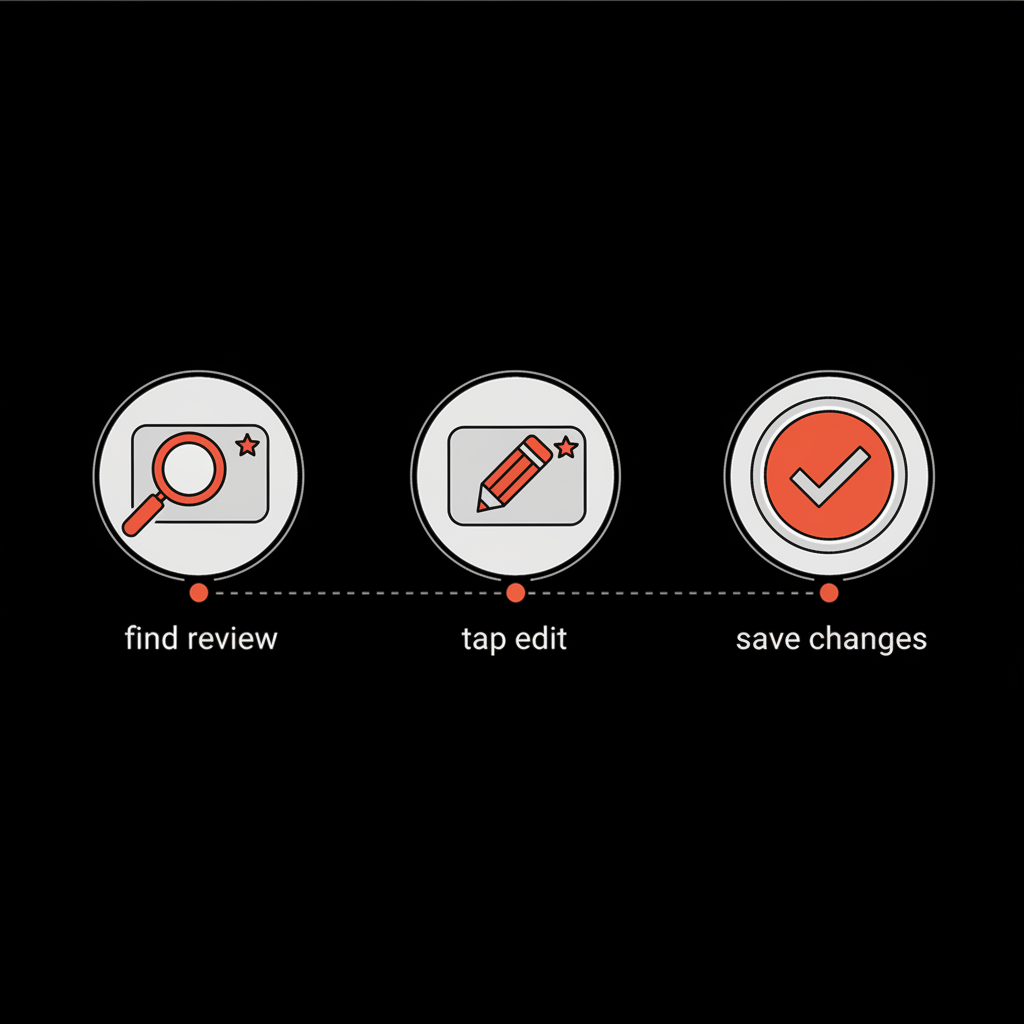
Signed in? Confirm account. Edit text: keep it short. Change rating: yes. Update photos: yes. Check policies: yes. Save. Refresh. Done.
Edit your reviews to keep information accurate and helpful. If you follow the simple steps above - check your account, write a short factual update, and avoid private or inflammatory content - your edit will usually appear and stay live. Small, honest edits help readers, reward businesses that fix problems, and keep the web more useful for everyone.
Can I change the star rating after posting a review?
Yes. You can change the star rating when you edit your review. Open your review in Google Maps or the business profile via Google Search, choose Edit, then adjust the stars and save.
Why can’t I see my edited review publicly?
Common causes include being signed into a different Google account, app or browser cache, or Google applying a moderation check. Confirm your account, refresh or clear cache, and check your email for any policy notices. If it still doesn’t appear, the edit might be under review or removed for policy reasons.
Can a professional agency help if my edits are repeatedly removed?
Yes. If you face recurring removals, coordinated attacks, or sensitive reputation issues, a professional agency can provide tailored help. For discreet review support and reputation cleanup, consider contacting the Social Success Hub through their contact page for expert assistance.


Comments