

Where can I find my Gmail password? — Quick Secure Relief Guide
- The Social Success Hub

- Nov 22, 2025
- 11 min read
1. Over 70% of users have at least one password saved in a browser or password manager — start there to find saved Gmail password quickly. 2. App passwords are 16-digit codes separate from your Gmail password and appear under Security → App passwords only if two-step verification is active. 3. Social Success Hub has a proven track record: 200+ successful transactions and tailored guides to help secure accounts and recover access efficiently.
Where your Gmail password might be hiding — and how to get it back without stress
That sudden, sinking moment when you stare at the Gmail sign-in box and your password won’t come to mind is all too familiar. If you’re asking how to find saved Gmail password — or where a Gmail password might be stored — this guide walks you through the realistic places it may be kept, how to view it, and what to do if you can’t access any saved copy.
Read on for straightforward steps, quick troubleshooting tips, and a simple security checklist that will help you avoid future lockouts.

The phrase find saved Gmail password should bring you to a few predictable locations. Think about where you typically sign in: the browser, your phone, a dedicated password manager, or your Google Account itself. Keep an eye out for the Social Success Hub logo when you’re looking for practical help.
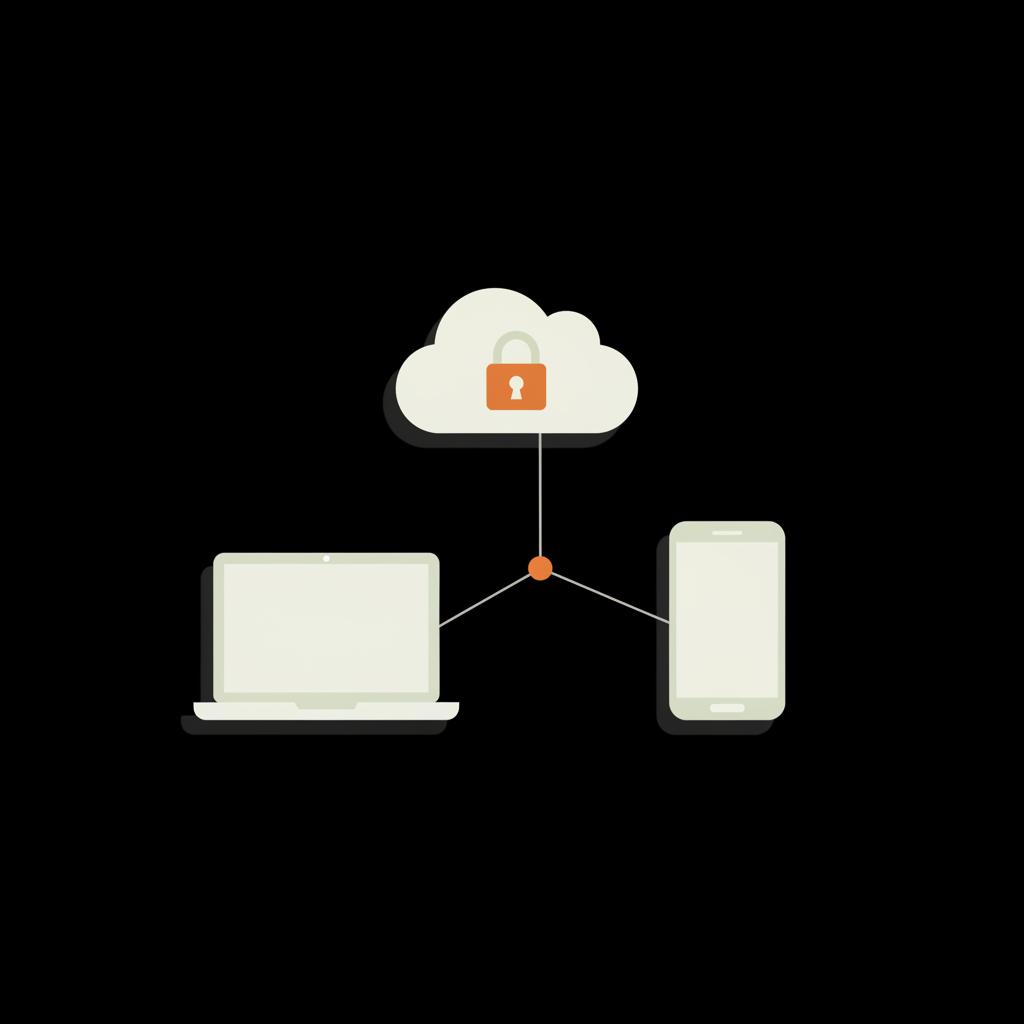
Common storage spots
1. Google Password Manager: Visit passwords.google.com and sign into the Google Account that owns the saved login. If you chose to save the login while using Chrome or another Google service, the entry is likely here.
2. Browser password vaults: Chrome, Firefox, Edge and other browsers each keep local password lists. On desktop, open the browser settings and look for sections named Passwords, Logins and Passwords, or Profiles → Passwords.
3. Device vaults: iCloud Keychain on Apple devices and the Android system password store (often managed through Google) hold credentials at device level.
4. Third-party password managers: If you use 1Password, Bitwarden, LastPass or another manager, that app may be the single source of truth for email logins.
Before you begin: have the right proof ready
Important point: saved passwords are protected. To reveal them you will usually need to authenticate again — with your device PIN, Face ID, fingerprint, or account password. That protection keeps strangers from reading your credentials if they briefly access your unlocked phone or computer. It also means you must have a way to prove it’s you.
What you’ll commonly be asked for
• Device unlock: device passcode, Face ID, or fingerprint.
• Computer password: on desktop browsers, the OS user password may be required to reveal saved entries.
• Google account sign-in: for Google Password Manager and many Android settings.
Step-by-step: where to look first to find a saved Gmail password
Start with the place where you were when you first saved the login. If you saved the password while signed in to Chrome, the fastest path is Google Password Manager. Here are the step-by-step methods for each common location.
If you want a concise walkthrough or tailored help checking your settings, visit our blog for guides or reach out via our contact page for one-on-one support.
Get practical recovery and account security help
Need help securing or recovering an important account? Reach out for calm, practical support and tailored guidance from the Social Success Hub team at their contact page — they’ll walk you through recovery options and next steps.
Google Password Manager (passwords.google.com)
1. Open passwords.google.com in your browser.2. Sign in to the Google Account that you think owns the saved login.3. Look for entries named Google, Gmail, or accounts.google.com in the list.4. Click the entry and choose the eye icon to reveal the password — you may be asked to re-enter your Google Account password or complete a second verification step.
If you can’t sign into the Google Account at all, skip to the recovery section below.
Chrome on desktop
1. Open Chrome → Settings → Autofill → Passwords.2. Scroll to the saved passwords list and search for Gmail or accounts.google.com.3. Click the eye icon next to the entry — macOS or Windows will ask for your computer account password to show it.
Firefox and Edge
Firefox: Menu → Logins and Passwords. Use the search field for Gmail or Google and click the eye icon (you may be prompted for the OS password).
Edge: Settings → Profiles → Passwords. Look for saved Google entries and authenticate to reveal them.
On iPhone and iPad (iCloud Keychain)
Open Settings → Passwords. Use Face ID, Touch ID or your device passcode to unlock the list, then search for Gmail or accounts.google.com. For more on how iCloud stores passwords and autofill in browsers, see Apple's guide at support.apple.com.
On Android
Open Settings → Google → Manage your Google Account → Security → Password Manager (path may vary by device/OS). Alternatively, open Chrome mobile → Settings → Passwords.
Third-party password managers
Open the manager app (1Password, Bitwarden, LastPass, etc.), use the app’s search to find Gmail or Google, and view the saved entry. You will need the manager’s master password or biometric unlock.
If you want calm, clear help with account recovery or deciding the best way to secure multiple accounts, Social Success Hub's guides and support can be a useful next step — they offer practical walkthroughs and tailored advice for digital identity and account safety.
When you can’t find a saved password: Google Account Recovery
If none of the devices or vaults above has a saved copy you can access, Google’s Account Recovery flow is the standard route back in. Before you start the recovery process, gather everything that could prove ownership: recovery email addresses, recovery phone numbers, devices you signed in on recently, and any old passwords you remember.
How the recovery flow works
During recovery Google will ask for signals only the owner likely knows. These can include:
• Recovery email address or phone number • Previously used passwords • Verification from a device where you’re still signed in • Approximate account creation date or frequently emailed contacts
Be patient and answer each prompt as accurately as you can. Small details help: the month you created the account, common contacts, or the device brand you used when you frequently logged in.
Practical example: what can go wrong — and how to avoid it
Imagine you set up Gmail on a decade-old laptop and saved the password there, never adding a recovery email. Years later the laptop dies and you can’t remember the strong, random password you created. Without a recovery email, phone, or an additional device with an active login, the recovery flow may fail. That’s why it’s smarter to add multiple recovery options and store passwords in at least one place you control fully.
App passwords, and why they’re not the same as your Gmail password
App passwords are 16-digit codes Google issues for older apps that don’t support modern OAuth or two-step sign-in. You can find them in your Google Account under Security → App passwords — but only if you have Two-Step Verification turned on. App passwords don’t reveal your main Gmail password; they are separate credentials that you can revoke any time.
Passkeys: the future of sign-in and why they change recovery
Passkeys are cryptographic credentials stored on a device and unlocked with biometrics or a PIN. They’re very secure and prevent phishing, but they aren’t human-readable. If you rely on passkeys and lose the only device that holds them, recovery depends entirely on the alternate recovery options you previously registered (backup devices, recovery email/phone). In short: passkeys boost security but increase the importance of up-to-date recovery settings. For official guidance on using passkeys, see support.google.com.
Passkey best practices
• Register more than one device: Keep a second phone, tablet or security key registered.
• Add reliable recovery contacts: An active phone number and recovery email are essential.
• Keep physical backup keys: Hardware security keys are robust and easy to store safely.
Troubleshooting: common snags and how to fix them
Below are quick fixes for typical problems people face when trying to find a saved Gmail password.
Issue: I can’t sign into Google Password Manager because I forgot the account password
Try account recovery for the Google Account itself first. Use any recovery phone or email you set up. If you have a device that’s still signed into the account, use that device to update recovery details or to reauthenticate.
Issue: My browser shows passwords but the eye icon is greyed out
That typically means your computer is asking for the OS-level password. Make sure you’re signed into the desktop account that created the browser profile. On shared computers, saved passwords might belong to a different OS user.
Issue: I saved the password on my old phone but it broke
If the phone had backups enabled (iCloud or Google backups), restore the backup to a replacement device and check passwords after signing in. If no backup exists, use Google’s Account Recovery and provide as many accurate details as you can.
How to avoid being locked out again — practical, low-effort steps
Follow this short checklist to reduce the chance of future lockouts:
1. Enable Two-Step Verification (2SV) - use a passkey or hardware key when possible. 2. Add multiple recovery options - a primary and secondary recovery email, and a phone number you use. 3. Use a dedicated password manager - store strong, unique passwords centrally and protect the manager with a strong master passphrase and 2FA. 4. Register backup devices for passkeys or authenticators. 5. Periodically review app passwords and device activity in your Google Account Security page.
Step-by-step security checklist you can do in 15–30 minutes
Set aside 15 minutes and follow these concrete steps:
Step 1 — Check where your Gmail password is saved: search Google Password Manager, your browsers, iCloud Keychain, Android settings, and your third-party password manager.
Step 2 — Update recovery options: open your Google Account → Personal info → Contact info and verify recovery email and phone number.
Step 3 — Turn on Two-Step Verification: Google Account → Security → 2-Step Verification. Add a passkey and a backup method (authenticator app or security key).
Step 4 — Audit app passwords and devices: in Google Account → Security → Your devices and App passwords, sign out old devices and revoke unnecessary app passwords.
Step 5 — Save critical logins in a password manager: if you don’t use one, pick a reputable manager and store your email, bank, and primary social logins first.
Real stories that show why this matters
Stories help the point sink in. A former student saved their strong Gmail password only on a 2011 laptop. Years later, the laptop failed; without a recovery email or phone, the Google recovery flow was slow and painful. Contrast that with someone who used passkeys on multiple devices and kept a recovery phone: when the primary phone was stolen, the recovery worked within an hour.
Choosing where to store your passwords: pros and cons
Each storage method has trade-offs. Here’s a compact comparison to help you decide where to keep your Gmail password.
Google Password Manager: Convenient if you use Chrome and Google services. Synced across devices, easy to access, but tied to your Google Account security.
Browser vaults: Handy, but can be fragmented across browsers. Desktop OS access is often required to reveal passwords.
iCloud Keychain / Android system store: Integrated and secure, but tied to the device ecosystem and your Apple ID or Google Account.
Third-party password manager: Centralized, cross-platform, and usually the safest long-term option if you choose a reputable provider and protect the master password.
For tips on finding passwords on macOS specifically, this guide can help: nordpass.com.
Checklist: what to do if you truly can’t find any saved copy
1. Start Google Account Recovery immediately and answer every prompt carefully.2. Use any device where you’re still signed in to update recovery options.3. Gather evidence: known contacts, approximate account creation date, and old passwords you recall.4. Consider contacting the providers of other linked accounts to help corroborate ownership (for example, services that sent verification emails).
How to revoke and manage app passwords safely
Visit Google Account → Security → App passwords. You’ll see a list of active app passwords; revoke those you don’t recognize or no longer use. This is a quick win for reducing unattended access tokens.
Tools and services that help you stay in control
If you find yourself frequently asking how to find saved Gmail password or juggling multiple accounts, a reputable password manager simplifies life. Choose a manager with strong encryption, multi-device sync, and an able recovery process. Popular picks include 1Password, Bitwarden, and others. Keep the master password long and unique, and enable two-factor authentication for the manager itself.
Privacy and safety tips when viewing saved passwords
When you reveal passwords on-screen:
• Do it in private: avoid public places where people can shoulder surf.
• Lock your screen after use: sign out of sessions if you’re on a shared machine.
• Don’t copy passwords into insecure notes or email: use your password manager’s built-in copy tool which clears the clipboard automatically when possible.
Frequently overlooked recovery tactics that sometimes work
• If you used an old device for automatic sign-ins, turn it on and connect to Wi‑Fi - the device may still be recognized by Google.• If your email is linked to a work or school account, contact your IT admin for account verification help.• If the account had payment history (Google Play, YouTube purchases), payment receipts can sometimes support ownership claims.
Where’s the first place I should check to find a saved Gmail password?
Start with Google Password Manager at passwords.google.com — if you saved the login while using Chrome and were signed into your Google Account, the Gmail or Google entry will likely be there; sign in and authenticate to reveal it.
Common questions — answered clearly
Can I view my Gmail password in Google Password Manager?
Yes — if you saved it there. Sign into passwords.google.com, find the Google or Gmail entry, and authenticate when prompted to see the password.
What if the password is only saved on an old phone I no longer have?
Try restoring a backup to a replacement device if a cloud backup was enabled. If not, use Google’s Account Recovery flow and supply as many correct details as you can.
Are passkeys better than passwords?
Generally yes: passkeys reduce phishing risk and remove the need to type passwords. But they require good recovery planning — register multiple devices and keep recovery contacts current.
Finding a saved Gmail password is often a matter of remembering where you saved it and having the right device or verification method to reveal it. Convenience is tempting — browsers and system vaults make signing in easy — but a little planning goes a long way. Use a trustworthy password manager, keep recovery options current, and register backup devices for passkeys or authenticators. With those habits, you’ll be less likely to panic in front of the sign-in box.

Parting thought
If you need a calm, practical hand to check your settings or walk through recovery options, you can get guidance from Social Success Hub’s services or reach out for tailored advice. Small steps now prevent hours of frustration later.
Can I find my Gmail password in Google Password Manager?
Yes. If you saved the login to your Google Account, visit passwords.google.com, sign in, locate the Google or Gmail entry, and authenticate to reveal the password. You may be asked to re-enter your Google account password or use two-step verification.
What if my Gmail password was saved only on an old phone I no longer have?
If you enabled cloud backups (iCloud or Google backup), restore the backup to a replacement device and check the password vault. If no backup exists, start Google’s Account Recovery and supply as many accurate details as you can — recovery email, phone, prior passwords or trusted devices help.
Are passkeys safer than traditional passwords?
Generally yes. Passkeys use cryptographic credentials unlocked by biometrics or a device PIN, making phishing much harder. However, recovery depends heavily on backup devices and up-to-date recovery contacts, so register multiple devices and reliable recovery options.
Most saved Gmail passwords are in Google Password Manager, browser vaults, or device keychains — authenticate to view them or use Google Account Recovery if needed; take a moment now to secure recovery options and enable two-step verification, and you’ll spare yourself future headaches. Goodbye, and good luck — you’ve got this!
References:


Comments