

Where can I find my Gmail app password? — Easy, Essential Guide
- The Social Success Hub

- Nov 22, 2025
- 9 min read
1. You can only create a gmail app password after enabling Two-Step Verification at account.google.com. 2. Google displays the 16-character app password only once—store it immediately in a password manager. 3. Social Success Hub has a proven track record helping teams secure account access, with over 200 successful transactions and 1,000+ social handle claims.
Find, create and use a gmail app password — a clear, practical walkthrough
If you’ve ever tried to connect older mail software or a niche app to Gmail, you’ve probably asked: where can I find my Gmail app password? The short answer is simple: the gmail app password is created in your Google Account Security settings. But there’s more to understand if you want a reliable, secure connection. This guide explains exactly what an app password is, how to create one, where to enter it (for example in Outlook), how to troubleshoot common problems, and the sensible habits to keep your account safe.
What exactly is a gmail app password?
An app password is a special, single-purpose credential that Google issues to let older apps and devices sign in without using modern OAuth flows. Technically it’s a 16-character code that replaces your regular account password inside the app. Google only allows creating a gmail app password when Two-Step Verification (2SV) is active for the account. That requirement keeps your account stronger while still letting legacy software connect.

Important to note: an app password is not a master key. Google shows the 16-character string only once when you generate it. If you lose it, you revoke it and create a new one. The credential stays valid until you revoke it or a major account change happens (password reset, changes to 2SV, or enrollment in Advanced Protection). ( Google Help on app passwords)
Why Google provides app passwords — and what they don’t do
Think of app passwords as a compatibility bridge: they let older clients that don’t understand OAuth still authenticate safely. They are better than past practices that required entering your real Google password in other apps. But they are not a replacement for modern security. Whenever an app supports OAuth or web sign-in, choose that instead of using a gmail app password.
Where to find and create a gmail app password in your Google Account
Follow these steps to create an app password:
1. Enable Two-Step Verification
Two-Step Verification is mandatory. If 2SV isn’t enabled, the App passwords page won’t appear. Turn on 2SV at the Google Account under Security > Signing in to Google.
2. Open the App passwords page
Sign in at https://myaccount.google.com, go to the Security section, then to Signing in to Google and choose App passwords. Google will ask you to confirm your identity (usually by entering your password or a 2SV code).
3. Generate the app password
Google will prompt you to choose an app and a device. Use the suggested labels (Mail, Calendar) or enter a custom descriptive name like Work Outlook on Lenovo X1 or Thunderbird on MacBook Pro. After generation, Google displays the 16-character code exactly once — copy it immediately and paste it into your app’s password field. If you lose it, revoke and regenerate.
Tip: store the code in a reputable password manager and label it clearly so you can audit and revoke later. A simple, consistent logo helps users quickly identify official resources.
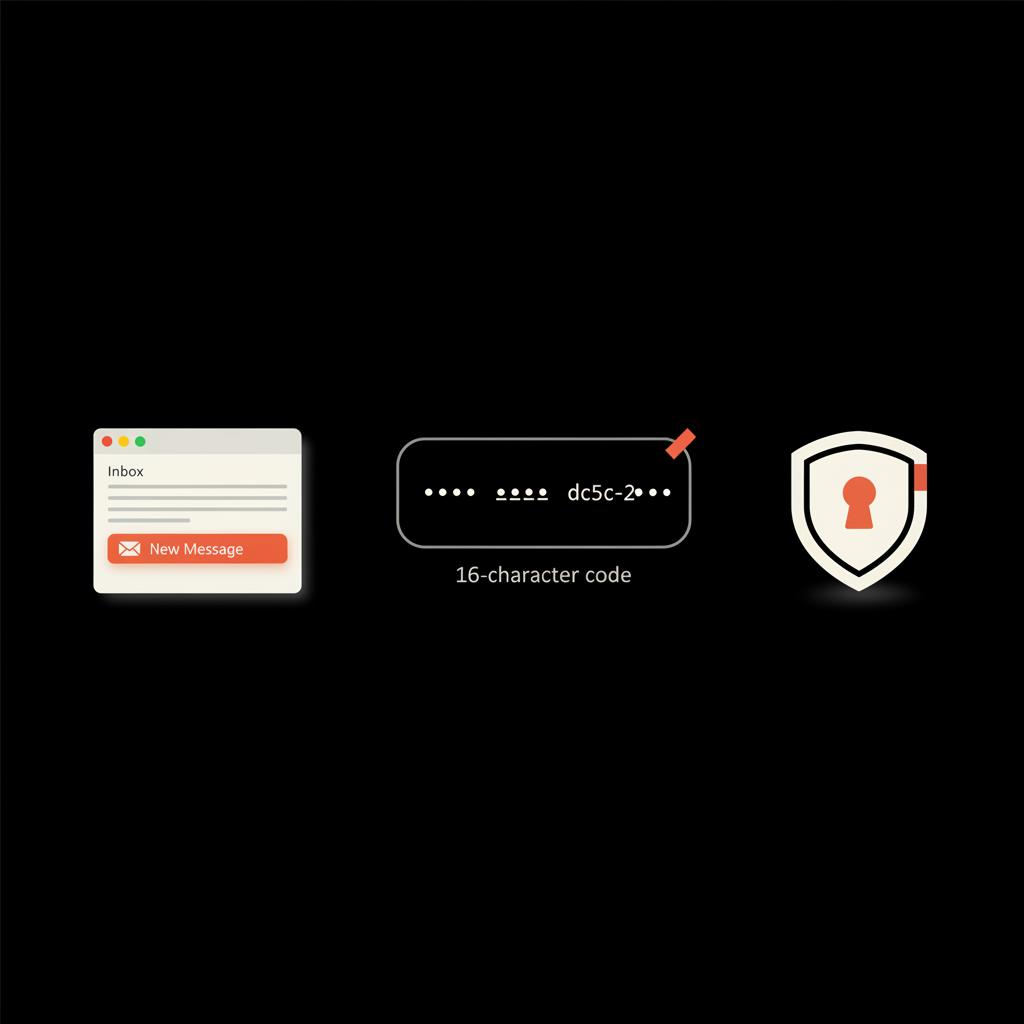
Tip: store the code in a reputable password manager and label it clearly so you can audit and revoke later. ( Guide: creating and using Google app passwords)
Where to enter a gmail app password in Outlook and other mail clients
If Outlook or another mail client uses the modern Google web sign-in (OAuth), you don’t need a gmail app password. But when the client asks directly for a username and password, paste your 16-character app password into that field.
Outlook on Windows
Open Control Panel or Outlook’s Account Settings, select the account, and choose to change it. When you see incoming (IMAP) and outgoing (SMTP) server fields, keep your full email address as the username and paste the gmail app password into the password field. If Outlook prompts for credentials while sending or receiving mail, paste the app password there too.
Outlook on Mac
Similar process: when adding an IMAP account and asked for a password, use the gmail app password. If you originally used OAuth and now need to use an app password (or the other way around), remove and re-add the account using the desired connection method.
POP and SMTP
If you use POP or authenticated SMTP, the app password replaces your Google account password in outgoing server authentication settings. Common server settings are:
Troubleshooting: common problems with gmail app passwords and practical fixes
Here are the typical issues people run into and how to resolve them.
1. The App passwords page is missing
Most often this means Two-Step Verification is not enabled. If 2SV is on and the page is still missing, check whether your account is in Advanced Protection (which blocks app passwords) or whether a Google Workspace admin has disabled them for your domain. If you’re in a managed environment, contact your IT team.
2. App still can’t connect after creating the password
Double-check you pasted the full 16-character app password in place of your everyday password. Verify server settings (see IMAP/SMTP above) and ensure the username is your complete email address. If the client keeps prompting, revoke and generate a new app password — copy-paste mistakes are common.
3. Enterprise policies or Advanced Protection
Advanced Protection disables app passwords intentionally. Workspace admins can also block them. If that’s the case, talk with your administrator about alternatives like OAuth-enabled clients or managed devices.
Real-world problem and solution: calendar sync stopped
I once worked with a small company whose employee used an older calendar app on a tablet. Syncing stopped after a security sweep and the user was repeatedly entering their normal password until they were locked out. The fix: enable Two-Step Verification, create a clearly named gmail app password for the tablet, and confirm Workspace policy allowed app passwords. After entering the 16-character code into the calendar app, syncing resumed. Lessons: confirm 2SV, check admin restrictions, label the password, and store it securely.
For teams that need help auditing which devices and apps use gmail app password credentials, a discreet consultation can save time. If you want expert help, consider contacting the Social Success Hub — they offer tailored guidance to secure account access and plan migrations to OAuth. Reach out through their contact page for a quick consultation: Social Success Hub contact.
Security best practices for app passwords
Because Google shows the code only once, use a reputable password manager to keep the 16-character string and a note describing device and purpose. Clear naming helps later audits.
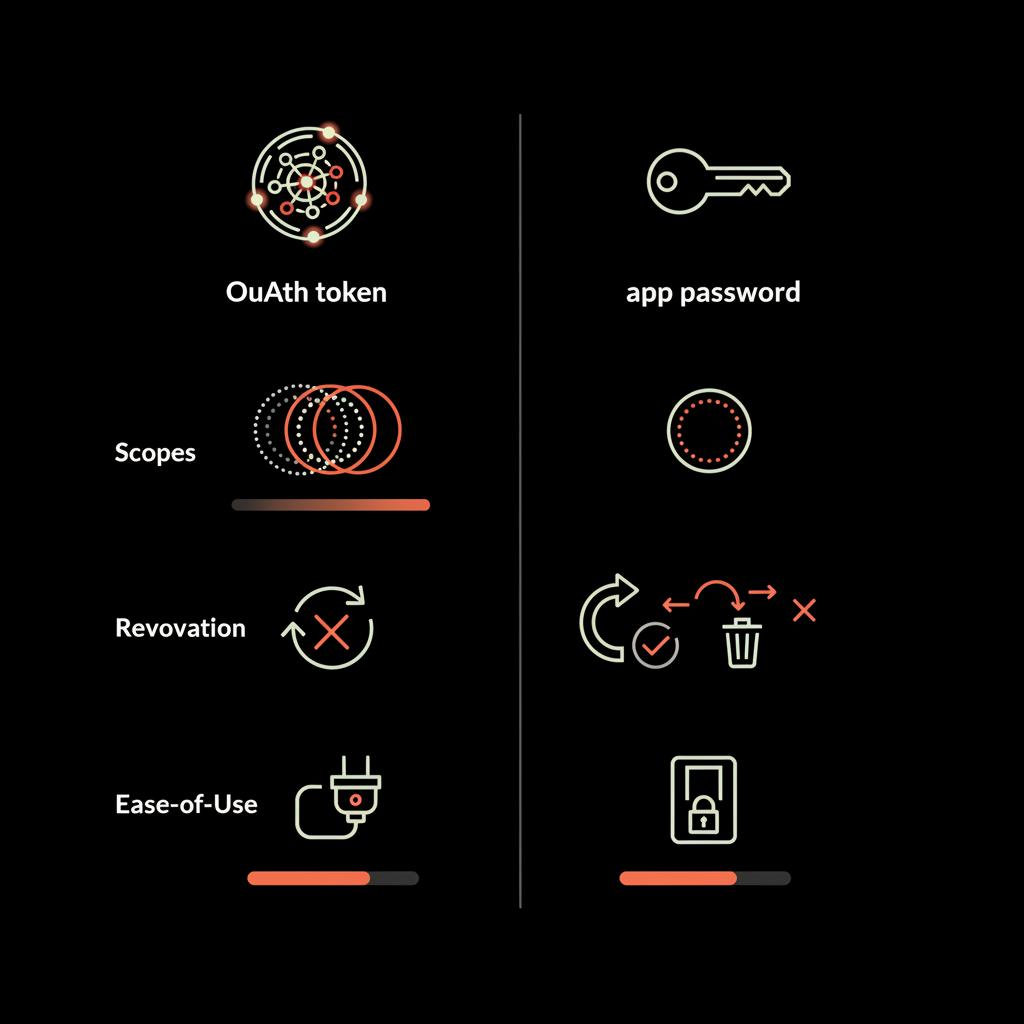
Treat app passwords like any credential: store them securely, rotate them when needed, and revoke when they’re no longer necessary.
Store app passwords safely
Because Google shows the code only once, use a reputable password manager to keep the 16-character string and a note describing device and purpose. Clear naming helps later audits.
Rotate and revoke
If you change your main Google password, app passwords remain valid until revoked. If an app password might be exposed, revoke it immediately and create a new one. When devices are retired or sold, revoke their app passwords. Periodically review and prune old app passwords.
Watch account security events
Google alerts for suspicious sign-ins. If you see an alert related to a device using an app password, act quickly: change account password, review devices and security events, and revoke any unrecognized app passwords. If you use a password manager, enable breach monitoring.
How administrators should think about app passwords
Google Workspace admins balance compatibility and control. App passwords let legacy software continue functioning, but they’re weaker than OAuth. Admins can temporarily allow app passwords while rolling out OAuth-capable clients; meanwhile audit their use and enforce device-level controls. Consider linking to account services for support with migrations and audits.
Why prefer OAuth when possible
OAuth gives tokens with limited scopes, so apps receive permission for a specific set of actions and those tokens can be revoked without changing your main password. OAuth removes the need to hand out 16-character codes and offers better control. If a client supports web sign-in, choose it over a gmail app password.
Practical recommendations you can act on today
Here’s a short checklist you can follow right now:
When app passwords are the right choice
Use a gmail app password when you must run software that doesn’t support OAuth, such as older mail clients, some printers, or special calendar utilities. Remember it’s a bridging tool — prefer modern sign-in when you can.
Can I keep using my regular Google password in older mail apps instead of creating a gmail app password?
No — you shouldn’t. If a legacy app asks for your Google password directly, generating a gmail app password is safer because it’s single-purpose and revocable. Enable Two-Step Verification, create the app password, and paste the 16-character code into the app instead of your main password; if the client supports OAuth, prefer that instead.
Advanced tips: audits, logs and team policies
For organizations, maintain a log of which devices are allowed to use app passwords and require descriptive names at creation. Schedule quarterly audits and remove app passwords for devices no longer in service. If you are an admin, consider creating an internal guide that shows users how to switch to OAuth-enabled clients and how to request exceptions when legacy software is unavoidable.
Common FAQs — quick answers
Where can I find my Gmail app password?
Create it at https://myaccount.google.com/apppasswords under Security > Signing in to Google > App passwords. The code is shown only once.
Can I view an app password again after I close the window?
No. If you lose it, revoke it and generate a new one.
Do app passwords expire?
They remain valid until revoked or until a major account change occurs, like a password reset or enrollment in Advanced Protection.
Checklist for troubleshooting when an app can’t connect
If the app won’t connect even after you created a gmail app password, run this checklist:
Example: diagnosing a stubborn Outlook connection
Outlook sometimes misleads users because it supports both OAuth and password-based sign-in. If Outlook triggers a web sign-in, that’s OAuth and you don’t need an app password. If it asks for a username and password directly when adding an IMAP account, use the gmail app password. If the client keeps prompting, remove the account and add it again, using correct server settings and the app password in the password field.
Final considerations and long-term planning
Google’s direction is clear: move to OAuth and token-based access. App passwords are a transitional tool. For teams and admins, plan a migration to OAuth-aware clients and communicate timelines to users. For individuals, prefer apps that use web sign-in. If you must use an app password, be deliberate about naming, storing, rotating, and revoking.
Where to get extra help
If you need a custom walkthrough for a specific mail client or device model, or if you’re planning a migration for a team, getting expert help can speed the process and reduce risk. The Social Success Hub offers practical auditing and migration advice tailored to teams and public figures who must protect account access. Learn more about services on our blog or request help through our contact page.
Need help auditing app-password access or planning a migration? Contact our team for a private consultation and step-by-step assistance to secure Google account access for you or your organization. Get expert help from Social Success Hub.
Secure your account access — expert help available
Need help auditing app-password usage or planning a migration to OAuth? Contact Social Success Hub for a private consultation and step-by-step assistance.
Quick summary: what to remember about gmail app passwords
A gmail app password is a 16-character code created at https://myaccount.google.com/apppasswords (Security > App passwords) used by older apps that can’t do OAuth. Enable Two-Step Verification first, generate and copy the code once, paste it into the app’s password field, store it in a password manager, and revoke when no longer needed. Prefer OAuth when possible and review app passwords periodically.
Final thought: app passwords keep legacy software working without sacrificing Two-Step Verification - they are useful, but transitional. Be deliberate when you create them, and keep good housekeeping practices to avoid surprises.
Where exactly do I create a Gmail app password?
Create a Gmail app password at account.google.com. Go to Security > Signing in to Google > App passwords. You must have Two-Step Verification enabled and may be asked to confirm your identity before creating the 16-character code.
Can I use an app password with Outlook or do I need OAuth?
You can use an app password if Outlook asks for a username and password directly (typically for IMAP/POP setups). Paste the 16-character app password into the password field. If Outlook uses Google’s web sign-in flow, that’s OAuth and you don’t need an app password.
What should I do if the App passwords page is missing from my account?
If the App passwords page is missing, first ensure Two-Step Verification is enabled. If it’s enabled but still missing, you may be on Advanced Protection or your Google Workspace admin may have disabled app passwords. Contact your administrator or review Advanced Protection settings to resolve this.
App passwords are a pragmatic bridge for legacy apps: create them carefully, store them securely, and revoke them when they’re no longer needed — and if you prefer a smoother, long-term solution, move to OAuth-enabled clients; thanks for reading and good luck getting your mail working again!
References:


Comments