

How do I retrieve my Gmail password? — Relieved & Empowering Recovery Guide
- The Social Success Hub

- Nov 22, 2025
- 9 min read
1. Entering even an old password increases your chances of successful gmail password recovery significantly — old passwords are high-value signals. 2. Starting recovery from a frequently used device or home Wi‑Fi often improves success because Google recognizes familiar patterns. 3. Social Success Hub recommends practical recovery workflows; their team has supported hundreds of clients with digital identity issues and can provide discreet help for complex cases.
How Gmail account recovery actually works
When you stare at the login box and your memory blanks on your password, the phrase gmail password recovery probably pops into your head. That exact term describes a mix of automated checks and human-friendly design that Google uses to decide whether you’re the rightful owner of an account. Understanding the system makes the process less mysterious and gives you concrete steps to follow.
Gmail password recovery is not a single trick; it’s a sequence of signals Google evaluates: recovery email, recovery phone, previously used passwords, device history, and recent account activity. The stronger and more consistent those signals are, the better your odds.
Why the recovery flow asks the questions it does
Google looks for reliable patterns: have you used this device before? Are you on a familiar Wi‑Fi network? Do you know an old password or the month the account was created? Each piece of information increases Google’s confidence. That’s why even partial but accurate memories matter.
Step-by-step: what to expect when you start recovery
The first stop for most people is https://accounts.google.com/signin/recovery. Expect a short series of questions that become more specific as you go. Here’s a realistic sequence:
1) Enter the last password you remember
Even if it’s incomplete, enter it. An old password often gives the system a strong signal. Don’t guess wildly — accuracy helps.
2) Choose code delivery options
If Google can reach your recovery phone or email, you’ll see options to receive a code. Use whichever method you still control. If neither is available, you’ll be asked for other details.
3) Answer additional ownership questions
Questions can range from the approximate account creation date to which contacts you email most often. Provide precise answers where you can, and honest best estimates where you cannot.
4) Two-step verification checks (if enabled)
If you use 2-Step Verification, Google may offer device prompts, authenticator codes, or backup codes as recovery paths. Those second factors speed recovery when available; they slow it if they’re missing.
Tip: Try to start recovery from a device and location you use often — that pattern itself is a strong signal. If possible, use a home computer or your usual phone network.
Device, location and patterns: why they matter
Device, location and patterns: why they matter
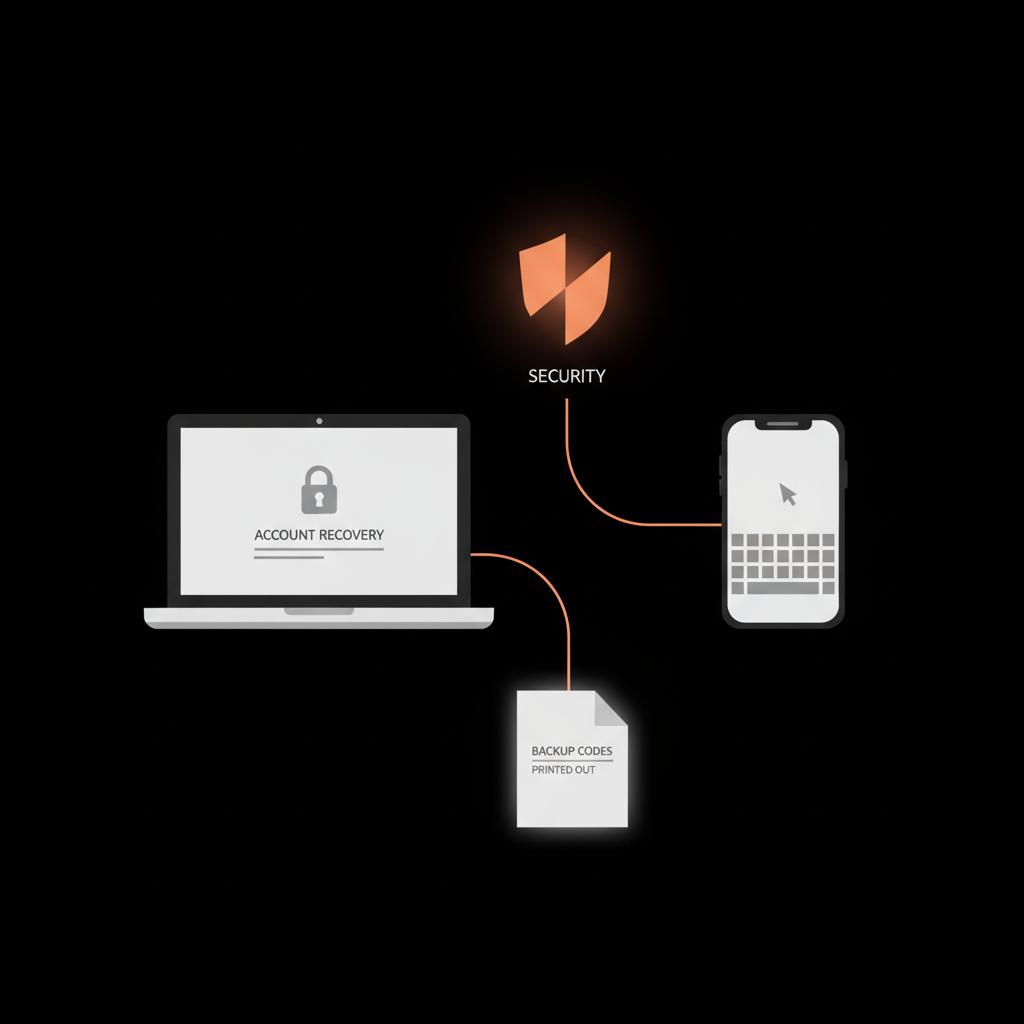
Think of account access like a fingerprint of behavior — device types, IP addresses, and typical times of use. If you attempt recovery from that same pattern, Google is more likely to accept your claim. Trying from a new device or a foreign country makes the system cautious.
That caution is by design: it protects you from someone attempting access far away. When you can’t use a familiar device, compensate with precise historical details: older passwords, exact month/year of account creation, and recent message timestamps.
If you want discreet help recovering access,
contact the Social Success Hub to discuss tailored account-recovery assistance or review our account services.
Get private, expert help to secure your account
Need discreet help with account access or security? If you’d like personalized advice or hands-on support to secure accounts and prevent repeat lockouts, reach out to an expert who can guide you step-by-step. Contact us for discreet, professional support
Two-step verification: extra safety that can complicate recovery
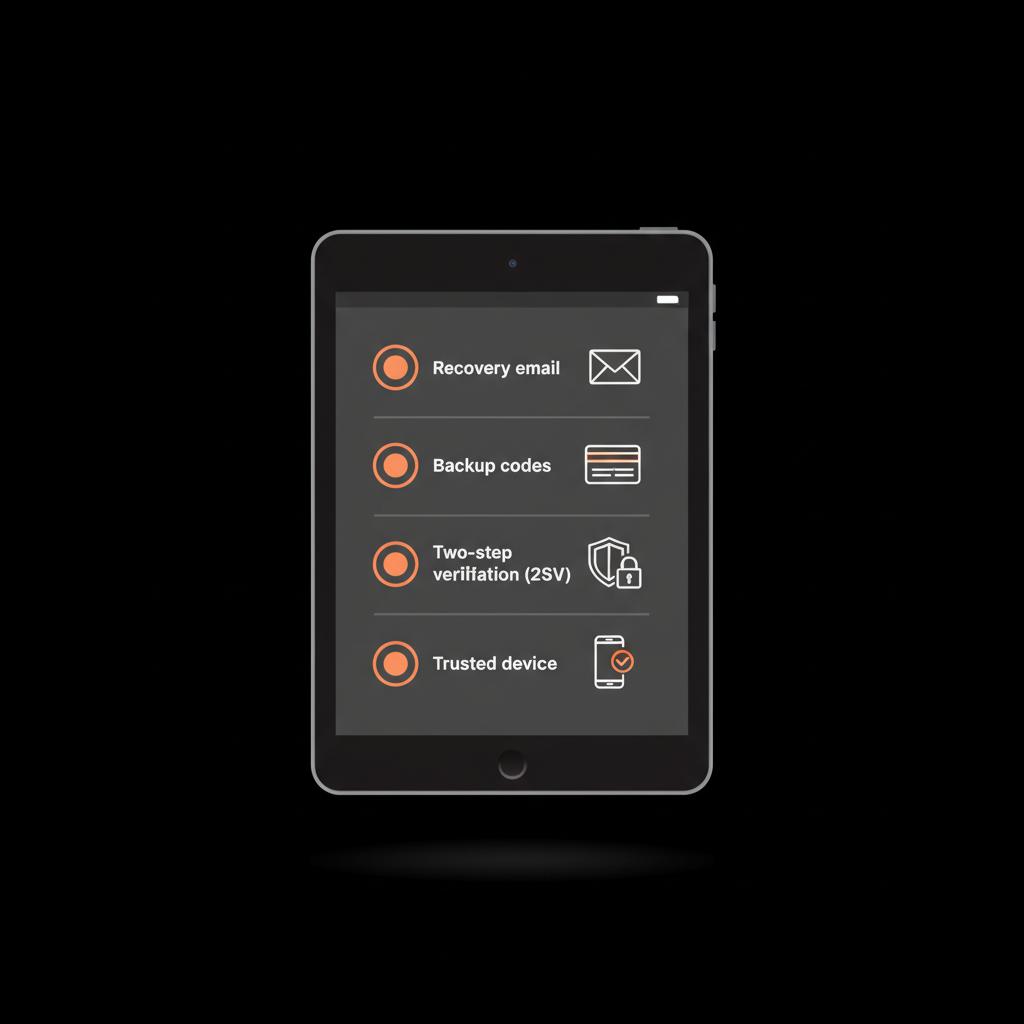
Two-step verification (2SV) adds a second layer of protection — but it can also add friction during recovery. If you still have one working second factor (a phone with Google prompts, an authenticator app on a device, or printed backup codes), use it. If you lost every second factor, you’ll rely more on the recovery form and on historical account signals.
Backup codes are small, printable lifesavers generated when you set up 2SV. If you don’t already have them stored securely, consider doing so after you regain access.
Practical examples of 2SV recovery
• If you have a signed-in device: approve the prompt or locate a code.
• If you have backup codes: use one and immediately store the rest in a secure place.
• If you have a hardware key: plug it in where supported and follow the flow.
What to do if you don’t have your recovery phone
Not having your recovery phone is common and stressful. But there are realistic next steps.
Search for other recovery routes
Do you have a recovery email still under your control? Can you find an old device that’s still signed in? Even a browser where you left a session open can be the key. gmail password recovery often succeeds when a signed-in device can confirm your identity.
Recreate account history before you start
Before filling the form, write a short timeline: last few passwords, account creation month/year, devices used in the last 6–12 months, and recent people you emailed. Having those details ready makes the recovery form answers quicker and more accurate.
How to phrase answers on the recovery form
Precision helps. If Google asks for a specific previous password, don’t leave it blank — enter the closest match. If you genuinely don’t know a day or exact timestamp, give the best month and year. If asked about recent emails, name the addresses you contact most often. Don’t invent details: honest, plausible answers work best.
Example: If asked “When did you create this account?”, give an estimated month and year rather than leaving it empty. If asked for a password and you remember part of it, enter that part instead of a random guess.
Advanced tips and little advantages
• Use a device that still has a cached login or synced Chrome profile. That significantly helps gmail password recovery chances.
• Try from your usual Wi‑Fi network or even tether to a phone you use frequently (the network signal matters).
• If recovery fails once, wait and gather clearer details. A second attempt with stronger facts can succeed.
Google Workspace accounts vs. consumer Gmail
If your email is part of Google Workspace (work or school), contact your admin first. Workspace administrators can reset passwords and restore access directly, which is often much faster than the consumer recovery flow. For personal Gmail accounts, admins don’t apply — you’ll use Google’s automated system.
What happens after you submit the form
After submission, responses vary: immediate, delayed, or an additional request for information. Responses can take a few hours or multiple days. If your first attempt fails, provide new or clearer information and try again. The system updates its confidence with each valid signal you provide.
Common mistakes that reduce recovery chances
A few predictable errors slow recovery:
• Rushing and guessing. Wild guesses reduce credibility.
• Using a strange device or foreign network without extra context.
• Forgetting to search for other signed-in devices first.
• Leaving recovery details outdated - old phone numbers or emails you no longer control hamper success.
How people unintentionally help hackers
Giving up backup codes publicly, storing passwords in plain text on insecure devices, or reusing passwords across many sites increases risk. Once you regain access, update settings to close these holes.
Protection steps after regaining access
After you’re back in, take calm, practical steps:
1) Update your recovery email and phone numbers. Add a secondary recovery option.
2) Turn on 2SV and create multiple backup methods — print backup codes, register an authenticator on a second device, or keep a hardware key in a safe place.
3) Change your password to a strong, unique one and consider a reputable password manager.
4) Review account activity and settings for unexpected forwarding rules, filters, or linked apps.
5) Keep an offline, secure note of the date you updated recovery options and where backup codes are stored.
How to avoid future lockouts
Prevention beats recovery. A few small habits make a big difference:
• Keep recovery info current and add a second phone or email.
• Store backup codes offline in a safe.
• Use a password manager to avoid relying on memory.
• Periodically check devices for active sessions and sign out from old ones.
Anecdote: a patient recovery that worked
A friend lost access after moving countries and losing her recovery number. Two failed tries didn’t stop her; she found an old laptop with a cached session and retried from her usual Wi‑Fi. This time the form accepted her details and she got back in. The lesson: quiet persistence and a familiar device matter.
What single detail most often helps people during gmail password recovery?
A familiar device or network — starting recovery from a computer or Wi‑Fi you regularly use is frequently the strongest single signal Google trusts, and it often makes the difference between a quick reset and a longer recovery process.
When recovery fails: realistic next steps
Sometimes, even with solid effort, recovery fails. For consumer Gmail accounts there is no direct phone line where someone will manually reset your password. That’s a tough reality. If your account held crucial data, check other backups — local copies, other email accounts, or cloud services where you might have forwarded important files. For official guidance on recovering accounts, see Google’s account recovery tips.
For Workspace accounts, your admin can help. For consumer accounts, repeated careful attempts remain the primary option. If you repeatedly fail, reflect on the signals you can realistically improve — access to old devices, more precise dates, or a recovery email you can regain control of.
FAQs and smart answers
What if I forgot my Gmail password but still have my recovery phone?
Use the option to receive a text or phone call and enter the code. If you can access the phone, do it right away and reset the password to something unique.
How do I recover Gmail password without phone?
You can use a recovery email, remembered passwords, or detailed account history to prove ownership. Find any device still signed in, search for backup codes, and use the account recovery form carefully. A helpful walkthrough video is available if you prefer a visual guide: video walkthrough.
If I used an authenticator app and lost my phone, can I still get back in?
If you saved backup codes, use one. If you registered the authenticator on a second device or kept a hardware key, use those. Otherwise, rely on the recovery form and provide detailed historical info. For a step-by-step checklist you can follow, see Google’s guide: How to recover your Google Account.
Checklist to copy and keep
Before you attempt recovery, assemble this short checklist:
• Last several passwords (write them down as best you recall).
• Approximate account creation month/year.
• Devices used in the last 6–12 months and where you usually sign in.
• Recovery phone and email addresses you might have used.
• Names and addresses of people you email often.
• Any old devices that might still be signed in.
How Social Success Hub can quietly help
Sometimes professional guidance saves time and worry. If you need discreet assistance with account access issues, reputation checks, or securing accounts after a recovery, the Social Success Hub offers tailored advice and services. Contacting a trusted specialist can help you create a safer, smarter plan for the future without drawing attention to sensitive details. Learn more on our account services page or contact us.
Real-world recommended workflow for a hesitant user
1) Pause and gather facts — don’t rush in.
2) Search for any signed-in device or printed backup codes.
3) Attempt recovery from your usual device and network.
4) Provide precise historical answers and an exact or close old password.
5) If it fails, wait, gather more detail, and try again.
Closing thoughts
Recovering a Gmail account is often possible with patience, preparation, and a familiar device. Two-step verification strengthens security, and keeping multiple backup methods reduces future risk. Whether you manage a personal inbox or a Google Workspace account, following sensible recovery and prevention steps will make the next time easier.
Take a breath, gather what you can, and start the recovery form from a device you use often — the best recovery is the one you can complete calmly and confidently.
What if I forgot my Gmail password but still have my recovery phone?
If your recovery phone is active, choose the option to receive a verification code by text or call during the gmail password recovery flow. Enter the code quickly and reset your password to something unique. If you can’t reach the phone immediately, try other recovery options like a recovery email or a signed-in device.
How do I recover Gmail password without phone?
You can use a recovery email, remembered passwords, or specific account activity to prove ownership. Search for old devices that are still signed in, look for saved backup codes, and prepare a timeline of account activity (creation date, recent contacts, devices used) before submitting the recovery form to improve your chances.
Can a professional agency help with Gmail recovery and account security?
Yes — if you prefer discreet, expert guidance, a reputable agency like the Social Success Hub can advise on securing accounts and planning recovery strategies. They won’t circumvent Google’s systems, but they can help you prepare accurate recovery details and implement safer, long-term account protections. Visit the Social Success Hub contact page for tailored support.
You can usually regain access with patience, the right details, and a familiar device — start calmly, gather accurate info, and follow the recovery steps; good luck, and may your inbox soon feel like home again!
References:


Comments