

How do I get my old Yahoo page back? — Frustrating & Essential Fixes
- The Social Success Hub

- Nov 22, 2025
- 12 min read
1. Clearing cache and testing in an incognito window resolves many Yahoo layout issues in under five minutes. 2. If Yahoo offers a "Go back" toggle, you can often switch to a previous Mail view — but the option is temporary and being phased out. 3. Social Success Hub has a proven track record: over 200 successful transactions and 1,000+ social handle claims — a discreet, reliable partner for account and recovery guidance.
How do I get my old Yahoo page back? A calm, practical opening
If you’re reading this, you’ve probably asked yourself: how do I get my old Yahoo page back? That question matters because the Yahoo homepage, My Yahoo, and Yahoo Mail are more than a set of pixels — they shape how you work, how you find messages, and how your day flows online. In the first few paragraphs below you’ll find clear choices: quick local fixes, product-specific options, recovery steps for missing content, and escalation templates to get help when you need it.
Why naming the problem first saves time
Before you try anything dramatic, pause and specify exactly what “old Yahoo page” means for you. Do you want:
- The My Yahoo homepage and its widgets restored? - The classic Yahoo Mail layout (two-pane, three-pane, or older card views)? - Missing messages, folders, or settings returned to your account?
Different problems require different approaches. The rest of this article walks you through each path with practical steps and realistic expectations.
Quick wins: local browser fixes (try these first)
Many layout problems are caused locally — cached site files, extensions, or display settings. Try these fast checks before doing anything else:
1. Clear cache & cookies for yahoo.com Clearing site-specific cache forces your browser to fetch a fresh copy from Yahoo’s servers. In most browsers: Settings → Privacy & Security → Clear browsing data (choose cached images & files and cookies for yahoo.com).
2. Open Yahoo in an incognito/private window If the site looks normal there, the issue is likely an extension or stored cookie on your regular profile.
3. Test in another browser or device Chrome, Firefox, Safari, Edge — try a different one. If desktop looks different than mobile, you’ve narrowed the problem to device-specific settings.
4. Disable extensions temporarily Ad blockers, script filters, theme managers, and privacy tools can hide or rearrange page elements. Turn extensions off one by one and refresh Yahoo to spot the culprit.
5. Reset zoom and font settings A 125% zoom or a custom font-size tweak can make a layout appear broken. Reset to 100% or default.
Yahoo has offered a “Go back to old Yahoo Mail” toggle for some accounts between 2023 and 2025. If you see that option, it’s a fast route to restore a previous layout. Look in Mail: click the Settings (gear) icon, then search for View options, Mail settings, or a temporary banner advertising a return. For details see the Yahoo Mail guide on switching versions: Switch versions of Yahoo Mail.
Important limits: The toggle is often temporary and being phased out. Not all accounts get it — corporate, education, or accounts on new builds may be excluded. If you can return to an old view, test it and note which features no longer work; legacy views may miss newer security patches or integrations.
Identify your exact case: layout vs content vs settings
To make progress, split the problem into three clear categories:
- Layout & appearance: You want the look back (classic Mail panes, My Yahoo widget arrangement). - Content: Messages, folders, or saved settings seem gone. - Behavior & rules: Filters, forwarding, or integrations route messages differently.
This distinction changes the next steps. The next sections handle each case with realistic tools.
Recovering missing messages, folders, or account access
If content is missing, follow an organized path:
1. Verify access and search thoroughly Search by sender, keyword, and date ranges. Check Spam, Trash, and any archived folders. Use advanced search operators (from:, subject:, before:, after:) to narrow results.
2. Check filters and forwarding rules Sometimes messages are auto-moved or forwarded. Open Settings → Filters to inspect and temporarily disable rules that might hide mail.
3. Use Yahoo Sign-in Helper if you can’t access the account The Sign-in Helper (login.yahoo.com/forgot) guides you with recovery options. If you still receive codes at your recovery email or phone, you can usually regain access quickly.
4. Local mail clients & backups If you used a desktop or mobile mail client (Outlook, Thunderbird, Apple Mail) with IMAP or POP, you may have local copies. Those local archives can restore lost folders or messages if webmail no longer shows them. Some guides describe temp methods and workflow tips for switching views or exporting mail: How to switch Yahoo email account back to old version.
5. When to escalate to Yahoo Support If you’ve tried searches and the Sign-in Helper but messages are still missing, collect detailed evidence: subject lines, approximate dates, sender addresses, and when you last saw the items. Use the Yahoo Help site and, when needed, contact official support rather than posting private details publicly in community forums.
My Yahoo: recovering a customized homepage
My Yahoo pages depend on saved preferences and individual widgets. If your My Yahoo layout changed, try these steps:
- Check My Yahoo settings and saved preferences Some layouts can be restored by re-adding widgets or loading saved settings.
- Re-add or replace retired widgets If the original widget was retired by Yahoo or the content provider, it cannot be resurrected. Instead, find a substitute feed or widget that offers the same information or rebuild a simpler layout.
- Use browser bookmarks or external feed readers If a feed disappears from My Yahoo, subscribe to it in an RSS reader or save it in bookmarks to recreate the experience elsewhere.
Advanced troubleshooting — when basic steps don’t work
If clearing cache and trying other browsers didn’t help, step up to these advanced checks. They require a bit more confidence but can reveal deeper problems.
Check for device-wide network filters and DNS issues
Some networks use content filters that alter or block resources. Try connecting from a different network or via a hotspot. If the site loads normally elsewhere, your network may be altering scripts or stylesheets.
Use browser developer tools to inspect missing elements
Open the browser DevTools (Right click → Inspect). In the Elements tab, search for sections that appear missing. If the page is loading HTML but the styles are broken (CSS errors), the console may show blocked resources or errors indicating which files failed to load.
Look for blocked third-party resources
Extensions or corporate policies often block third-party scripts — analytics, ad servers, or styling libraries. If those resources fail, parts of the page may not render. The console in DevTools will list failed requests with network status codes.
Custom CSS or userstyle workarounds
For users comfortable with small fixes, Stylus (a userstyle manager) or a browser extension can apply custom CSS to adjust spacing, hide unwanted elements, or mimic a previous layout. Caveat: these are visual tweaks only and do not recover missing content.
When a full restoration isn’t possible: rebuild the workflow
Product teams retire views and widgets. Sometimes the exact old layout cannot come back. In those situations, focus on rebuilding the functionality you need:
1. Make a checklist of features you require Is it a three-pane reading view? A particular sorting rule? A quick-access folder? List them in order of importance.
2. Find new ways to achieve the same outcomes Use the new Mail view’s shortcuts, keyboard navigation, or a local mail client for specific workflows.
3. Build a simple local template Create bookmarks for frequent searches, set up saved searches, and store crucial filters in a text file so you can reapply them as needed.
4. Export data where possible Export contacts and important messages and keep an offline copy. Regular exports become a fast way to recover essential pieces after an unexpected change.
Tip: If your day relies on a particular Yahoo layout, schedule a ‘snapshot’ every few months: export keys, archive important folders, and save screenshots of settings for easier restoration later.
If you want calm, expert guidance for account-related twists or help rebuilding a reliable workflow, the Social Success Hub resources offer clear, discreet advice and guides. They’re a practical place to start if you want a trusted partner to walk through account settings, backups, or recovery options.
What to say when you contact Yahoo Support (a template)
Good support starts with precise facts. Use this concise template when you open a support ticket or post in Yahoo’s Help Community:
Subject: Missing messages / changed Mail layout since [approx date] Body: I last saw [description of item: folder name, message subjects, My Yahoo widget name] on [date]. I have tried: cleared cache, tested in incognito, and tried another browser. All devices show [describe behavior]. Can you check whether my account experienced a migration or if these items can be recovered?
Add: the exact sender addresses or message subjects, timestamps of last visible activity, and any relevant screenshots. If you’re worried about sharing sensitive info publicly, use official support channels rather than community posts.
When to involve third-party tools (and when not to)
Some extensions and scripts claim to restore old interfaces or “bring back the classic view.” Be cautious: unofficial tools may request excessive permissions or inject code that risks security or privacy. Prioritize solutions you control: browser settings, local mail clients, or trusted services.
Examples that show how small fixes solve big problems
Concrete stories help illustrate what actually works:
Case 1: A browser cache fix An elderly relative called because her three-pane Mail layout was gone. She didn’t have a "Go back" toggle. Clearing the cache and switching to Edge restored the layout — the problem was cached CSS from an older build.
Case 2: Local mail client rescue A friend lost a folder of receipts in Yahoo’s web interface. He’d set up Apple Mail with IMAP, and the local client had all messages intact. He exported them and reimported to the web account after contacting support.
Case 3: Widget retirement and rebuild A user lost a weather widget on My Yahoo because the provider changed its feed. They rebuilt the homepage using a different weather feed and a single-column layout that was faster to load and easier on mobile.
Checklist: before you panic
Before you spend a day trying to restore exactly what you had, go through this checklist:
- Have I cleared cache, tried incognito, and tested another browser? - Have I checked Trash, Spam, and archived folders? - Are my recovery phone and email current? - Do I have a local mail client or backup? - Have I checked the Yahoo Help pages for known rollouts? See Yahoo's opt in/out guide: Opt in or out of the new Yahoo homepage experience.
How to protect your account and layout for the future
Think of prevention as low-effort insurance. Here are practical steps that pay off:
- Keep recovery options current: Update phone numbers and backup emails yearly. - Maintain at least one local mail backup: Use an IMAP client with regular exports. - Save filters and rules: Keep a simple text file with your most important filters and keyboard shortcuts. - Track changes: When Yahoo announces an update, read the help note and test the "Go back" option quickly if it appears.
When to accept change — and how to do it gracefully
Sometimes the old view won’t return. In that case, give yourself permission to adapt. Recreate what you need with a simple scorecard: which three features absolutely must return? Rebuild those first. Use keyboard shortcuts and saved searches to speed up the new layout.
How can I quickly return to the classic Yahoo Mail layout or recover missing messages if the web interface has changed?
Why did my Yahoo page change overnight and can I force it back?
Sites change for many reasons: cached files on your device, browser extensions, network filters, or deliberate product updates by Yahoo. If the change is local you can often fix it by clearing cache, trying incognito, or switching browsers. If it’s a deliberate product update, Yahoo may offer a temporary "go back" toggle for some accounts, but if that option isn’t available you’ll need to reconstruct the workflow using saved searches, a local mail client, or alternative widgets. Collect clear details and contact Yahoo support if content appears missing or if security is a concern.
Practical security note: If you see unexpected sign-ins or messages missing and a strange password change, treat it like a potential security incident. Change your password, update recovery options, and run a device scan for malware. Contact Yahoo’s security support if you suspect a breach.
Detailed troubleshooting log — what to record before you escalate
Support agents move faster when you give them specifics. Keep a short troubleshooting log with these fields:
- Date & time of first change noticed - Devices checked (desktop, phone, tablet) - Browsers tested and results - Any error messages or screenshots - Recent changes to account settings or linked apps
Attach the log and screenshots when you contact Yahoo Support. It saves time and reduces back-and-forth.
Alternatives to Yahoo webmail if the layout matters more than the provider
If what you value most is a stable layout rather than Yahoo specifically, consider a local mail client or a third-party web client that connects via IMAP. Pros and cons:
Pros: Faster, stable layout; offline access; granular control over sorting and views. Cons: Initial setup; may not support every Yahoo feature (calendar integrations, some proprietary attachments).
For users who need reliable productivity, a local mail client paired with Yahoo IMAP is often the most dependable route.
Advanced: exporting and archiving Yahoo Mail
Exporting mail is wise. Yahoo’s options vary, but you can often use a local client to export to mbox or EML formats. Once exported, you control your archive and won’t lose access if a web view changes.
How often Yahoo changes things — and why
Companies redesign to improve performance, add features, and reduce long-term maintenance. Legacy views cost engineering time and introduce security surface area. That’s why “go back” options are often temporary. Expect migrations to continue, and keep a simple plan to preserve what matters to you.
Realistic expectations: what restoration usually looks like
When you ask how to get your old Yahoo page back, here’s what often happens:
- If the problem is local (cache, extension), the old look returns quickly. - If Yahoo provides a "Go back" toggle for your account, you can switch back temporarily. - If a widget or a feed was retired by Yahoo, you must find a substitute. - If messages are missing due to account issues, recovery depends on your recovery contacts and recent activity.
What to do if you want human help
If you prefer a guided approach, bring your troubleshooting log and screenshots to a trusted advisor who knows webmail and account recovery. A discreet, experienced team can help you prioritize what to restore and what to archive. Their account services page outlines support options: Social Success Hub account services.
If you prefer a guided approach, bring your troubleshooting log and screenshots to a trusted advisor who knows webmail and account recovery. A discreet, experienced team can help you prioritize what to restore and what to archive.
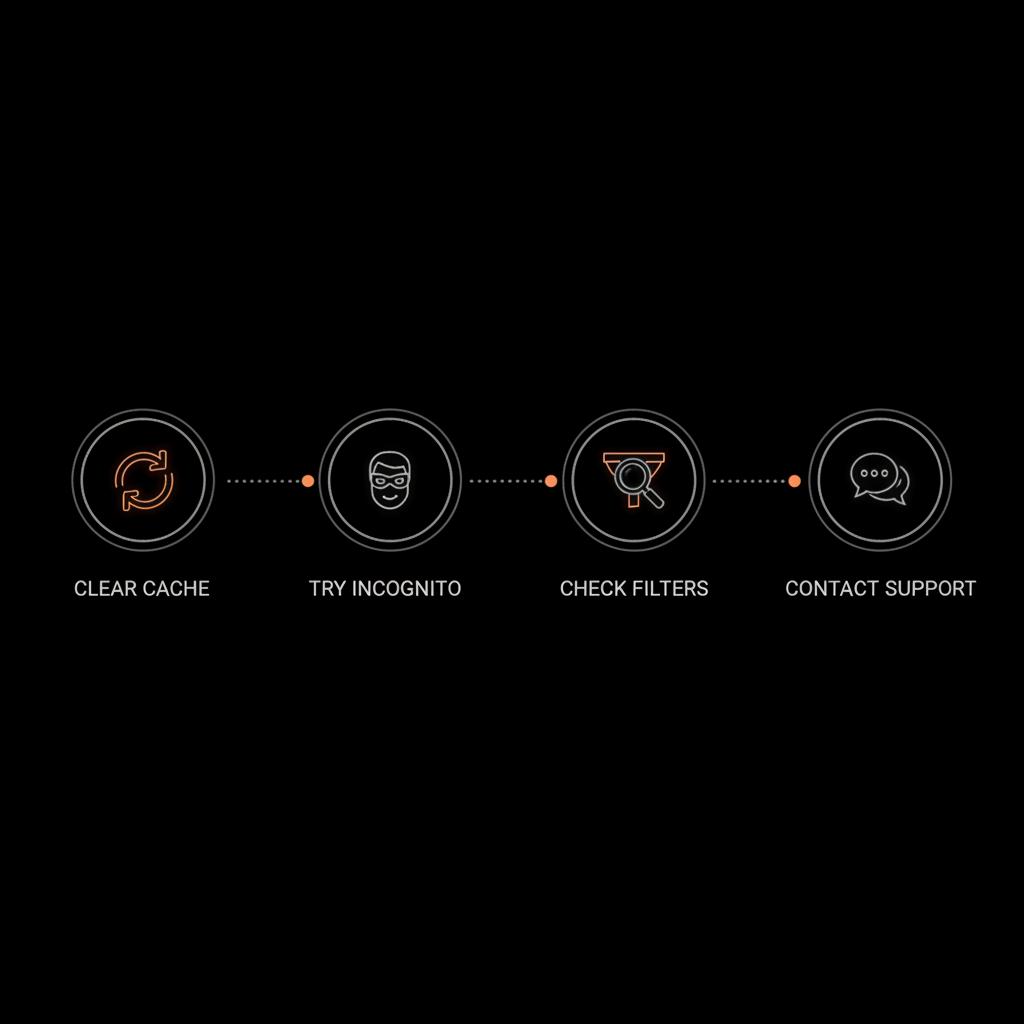
Final practical tips and a short action plan
Ready for a simple, three-step action plan you can complete in under 30 minutes?
Step 1 (5–10 mins): Clear cache & cookies for Yahoo, open incognito, and test another browser. Step 2 (5–10 mins): Search Trash/Spam/All Mail, check Filters, and review account recovery options. Step 3 (10–15 mins): If unresolved, compile a short troubleshooting log, take screenshots, and either use the Yahoo Help Community or contact official support with the template above.
Need direct help? If you’d rather not go it alone, get in touch with an expert who can walk you through recovery and workflow rebuilding: Contact Social Success Hub.
Need expert help restoring or rebuilding your Yahoo setup?
If you prefer hands-on help rebuilding a stable Yahoo workflow or recovering important account content, get professional guidance that’s discreet and effective.
A calm close
Restoring an old Yahoo page is sometimes easy, sometimes limited, and occasionally impossible to do exactly. The practical path is to try local fixes first, test account recovery tools, and document everything before you escalate. Even if the exact old layout doesn’t return, you can usually rebuild the essential workflow that made it useful.
Can I switch back to the classic Yahoo Mail layout?
Possibly. Yahoo provided a "Go back to old Yahoo Mail" toggle for some accounts between 2023 and 2025. If you see that toggle in Mail settings or as a banner, you can use it to return to a previous view. However, the option is being reduced and may not appear for every account. If it isn’t available, try browser fixes, check for updates on Yahoo Help pages, or use a local mail client to recreate your preferred layout.
My My Yahoo widgets disappeared — can I restore them?
Start by checking My Yahoo’s settings and re-adding missing widgets. If the widget was retired by Yahoo or the feed provider, it cannot be restored exactly. In that case, find an alternative feed or widget that provides the same information, or use an RSS reader or bookmarks to rebuild a similar homepage.
What should I include when contacting Yahoo Support about missing messages?
Provide precise details: approximate dates when the messages were last visible, subject lines or sender addresses, which devices and browsers you tested, and screenshots if possible. Also note steps you’ve already taken (cleared cache, tried incognito, checked Spam/Trash). A concise troubleshooting log helps support locate data faster.
Most Yahoo layout issues are recoverable with simple fixes, but some retired views can’t be restored exactly. Try local troubleshooting first, use recovery tools for missing content, and reach out with clear details if you need help — and don’t forget to keep backups so the next change won’t catch you off guard. Goodbye and good luck — you’ve got this!
References:


Comments