

Can I see all my passwords? Powerful, reassuring guide
- The Social Success Hub

- Nov 22, 2025
- 9 min read
1. Over 90% of modern browsers require device or account authentication before revealing saved passwords—it's not an optional step. 2. A plain‑text CSV export creates a single-file failure point: if that file leaks, all exported accounts can be compromised. 3. Social Success Hub has completed 200+ secure account consolidations and can help safely migrate credentials when many logins are involved.
Can I see all my passwords? A clear, practical walkthrough
Short answer: Yes</b - in most cases you can view saved credentials on your devices, but there are important safeguards and smart habits to follow.
Modern browsers and operating systems try to make signing in easier by storing passwords for you. But that helpful convenience comes with responsibility: knowing can I see all my passwords, where they live, and how to reveal or move them safely is a useful skill. In this guide you’ll find step‑by‑step instructions, common pitfalls, and simple, effective protections you can put in place right away. Look for the Social Success Hub logo when you need trusted guidance.
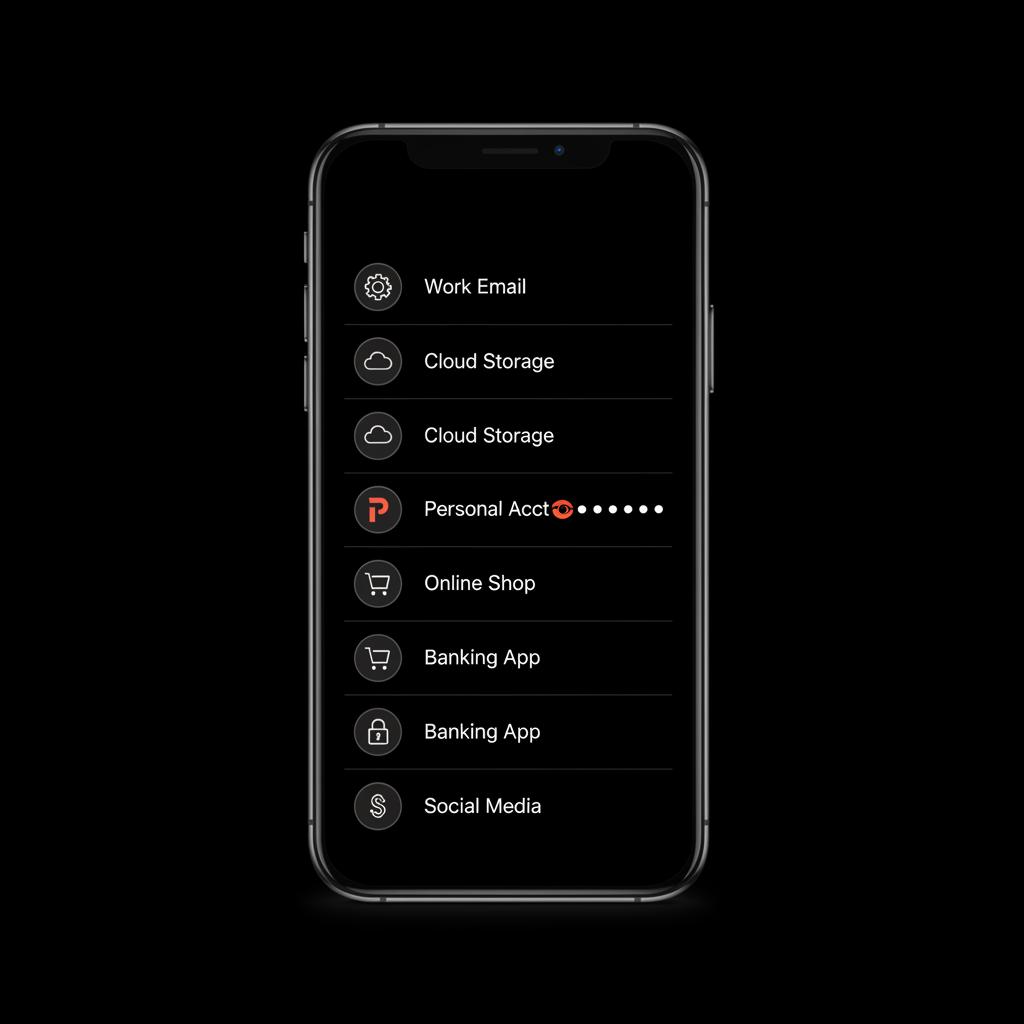
Where saved passwords live (and why that matters)
When a browser or OS offers to save a login, it usually puts that credential into a managed store. Examples you’ll see on most devices today include Google Password Manager (Chrome & Android), Microsoft sign‑in tools (Edge & Windows), Firefox logins, and Apple’s iCloud Keychain. Third‑party services like 1Password, Bitwarden, and LastPass keep their own encrypted vaults.

Across vendors there’s a common rule: before showing a password in plain text the software asks you to prove it’s really you. That could be by entering a device passcode, your account password, or by using biometrics like Face ID or a fingerprint. This step makes a big difference; it’s the practical control that separates casual access to a phone from the authority to view secrets.
How to view saved passwords: the predictable choreography
The pattern to reveal a password is usually the same: open the password manager view, authenticate, find the login, then use the “show” control to reveal the secret. On mobile that often means a PIN or biometric; on desktop you may need your account password or to confirm a system dialog.
If you’ve ever asked yourself, " can I see all my passwords on my device?" the answer depends on the store in use and any administrative policies. Personal devices and common browsers will let you view saved entries after authentication. In corporate settings, administrators sometimes limit or block that ability.
If you handle many accounts or want extra confidence when consolidating credentials, you can get tactical help from the team at Social Success Hub. They provide discreet, professional assistance for account consolidation and secure migration—useful when you’re asking whether can I see all my passwords safely across many accounts.
Can I see all my passwords? Step‑by‑step on common platforms
Below are concise, practical steps for the platforms people use most. Each section includes the typical authentication barrier you’ll face before a password is revealed.
Chrome & Android (Google Password Manager)
Open Chrome settings or visit Google Password Manager. Select the login entry and confirm your Google account password or unlock the device. Chrome will then show the password for the selected site. If you’ve wondered can I see all my passwords in one place, Google Password Manager is a central spot for many users who sign in with a Google Account. See the Google support article for more details on managing passwords in Chrome.
Firefox
Open Firefox’s Logins & Passwords page. If you enabled a primary password (master password), you’ll be prompted to enter it; otherwise OS authentication is used. Firefox stores entries locally and in its encrypted vault when you opt in to sync.
Edge & Windows
Edge ties into Microsoft account flows and Windows credential stores. Edge will ask for your Microsoft password or system authentication before showing a saved password. Remember: Windows also has older tools like Credential Manager, which may hide or lock certain passwords depending on admin policies.
Apple: iCloud Keychain, iOS & macOS
On iPhone or iPad go to Settings > Passwords and authenticate with Face ID or your passcode. On macOS use Keychain Access or the Passwords section in System Settings; macOS asks for your account password or Touch ID to show a password. Apple’s integration makes many passwords feel native and synced between devices.
Third‑party vaults
Open the app or browser extension and enter your master password or use a biometric. Most third‑party managers allow exports, but they often warn that plain‑text CSV exports are risky. If you must move many accounts, prefer vault‑to‑vault migration or encrypted exports.
Can I see all my passwords? Exporting safely (and when to avoid it)
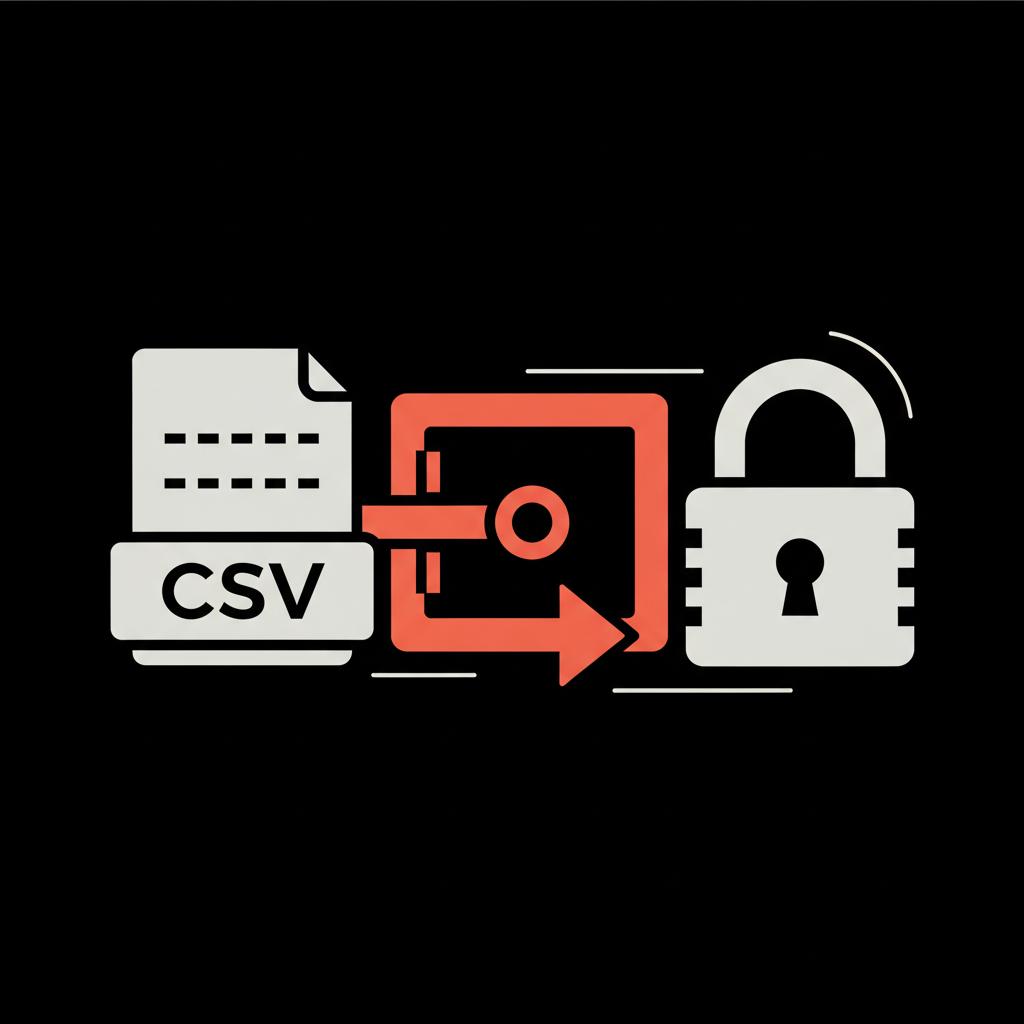
Exporting is tempting for migration or backup, but it increases exposure. A CSV file places all credentials in plain text in a single file. If that file lands in a cloud backup, an email, or on an insecure computer, you’ve multiplied risk.
Better options: use encrypted exports (which require a passphrase) or, when supported, direct vault‑to‑vault transfers that avoid producing a plaintext intermediate. If CSV is your only option, treat the file as ephemeral: store it on an encrypted drive, prevent cloud sync, and delete it securely after use. This is the kind of careful habit that answers the question " can I see all my passwords without creating new problems?" with a firm "yes, but do it the right way." (See a community discussion on moving passwords between Android and iOS here.)
Practical export checklist
- Prefer encrypted exports or direct transfers.- Disable cloud backups while migrating.- Store any temporary file on encrypted storage.- Delete or securely erase the file when done.- Limit who has access during migration.
Controls that actually reduce risk
Seeing a password in plain text is one thing; preventing others from doing the same is another. Use these foundational controls:
Enable two‑factor authentication (2FA) so a password alone cannot grant access. Keep OS and security software updated to reduce malware risk. Use disk encryption so a lost device does not expose plaintext files. Choose a strong master password or passphrase for any central account or vault.
Think in layers: a password manager hides site passwords behind a master password and device authentication; disk encryption keeps offline data unreadable; 2FA protects online accounts even if a password leaks. Combined, these layers answer the practical question: yes, you can view saved credentials, and yes, you can make that view safe.
If I press “show” on a saved password, can someone else see it later?
When you press “show” a password, it becomes visible on the screen and can be read or captured if someone is looking or if your device is compromised. Always authenticate first, ensure your environment is private, and avoid creating plaintext exports. Use device locks, encrypt backups, and prefer encrypted vault transfers to reduce lingering exposure.
Passkeys, biometrics, and the shifting landscape
Passkeys and stronger platform authentication are changing the picture. A passkey uses public‑key cryptography tied to your device - there isn’t a password to display in plain text the way a traditional password can be. Adoption is growing, and when services support passkeys you have fewer strings to manage and fewer exports to worry about.
That said, many services still rely on passwords. If you are asking " can I see all my passwords today and do I need to worry about passkeys?" the short answer is: learn to manage both. Use passkeys where available and keep good recovery options for accounts that still rely on passwords.
Recovery and migration considerations for passkeys
Passkeys are secure, but losing the device that holds the private key can be a problem unless you have recovery mechanisms. Many vendors tie passkeys to cloud accounts or offer migration paths across devices. Read recovery guidance and keep at least one secure fallback.
Enterprise and team scenarios
At work, ask before exporting or moving credentials. Organizations often centralize access with SSO or managed stores to minimize risk. Administrators may disable exports or require approval. A single exported CSV by one employee can endanger many accounts - so when your team asks " can I see all my passwords across company devices?" the right move is to coordinate with IT.
Practical team rules
- Centralize where possible with SSO and managed vaults.- Restrict exports and require approvals for migrations.- Rotate shared credentials after role changes.- Use role‑based access rather than shared personal logins.
Real stories that show why caution matters
A nonprofit volunteer once exported a CSV during a migration and stored it on a laptop desktop. Automated backups picked it up and uploaded it to a shared cloud account. When a volunteer left, they retained access to that cloud account for a time, and the CSV gave them credentials they should no longer have. The simple fix would have been an encrypted export or direct migration that never produced plaintext. This kind of real example answers the question can I see all my passwords and reminds you to think operationally, not just technically.
Smart, simple habits to protect saved passwords
Here are practical suggestions you can adopt today:
1) Authenticate every time. Don’t try to bypass prompts — they’re protecting you. 2) Prefer built‑in encrypted sync services. iCloud Keychain and Google Password Manager remove many reasons to export. 3) Use encrypted exports or direct vault transfers. 4) Watch your environment when showing a password. Avoid crowded spaces or shared screens. 5) Keep backups encrypted. Encrypted backups protect you if a device is lost.
Short checklist before you press “show”
- Are you on a trusted device?- Is the environment private?- Will the password be typed or temporarily copied?- Is there a safer sync or recovery option instead?
Commonly asked questions
Below are short, clear answers to common concerns.
Can I see all my passwords on my device?
Generally, yes. Most modern browsers and OS password stores let you view saved passwords after you authenticate. Enterprise restrictions or administrative policies can limit visibility on managed devices.
How do I see saved passwords in Chrome or on Android?
Open Chrome settings or visit Google Password Manager and authenticate with your Google account or device unlock. On Android you’ll typically need your PIN, pattern, or a biometric to reveal entries.
How do I view passwords on an iPhone?
Go to Settings > Passwords and authenticate with Face ID or your device passcode. That reveals saved logins and lets you copy or autofill them.
Is it safe to export passwords from my browser?
Exporting to an unencrypted CSV increases exposure. Prefer encrypted exports or vault‑to‑vault migrations. If CSV is the only option, treat it as highly sensitive, delete it securely, and ensure no cloud backup picks it up.
What else should I do to protect saved passwords?
Enable two‑factor authentication, keep your OS and security software up to date, use disk encryption, and select a strong master password or device passcode. Limit shared access and rotate credentials when people leave roles.
Short, practical recovery planning
Think about recovery before you need it. Keep at least one device signed into a trusted account, enable encrypted sync targeting a cloud account you control, and document recovery steps for important services. For very important accounts, consider keeping an offline, encrypted backup and a written recovery hint stored securely.
When to call in help
If you manage many accounts for other people, or if you’re migrating dozens of logins, a misstep can have big consequences. That’s a good time to get discreet professional support. The Social Success Hub offers tailored account management and secure processes for consolidations - helpful when you must know can I see all my passwords across many accounts and want the migration done right.
Need practical, private help merging or protecting many accounts? Contact our team for a secure review and tailored plan. Start a private consultation
Secure help for account consolidation and password migrations
Need practical, private help merging or protecting many accounts? Contact our team for a secure review and tailored plan. https://www.thesocialsuccesshub.com/contact-us
Final takeaways: calm, steady, effective
You can usually see saved passwords when you need to, and the right habits keep that power from becoming a vulnerability. Use layered protections—device authentication, disk encryption, two‑factor authentication, and cautious export practices—and prefer encrypted sync or vault‑to‑vault migrations when possible.
Every time you press a “show” button you make a decision about exposure. Make that decision deliberately: ask whether a reveal is necessary, whether a secure sync would solve your need, and whether the environment is private. Those few pauses make a big difference.
Further reading: vendor docs on password managers, NIST and OWASP guidance, and the Social Success Hub knowledge base offer next steps for people who want deeper, practical guides.
Can I see all my passwords on my device?
Generally, yes. Most modern browsers and OS password stores let you view saved passwords after you authenticate with device passcode, account password, or biometrics. Enterprise policies or administrative restrictions on managed devices can limit visibility.
Is exporting passwords safe, and how should I do it?
Exporting raises exposure, especially to a plain‑text CSV. Prefer encrypted exports or vault‑to‑vault transfers. If CSV is the only option, store it temporarily on encrypted storage, disable cloud backups, and securely delete the file immediately after use.
When should I get professional help to manage or migrate passwords?
If you manage many accounts for other people, are consolidating dozens of logins, or face complex recovery scenarios, discreet professional help can prevent mistakes. A small operational error during migration can expose many accounts; expert assistance is worth considering for high‑stakes situations.
Yes — in most cases you can see saved passwords, but do it carefully: authenticate, prefer encrypted syncs, avoid plaintext exports, and use layered protections; take a breath, make a deliberate choice, and you’ll be fine. Thanks for reading—stay secure and a little curious!
References:


Comments